Appearance
How to choose your website's homepage design
Your library's website has three homepage designs. Your text and images are shared across all three, so you can switch at any time without retyping anything.
Who can do thisOwner, Org admin by default, or any staff role given Org Settings → Manage in Settings → Staff role permissions.
The three designs
- Classic: bold hero, services grid, familiar library homepage. Colour palettes: Light or Dark.
- Editorial: quiet study-desk layout with numbered sections. It has no colour palettes.
- Coastal: bright four-colour look with gallery and pricing.
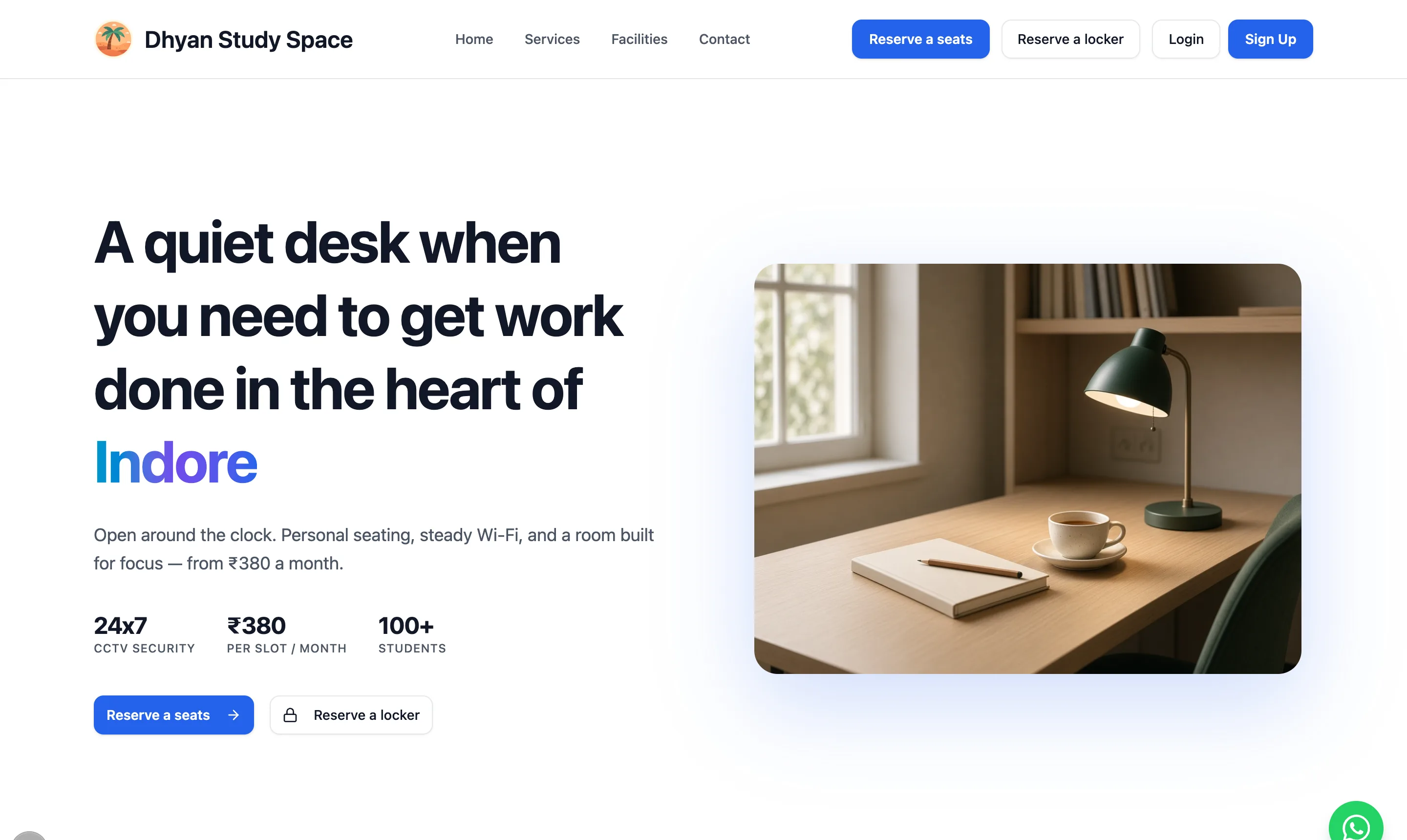
- ClassicYour headline from Hero
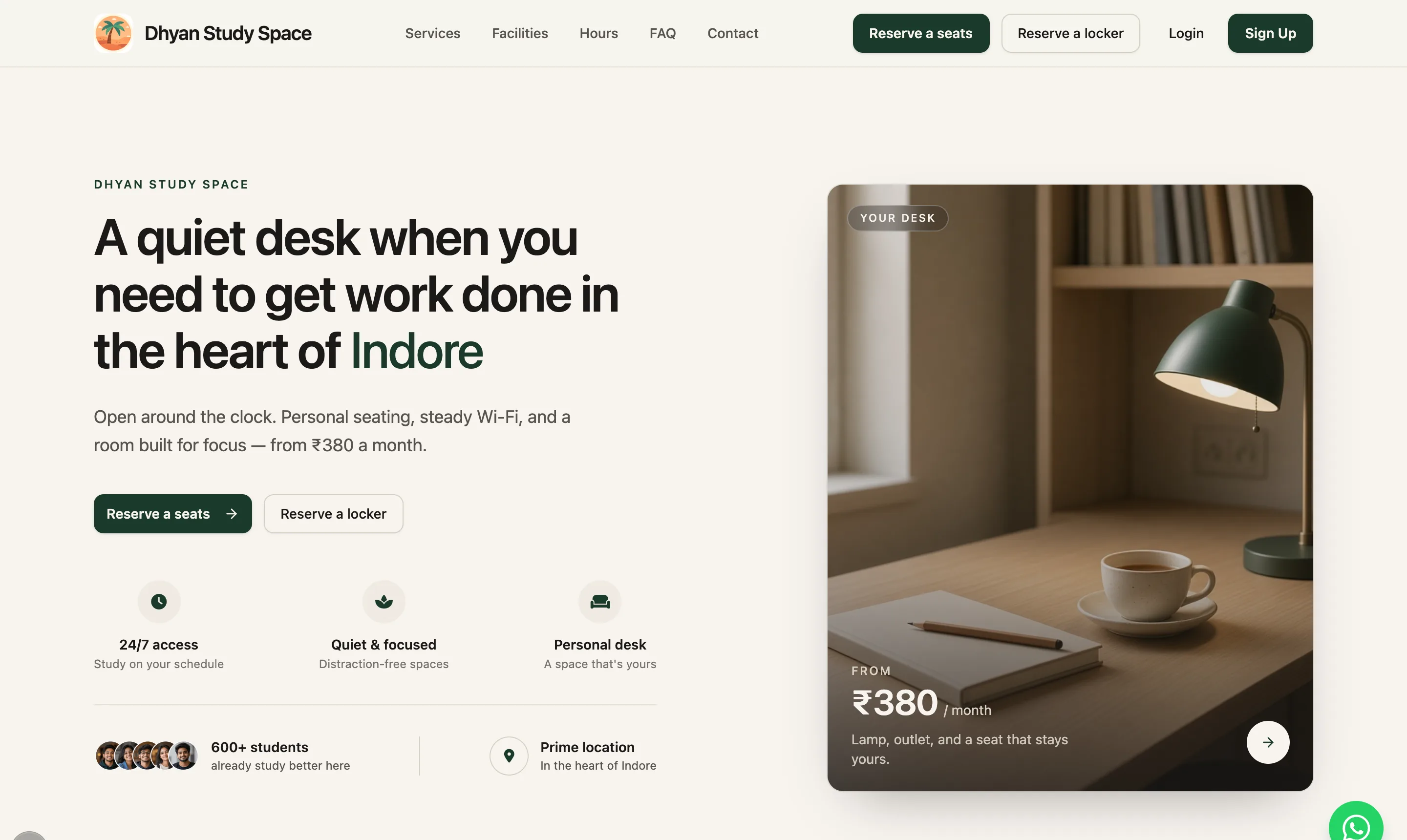
- EditorialSame text, quieter layout
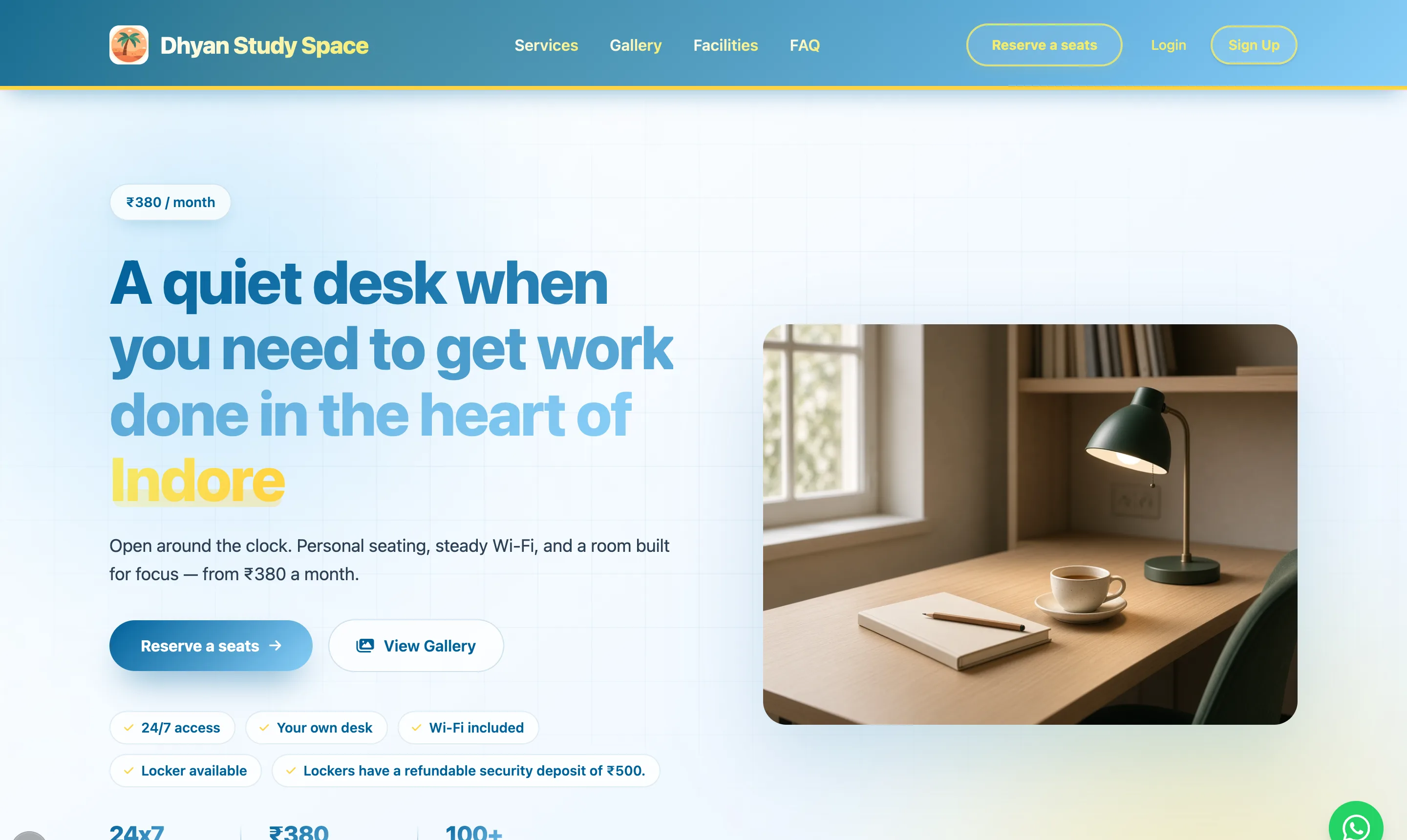
- CoastalBright colours, gallery and pricing
Choose a design
- Go to Settings → Website → General.
- Click Preview Classic, Preview Editorial or Preview Coastal to open a design in a new tab. Previews show your saved text, so save other sections first to see recent edits.
- Click the design you want.
- For Classic or Coastal, choose a Colour palette.
- Click Save changes. You see "Live homepage updated".
Fields that only some designs show
Some fields are used by only one or two designs. Under such a field you'll see a note like "Gallery: not shown on this homepage design. Shown on: Coastal." You can still fill it in. It appears if you switch to a design that uses it.