Appearance
How hourly booking works
Hourly booking lets members book a seat for the exact hours they need, such as 6 PM – 9 PM, instead of a fixed slot.
Who can do thisOwner, Org admin, Moderator by default, or any staff role given Assignments → Assign / renew / edit in Settings → Staff role permissions.
Before you start
- Turn on hourly booking for the seat. When you create or edit a seat, tick Enable Hourly Booking. Only those seats show a Book by Hour button.
- Set an hourly rate. See How to set hourly pricing.
Book a seat by the hour
- Open Seats and find a seat with a Book by Hour button.
- Click Book by Hour.
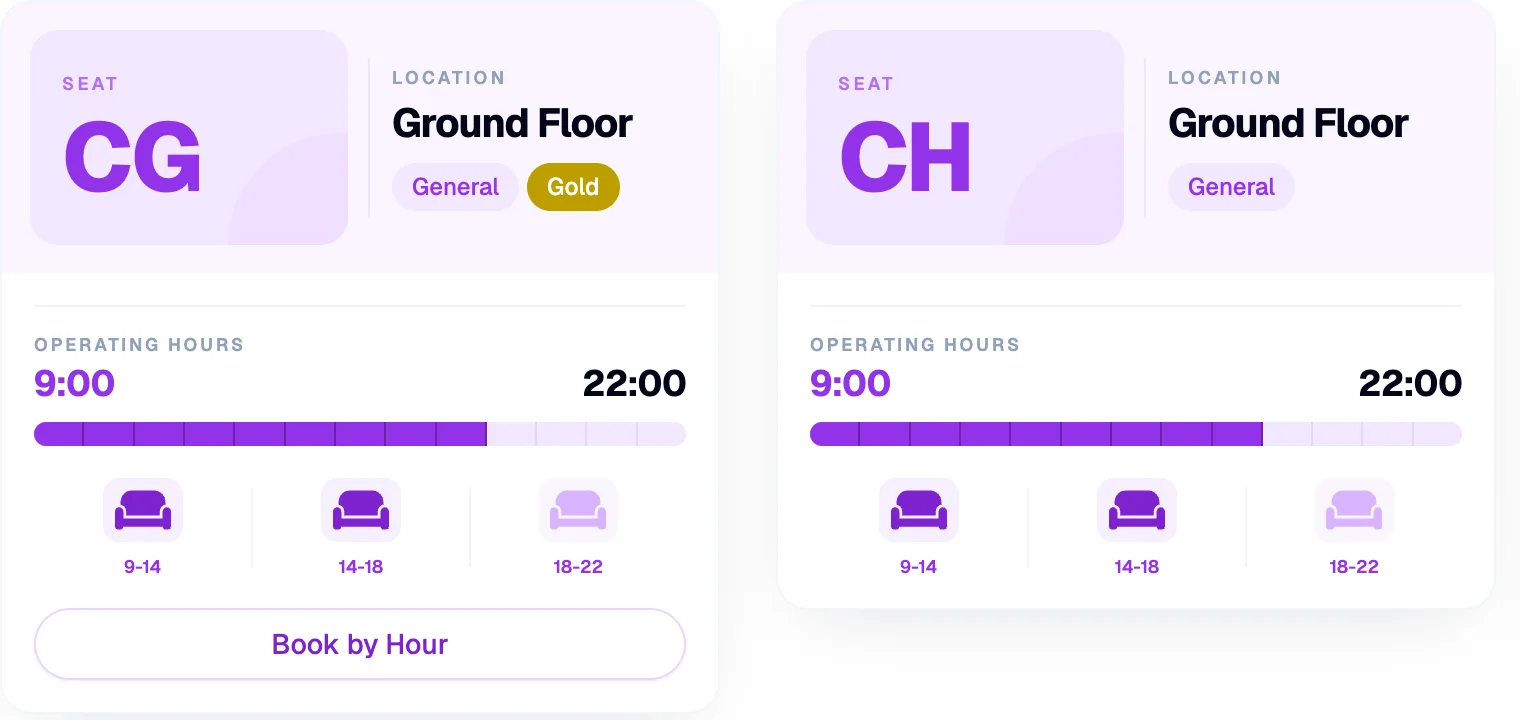
Click Book by Hour Only seats with hourly booking turned on show this button.
- Enter the member's Email.
- Set the Start Date and End Date.
- Under Select Hours, click the free hours to book. Booked hours are greyed out. The hours you pick appear under Selected Time Segments.
- Check Price Paid (₹). It's worked out from the hours and your hourly rate, and you can change it.
- Click Create Hourly Booking.
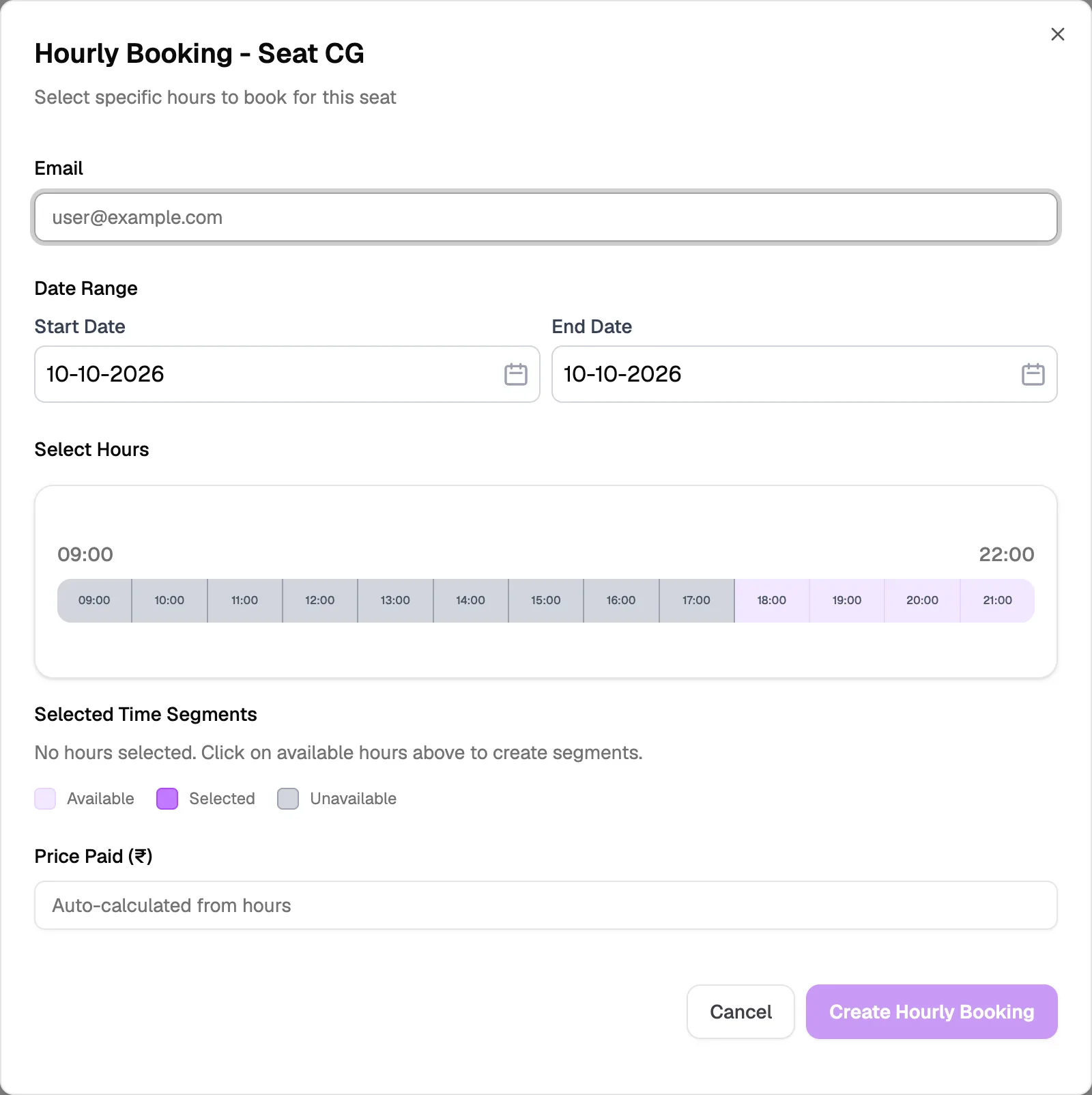
- EmailThe member's email
- Date RangeStart and end dates
- Select HoursClick free hours to book them
- Price Paid (₹)Worked out from the hours
Hourly booking options
In Settings → Organization → Seat, under Hourly booking options, you can let members renew hourly seats, allow booking by days or by the month, and set the day presets. See How to change seat settings.