Appearance
How to deactivate or delete a seat booking
When a member leaves, deactivate their booking. The seat becomes free and every receipt is kept. Delete is for bookings made by mistake.
Who can do thisOwner, Org admin, Moderator by default, or any staff role given Assignments → Assign / renew / edit in Settings → Staff role permissions.
Deactivate a booking
- In the left menu, click Assignments and search for the member.
- Click the ⋮ menu in the booking's row, then Deactivate.
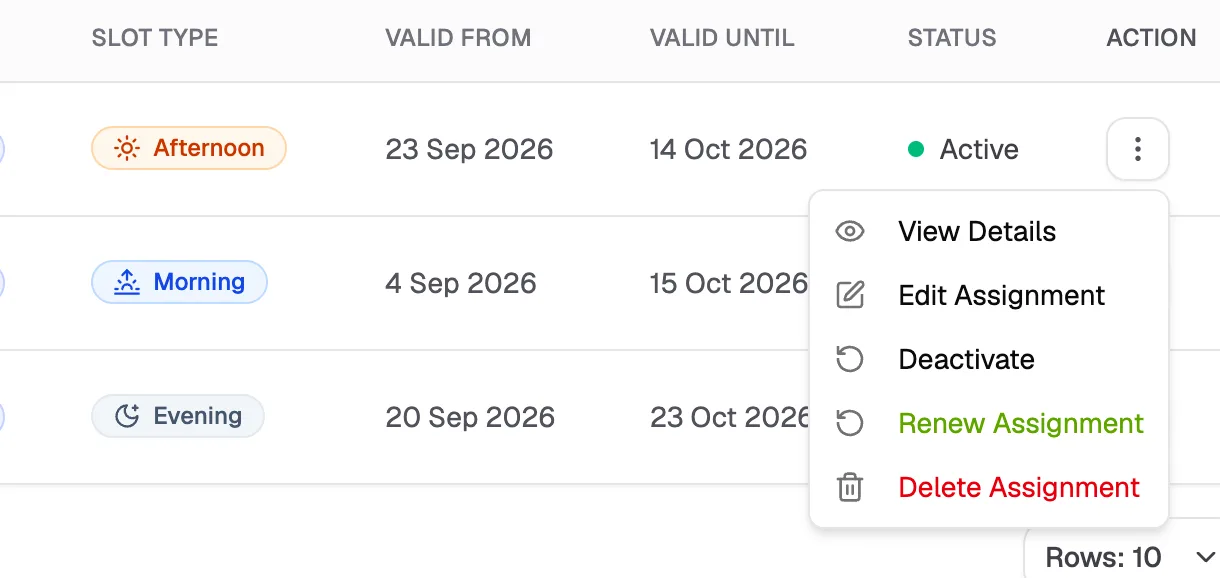
Deactivate Frees the seat straight away and keeps all receipts.
No confirmation
Deactivate happens as soon as you click it. To undo it, open the same menu and click Activate.
Delete a booking
- Open the booking's ⋮ menu and click Delete Assignment.
- Librarify checks for linked receipts and payments, then offers three choices:
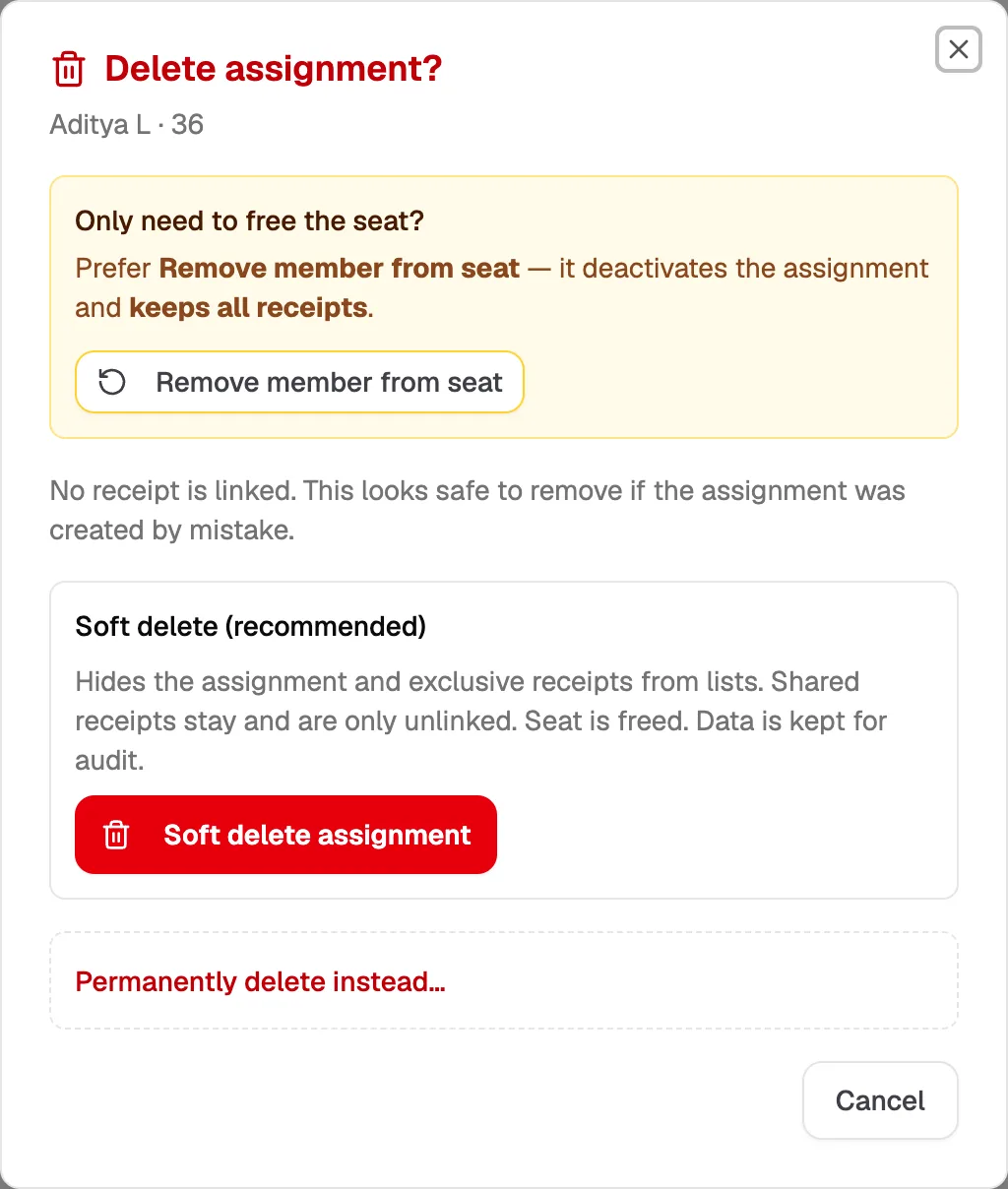
- Remove member from seatDeactivates and keeps all receipts
- Soft delete assignmentHides it from lists; data is kept
- Permanently delete instead…Gone for good
| Choice | What it does | Use it when |
|---|---|---|
| Remove member from seat | Deactivates the booking. The seat is freed and all receipts are kept. | The member has left. |
| Soft delete assignment (recommended) | Hides the booking and its own receipts from lists. Receipts shared with other bookings stay. The seat is freed, and the data is kept for audit. If receipts are linked, tick I understand… first. | The booking was a mistake. |
| Permanently delete instead… | Deletes the booking for good. You must tick a confirmation. If paid receipts are linked, you also type the receipt number (or DELETE) shown in the dialog. Sometimes permanent delete isn't allowed, and the dialog says why. | Only when you're sure. It can't be undone. |