Appearance
How to connect your own domain
Your website already works at your free Librarify address. You can also connect a domain you own, such as yourlibrary.com or www.yourlibrary.com.
Who can do thisOwner, Org admin by default, or any staff role given Org Settings → Manage in Settings → Staff role permissions.
Before you start
- Buy the domain from a domain provider (for example GoDaddy, Hostinger or Namecheap) and make sure you can sign in there.
- Have a few minutes to add DNS records at the provider. You don't change your nameservers.
Add the domain
- In the left menu, click Settings and open the Domain tab.
- Under Add a domain, type only the hostname in the box, such as
yourlibrary.com. Leave outhttps://and anything after the name. - Click Add domain. You see "Hostname saved. Add the DNS records, then check DNS."
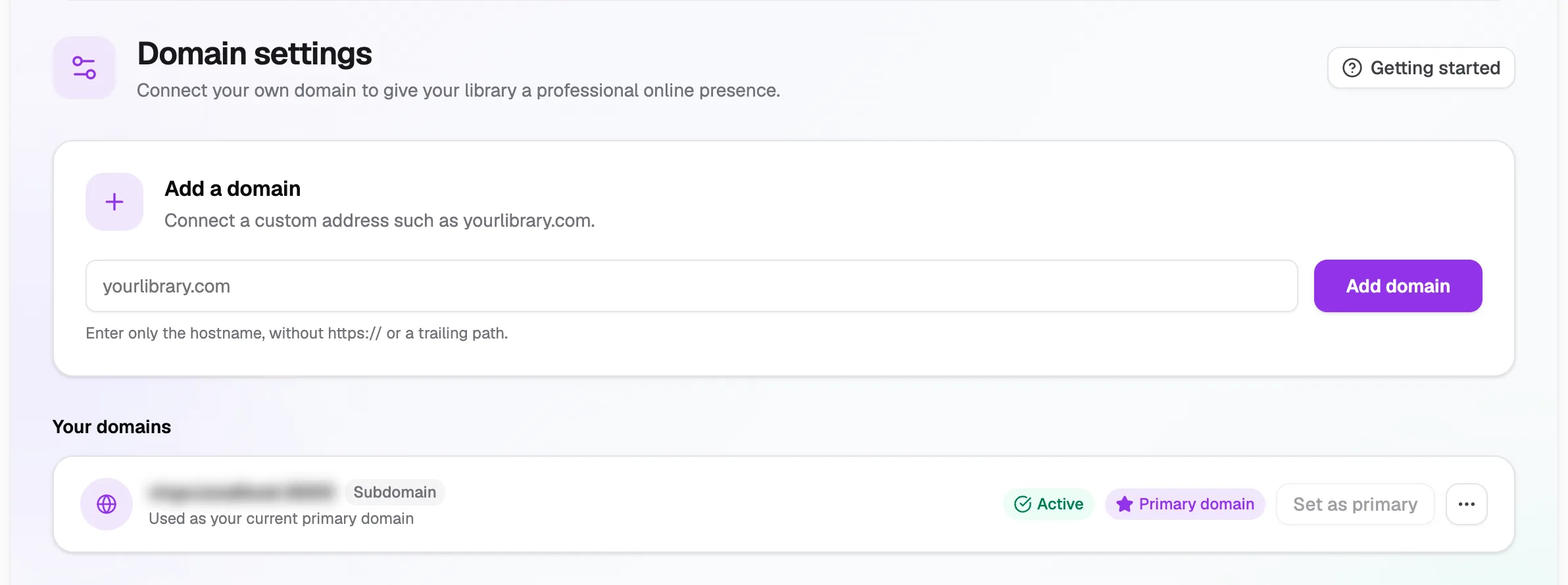
- Custom domainHostname only, e.g. yourlibrary.com
- Add domainThen add the DNS records
- Your free addressPrimary until you switch
- Domain actionsCopy the address
Add the DNS records
Librarify then shows the records to add. It's one of these, plus a TXT record if one is shown:
| Your domain | Record |
|---|---|
A main domain, like yourlibrary.com | A record, host @ |
A subdomain, like www.yourlibrary.com | CNAME record, host www |
- Sign in to your domain provider.
- Open the DNS management page.
- Add each record exactly as shown in Librarify (type, host and value).
- Wait for DNS to update. This can take from a few minutes to a few hours. Then click Check DNS in Librarify.
When it's ready you see "Domain verified. Choose which address should be public." If not, you see "DNS is not ready yet. The domain stays pending." Check the records and try again later.
Make it your main address
After the domain is verified, click Make primary on it. Visitors are then sent to your own domain, and members sign in again on that address. To switch back, click Set as primary on your free address.
Change or remove a domain
To use a different domain, type it under Replace your domain and click Update domain.
Click Remove on the custom domain. It's removed straight away, with no confirmation, so click it only when you mean it. Your website stays on your free Librarify address.
To copy an address, open Domain actions (⋯) and click Copy address.