Appearance
How to change seat settings
Seat settings control how seats look and behave across your library.
Who can do thisOwner, Org admin by default, or any staff role given Org Settings → Manage in Settings → Staff role permissions.
Open seat settings
- In the left menu, click Settings.
- On the Organization tab, click Seat.
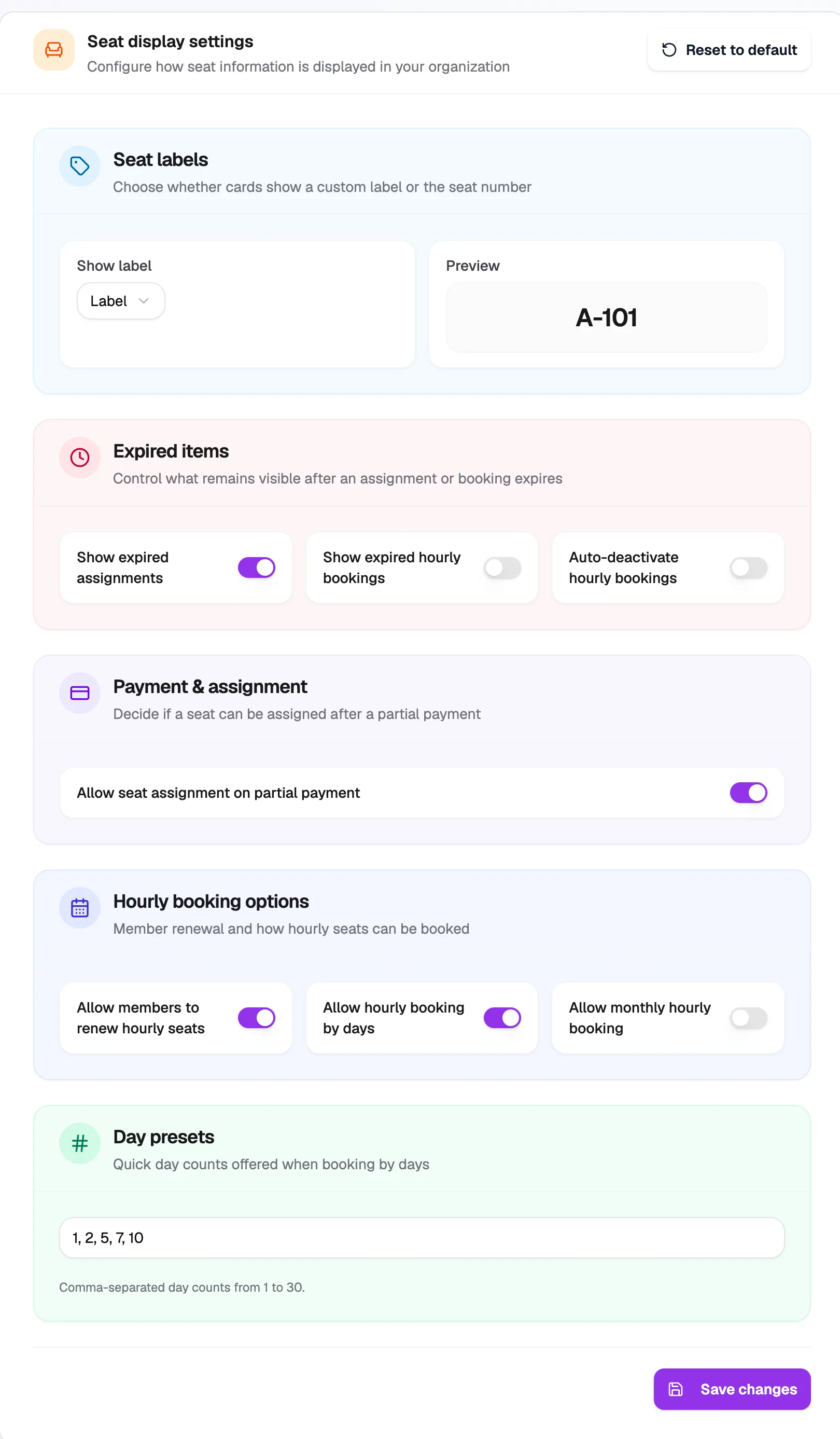
- Show labelSeat label or seat number on cards
- Expired itemsKeep expired bookings visible or not
- Partial paymentAllow booking before full payment
- Hourly booking optionsHow hourly seats can be booked
- Save changesSaves all seat settings
What each setting does
| Setting | What it does |
|---|---|
| Show label | Seat cards show your seat label (such as A-101) or the seat number. The preview shows the result. |
| Show expired assignments | Keeps expired seat bookings visible on the seat card. |
| Show expired hourly bookings | Keeps expired hourly bookings visible. |
| Auto-deactivate hourly bookings | Switches hourly bookings off by themselves once they end. |
| Allow seat assignment on partial payment | Lets you book a member into a seat before they've paid in full. |
| Allow members to renew hourly seats | Members can renew their own hourly bookings. |
| Allow hourly booking by days | Hourly seats can be booked for a number of days. |
| Allow monthly hourly booking | Hourly seats can be booked for a month at a time. |
| Day presets | The day counts offered when booking by days, comma-separated, from 1 to 30 (for example 1, 2, 5, 7, 10). |
Click Save changes when you're done. Reset to default puts every seat setting back to Librarify's defaults.