Appearance
How to add your logo and brand colour
Your logo appears on your website, your receipts and your dashboard. The brand colour is used for the main buttons in your dashboard.
Who can do thisOwner, Org admin by default, or any staff role given Org Settings → Manage in Settings → Staff role permissions.
Upload your logo
- In the left menu, click Settings. On the Organization tab, click Appearance.
- Under Organization Logo, click Upload logo and choose a PNG, JPG or WebP file of up to 2 MB.
- The logo is cropped to a square (512 × 512 px) and saved straight away. You see "Organization logo updated".
To go back to no logo, click Remove.
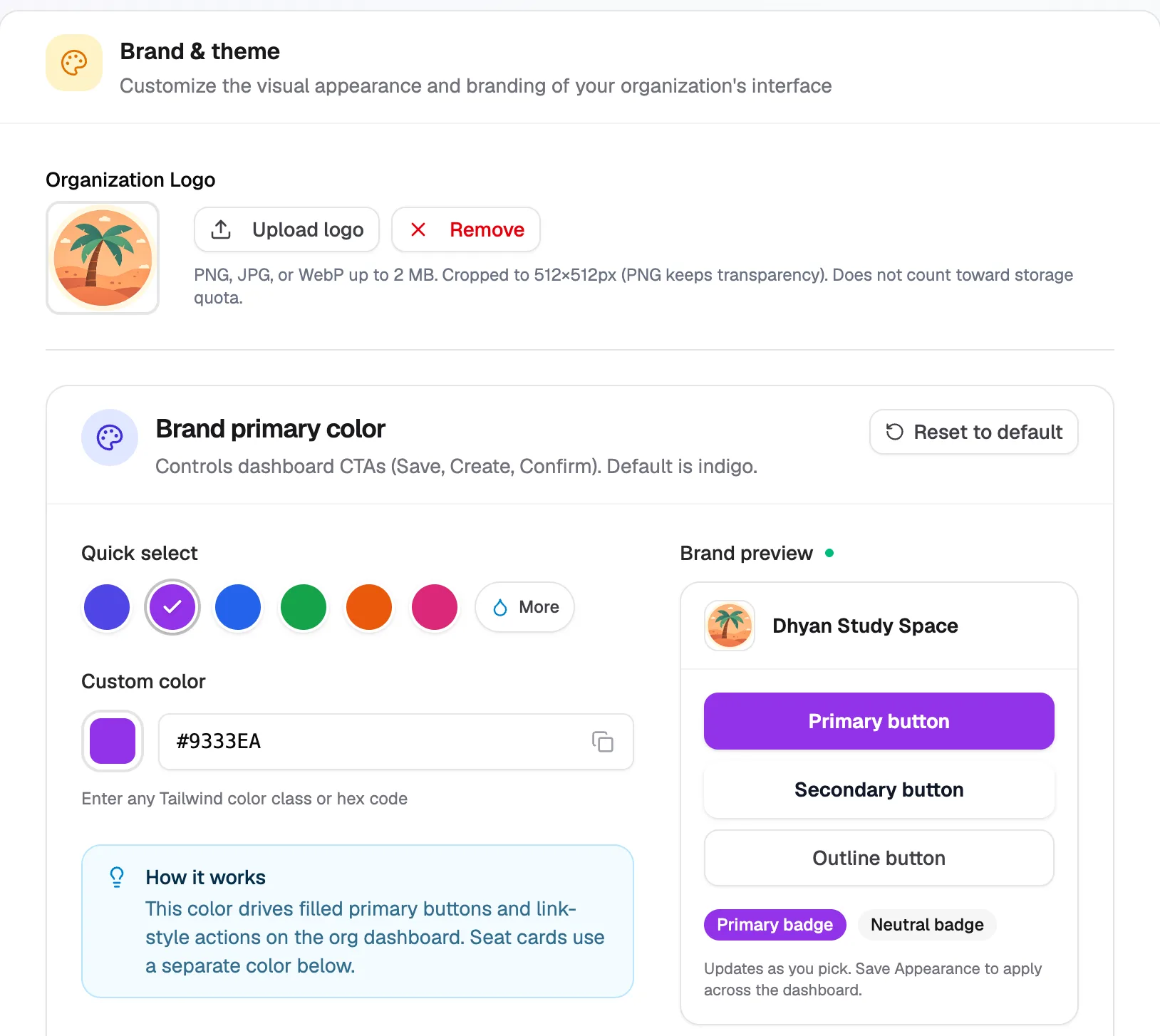
- Upload logoPNG, JPG or WebP, up to 2 MB
- Quick selectPick a ready colour
- Custom colorAny hex code, e.g. #9333EA
- Brand previewUpdates as you pick
Choose your brand colour
- Under Brand primary color, click a colour in Quick select, or type a hex code in Custom color.
- Check the Brand preview.
- Scroll down and click Save changes.
The brand colour changes buttons and links in your Librarify dashboard. Reset to default brings back indigo. Your website's colours come from its homepage design instead.
Seat card colour
The same page has Seat card color, the colour of seat cards and progress bars. Choose it the same way and click Save changes.