Appearance
How to set staff roles and permissions
Everyone in your library has a role. You decide what your staff can see and change.
Who can do this
Only the library owner can change role permissions.
The roles
| Role | Who it's for | Can do by default |
|---|---|---|
| Owner | You, the person who created the library | Everything. Only the owner can change role permissions. |
| Admin (Org Admin) | A manager you trust fully | Everything in the library: members, seats, receipts, coupons, lockers, settings, payments, website, announcements, analytics, reports, and your plan and billing. |
| Moderator | Front-desk staff | Day-to-day work: see the dashboard and members, book and renew seats and lockers, manage slots, create receipts and record payments. Not settings, coupons, payment gateways, announcements, analytics, reports or billing. |
| Member | Students | Their own seats, lockers and payments on your library's site. |
You choose a person's role when you add or edit them. See How to add, edit and remove members.
Change what a role can do
- Open Settings. On the Organization tab, click User Management, then Manage roles.
- Choose the role to change: Moderator or Org Admin.
- Each card is one area, such as Users, Seats or Receipts / bookings. Turn each permission on or off. For example, turn on Create / edit / roles under Users to let moderators add members.
- Click Save. The change applies to everyone with that role, unless they have their own custom permissions.
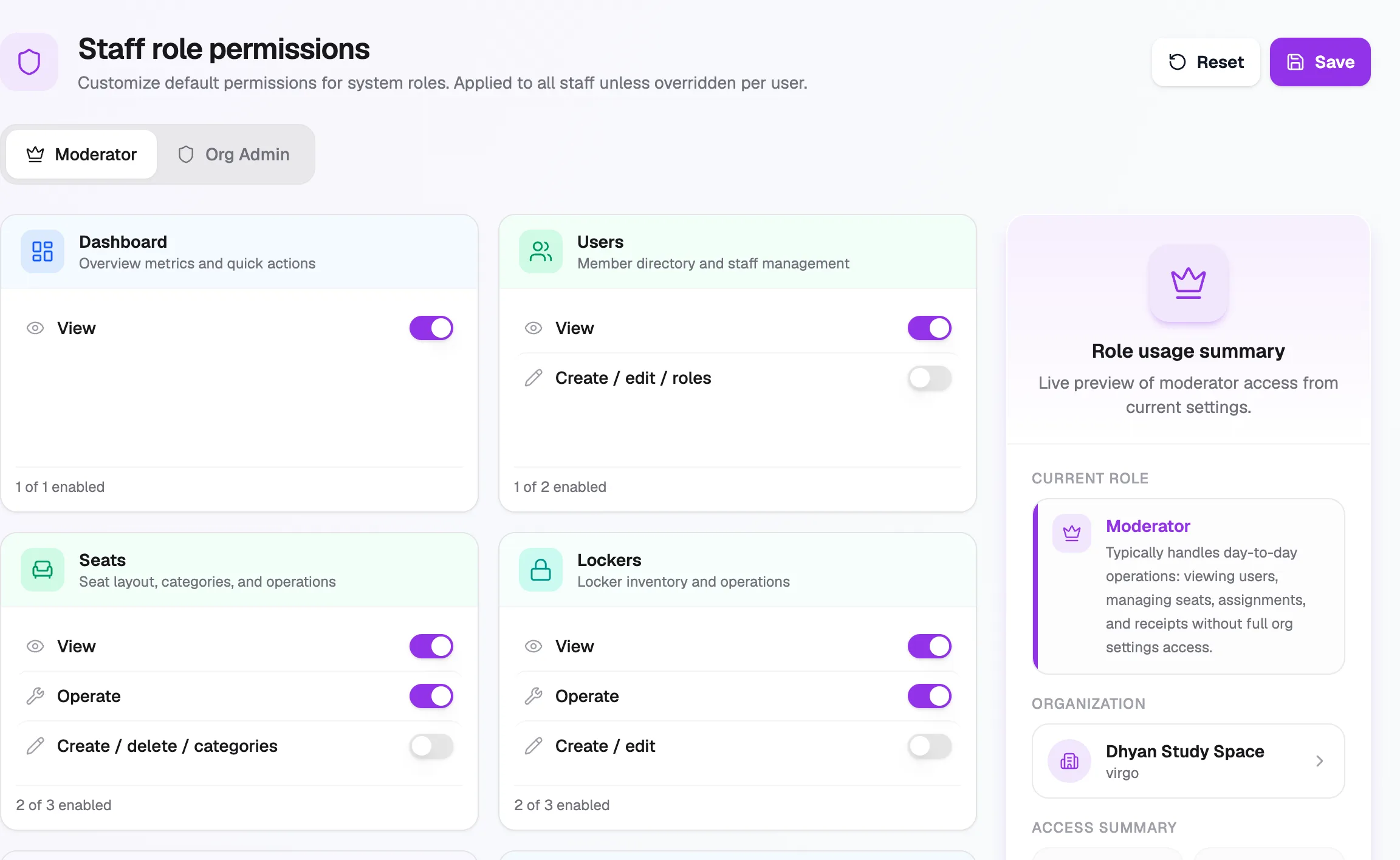
- RoleModerator or Org Admin
- ViewCan see this area
- Create / edit / rolesCan change things here
- ResetBack to built-in defaults
- SaveApplies to the role
Reset brings back Librarify's built-in defaults for the role. Click Save after it to apply them.
Give one person their own permissions
- Go to Users, open the staff member and click Edit.
- Under Access permissions, turn off Use role defaults.
- Choose exactly what this person can do, then click Save Changes.
They now keep these permissions even when you change their role's defaults. Turn Use role defaults back on to undo it.