Appearance
How online payments work in Librarify
Members can book and pay for seats and lockers on your library's site. You choose which ways they can pay.
Who can do thisOwner, Org admin by default, or any staff role given Integrations → Manage and Org Settings → Manage in Settings → Staff role permissions.
The three checkout methods
| Method | How the member pays | How the payment is confirmed |
|---|---|---|
| Cash at desk | Pays in person at your library. | Staff verify it at the desk: Receipts → ⋮ → Verify payment. |
| Dynamic QR | Scans a UPI QR for the exact amount with any UPI app. The money goes straight to your UPI ID. | Staff check their UPI or bank app and verify it. |
| Payment gateway | Pays by UPI, card, netbanking or wallet through Razorpay or Cashfree, using your own gateway account. | Confirmed automatically when the payment succeeds. |
You can turn on more than one. Members then choose one under Payment Method at checkout.
Turn on checkout methods
- In the left menu, click Settings and open the Integrations tab. You need both permissions named above to see and save checkout methods.
- Click Payment Gateways.
- Under Checkout methods, click each method to turn it on or off.
- For Dynamic QR, enter your UPI ID (VPA) and Payee display name. See Dynamic UPI QR.
- For Payment gateway, connect Razorpay or Cashfree.
- Click Save.
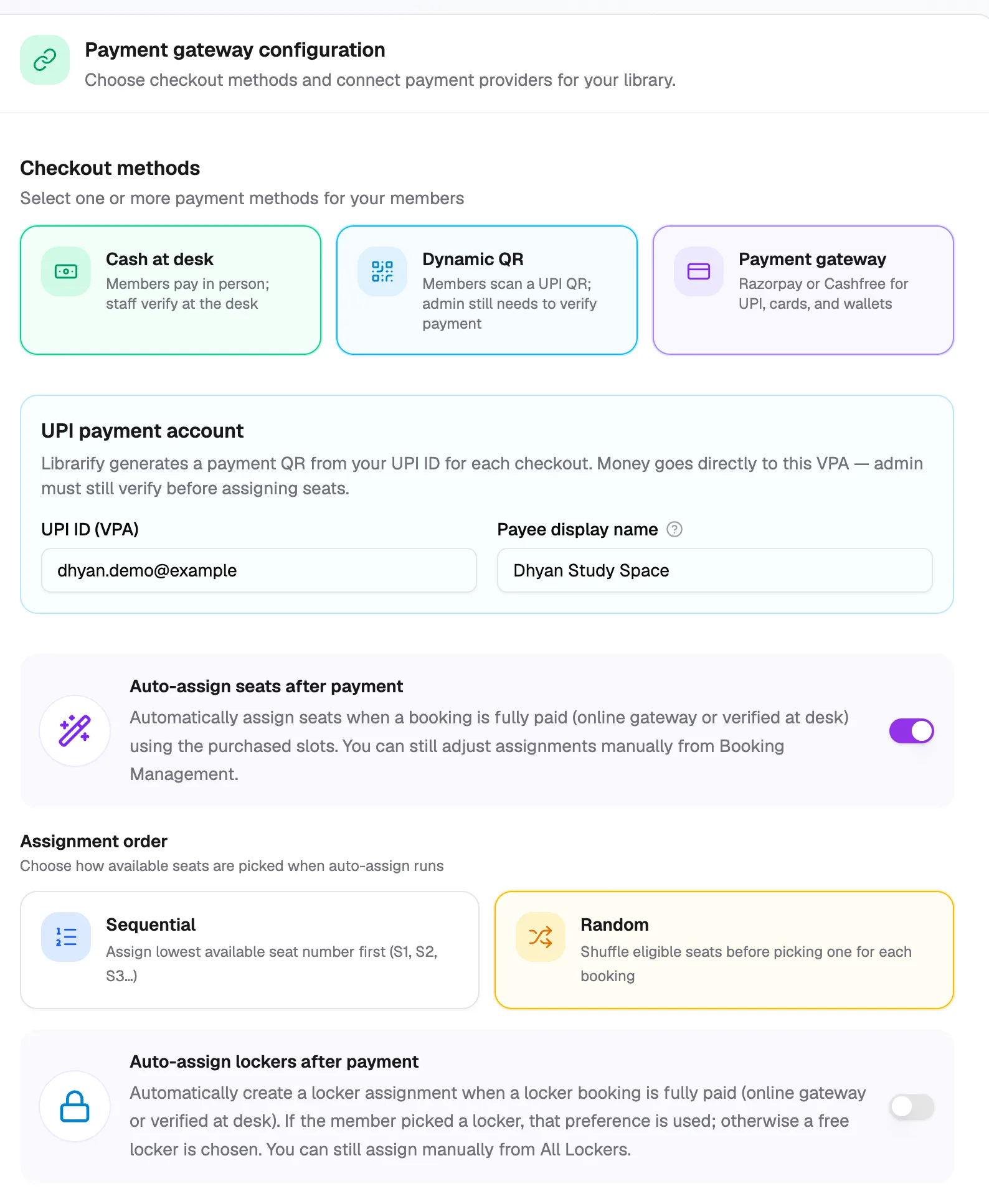
- Cash at deskPay in person, staff verify
- Dynamic QRUPI to your own UPI ID
- Payment gatewayRazorpay or Cashfree
- UPI ID (VPA)Where QR payments go
- Auto-assign seatsPlace members after payment
Check each gateway's status
Under Available Payment Gateways, each gateway shows a badge:
- Active: connected and on. Members see it at checkout.
- Configured, off: keys are saved but the gateway is switched off. Members don't see it.
- Not configured: no keys saved yet.
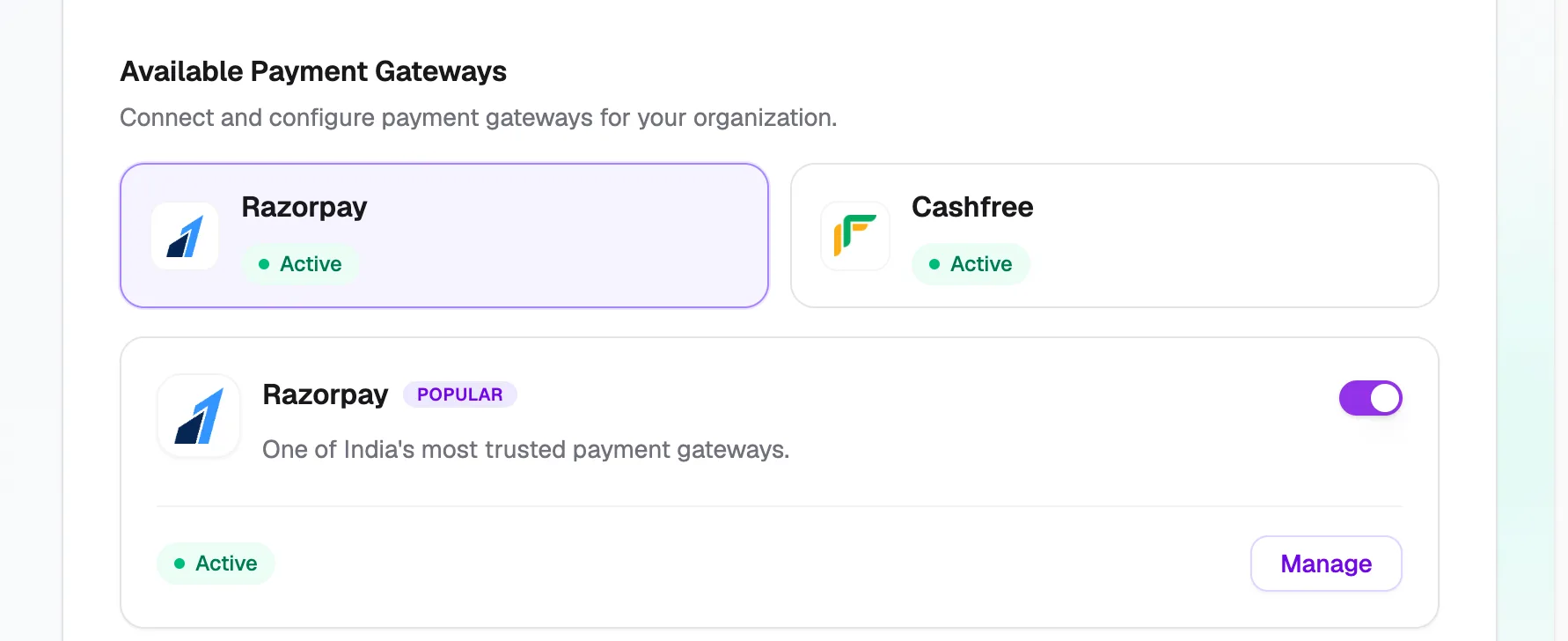
- Gateway tabsEach shows its status
- On/off switchSaves on its own
- ManageKeys and webhook
What members see
On your library's site, a member opens My Seats and clicks Reserve Seat. They pick a start date, the seat type and one or more time slots. They can add a locker for the same period. Reserve now takes them to checkout. Nothing is booked yet.
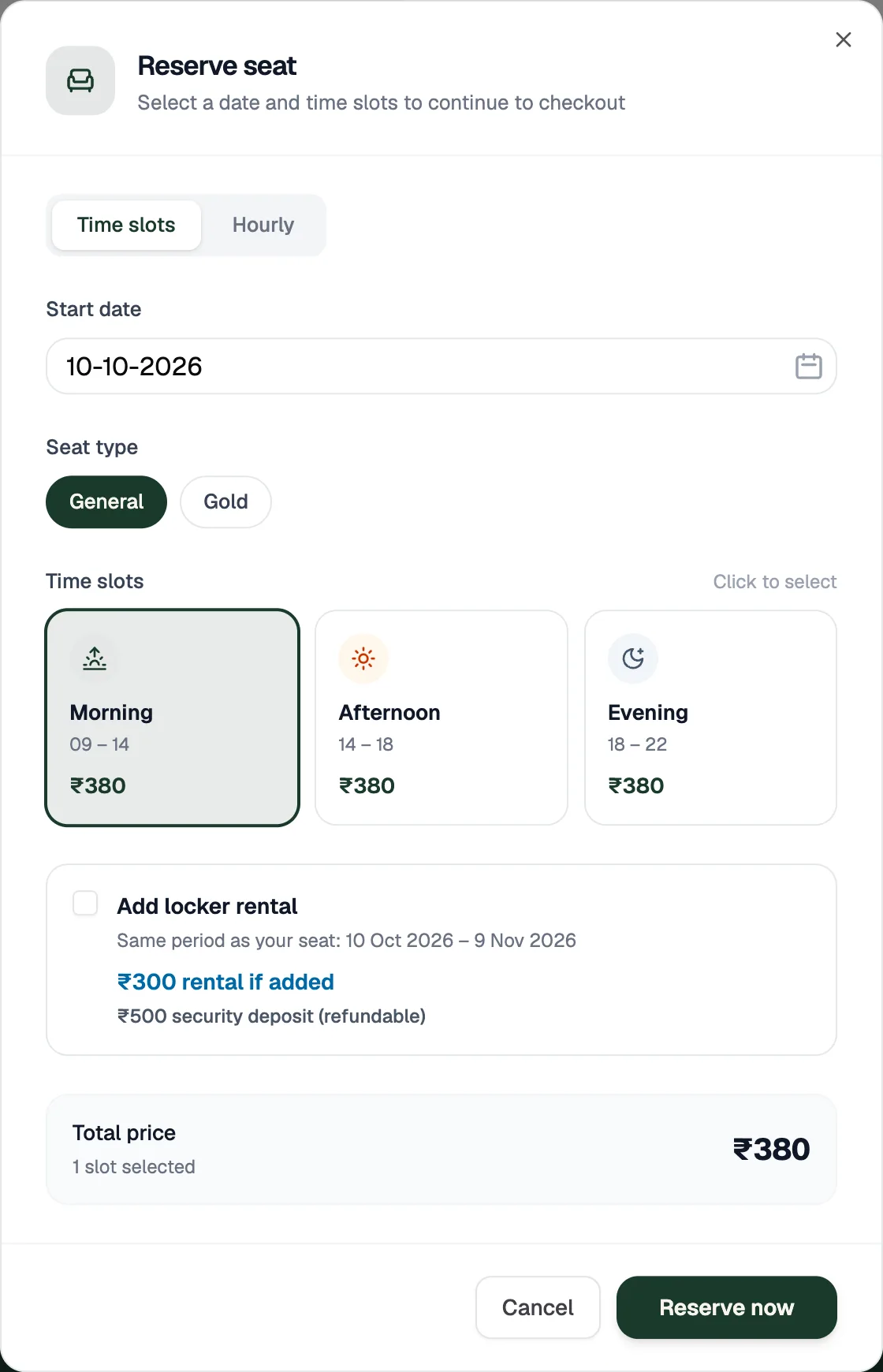
- Seat typePrices come from your seat tags
- Time slotsPick one or more
- Add locker rentalRent plus deposit, if lockers are on
- Reserve nowOpens checkout
On Payment Checkout, the member can apply a coupon, then chooses one of the methods you turned on and clicks the button at the bottom. Its label follows the method: Pay ₹380 for a gateway, Continue to UPI QR (₹380) for Dynamic QR, or Reserve Now (Pay ₹380 at Desk) for cash.
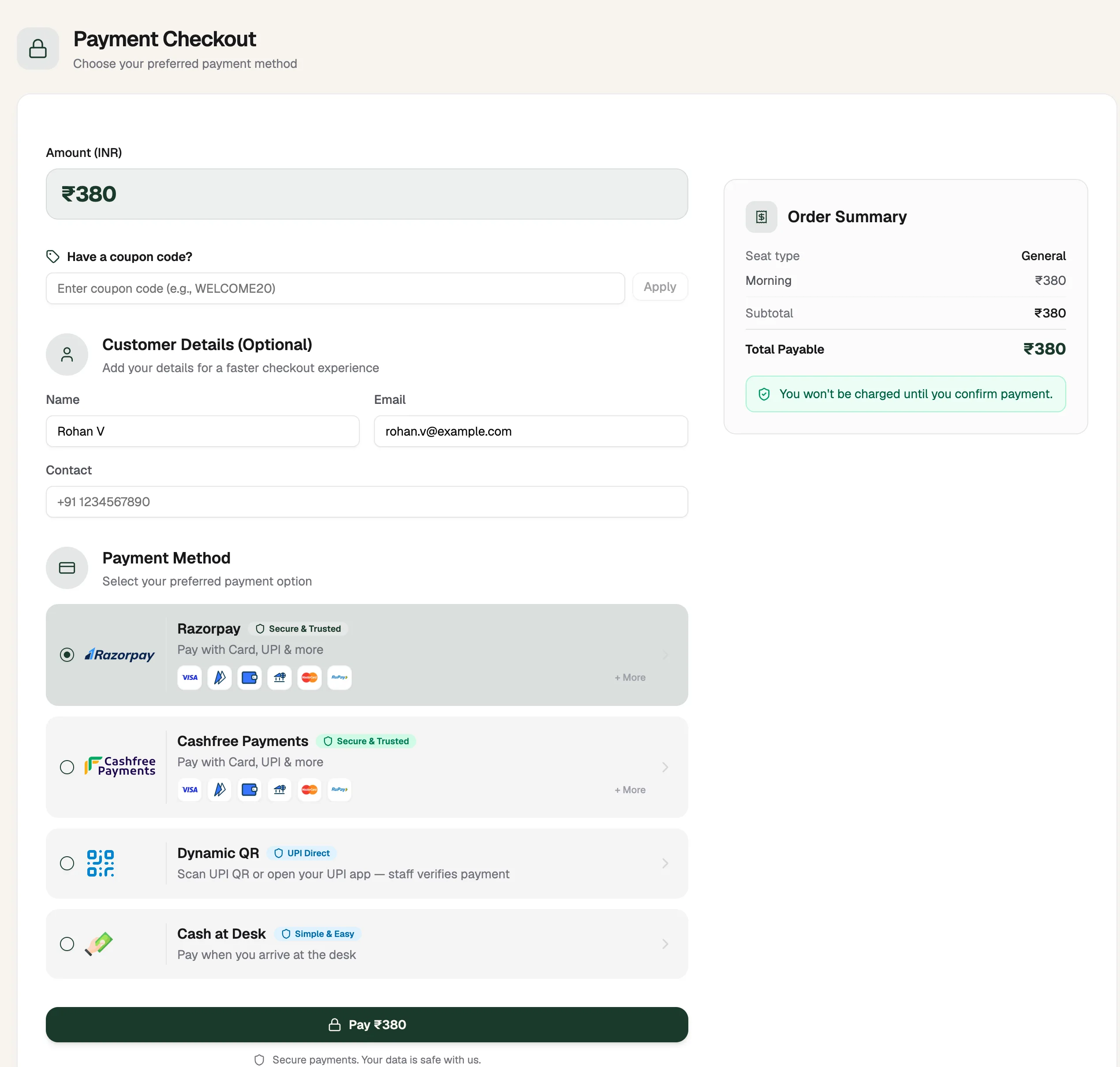
- Have a coupon code?Discount comes off before paying
- Razorpay or CashfreePays online now
- Dynamic QRPays to your UPI ID
- Pay ₹380Label changes with the method
- Razorpay or Cashfree Payments: the member pays through the gateway, and the receipt is marked paid when the payment succeeds.
- Dynamic QR: the member sees a QR for the exact amount and pays with any UPI app. The payment stays pending until staff verify it.
- Cash at Desk: the reservation is created with payment pending. The member pays when they arrive.
- If a coupon covers the full amount, no payment is needed and the reservation is confirmed straight away.
What happens after a member pays
- A receipt is created on Receipts. Gateway payments show as paid. Cash and QR payments wait until staff verify them.
- With Auto-assign seats after payment on, a fully paid booking gets a seat automatically from the slots the member bought. Choose Sequential (lowest free seat first) or Random. Without it, the receipt shows Needs seat and you place the member with Assign Seats.
- Auto-assign lockers after payment does the same for lockers. If the member picked a locker, they get that one.
- If a member paid online but no receipt appears, click Sync Pending Payments on Receipts. Librarify checks with the gateway and creates the booking if the payment went through. A webhook does this for you automatically.