Appearance
How to edit your website's sections
Each part of your homepage has its own section under Settings → Website. Change the text, then click that section's Save changes.
Who can do thisOwner, Org admin by default, or any staff role given Org Settings → Manage in Settings → Staff role permissions.
Hero: headline and buttons
The top of the homepage, the first thing visitors see.
- Headline and Subheadline. Turn on Colour the city name to highlight
{{city}}in the headline. - Primary button and Locker button: the words on the booking buttons.
- Hero image link: paste a link to an image that's already online, starting with
https://. Leave it blank to use the built-in photo. - Closing section: the banner near the bottom of Classic and Editorial.
- Show highlights and Social proof: the icon row and student count under the Editorial hero.
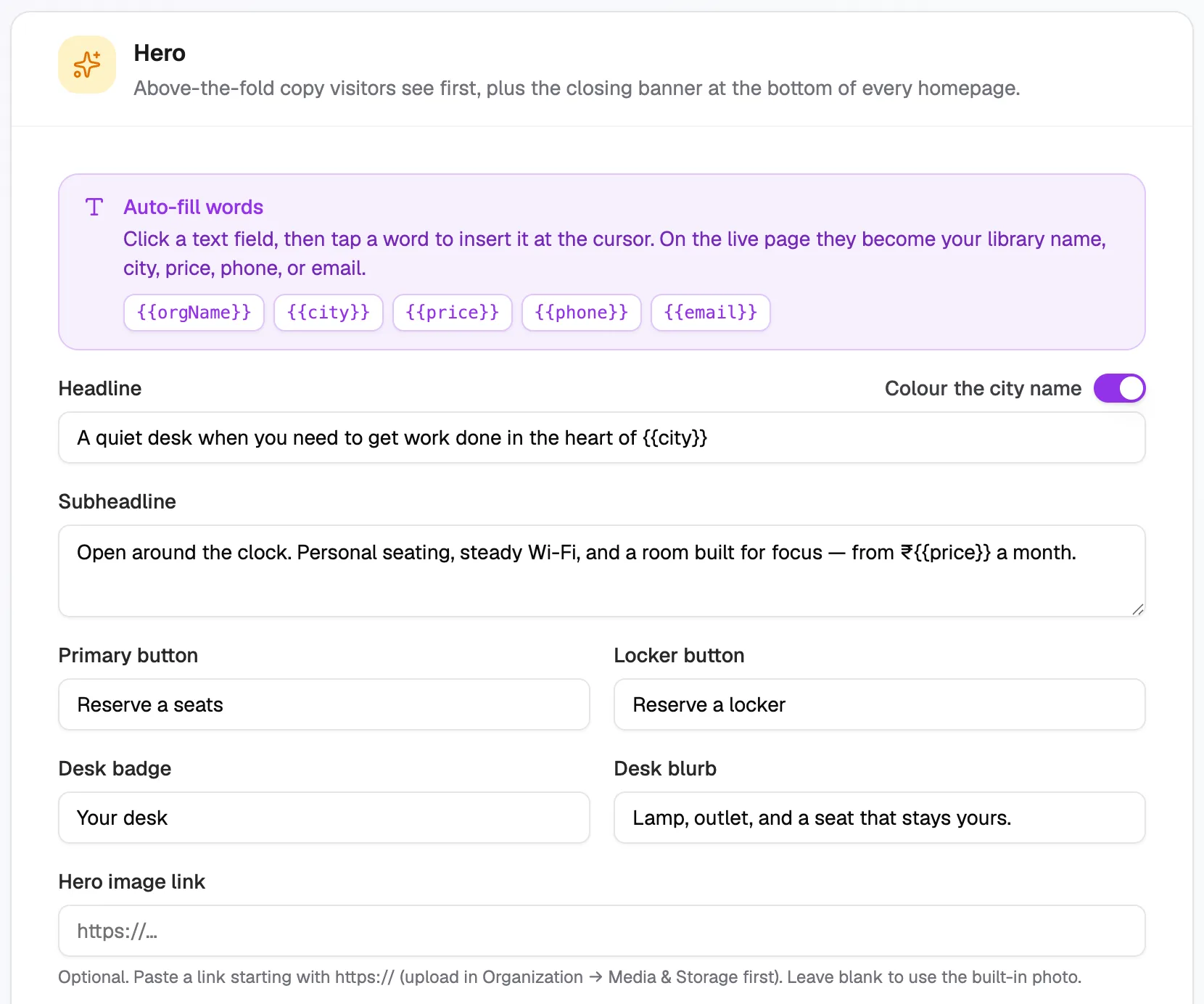
- Auto-fill wordsClick to insert, e.g. city
- HeadlineBiggest text on the page
- Primary buttonLabel of the booking button
- Hero image linkBlank uses the built-in photo
Services and Facilities
Lists of what you offer and your amenities. Each item has an Icon, a title and a short description. Click Add service or Add facility to add one. An empty list hides the block.
- Icons: open the free icon list, find an icon and paste its name, such as
fas fa-wifi, into Icon. - Turn on Locker-only for items about lockers. They're hidden when lockers are off in your library.
Gallery
A photo grid, shown on the Coastal design. For each photo, paste an Image URL starting with https://, add a Title and Caption, and choose a Tile size (Hero, Wide, Standard or Tall). Click Add image for more.
Hours & pricing
Opening hours come from Settings → Organization → General. This section only adds a price teaser:
- Amount (rupees): leave it blank to show your lowest seat-slot price automatically, or type a number to fix the amount.
- Period label, such as
/ month. - Offer badge and Offer detail, plus Feature bullets, are shown on the Coastal design.
FAQ
Add a Question and Answer for each common question, and click Add question for more. An empty list hides the FAQ.
Footer & social
- Footer tagline: leave blank to reuse the homepage closing line.
- Show WhatsApp button: a green button at the bottom right opens a WhatsApp chat with your contact number. Pre-filled message is the text already typed in the chat.
- Links to your Twitter / X, LinkedIn, YouTube, Instagram, Facebook and WhatsApp. An empty link hides that icon.
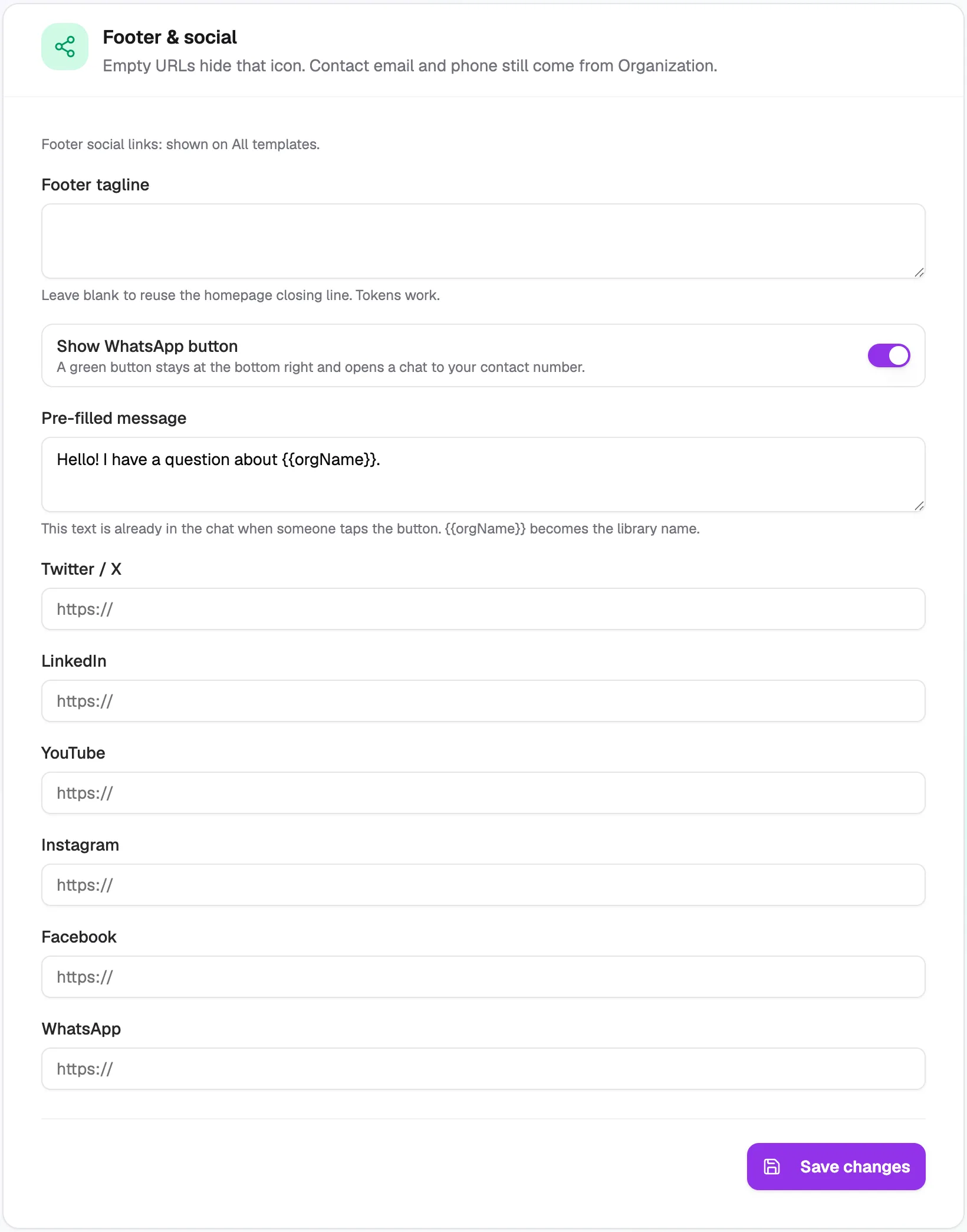
- Footer taglineBlank reuses the closing line
- Show WhatsApp buttonChat button on every page
- Pre-filled messageText already in the chat
- Social linksEmpty hides the icon
Your contact phone and email come from Settings → Organization → General.
SEO & sharing
How your homepage looks in Google and when someone shares the link.
- Title (up to 70 characters) and Description (up to 180).
- Share image link: the picture shown when the link is shared. If it's empty, your library logo is used.
- Allow Google to list this homepage: keep it on so people can find your library on Google. Settings and other app pages stay private either way.
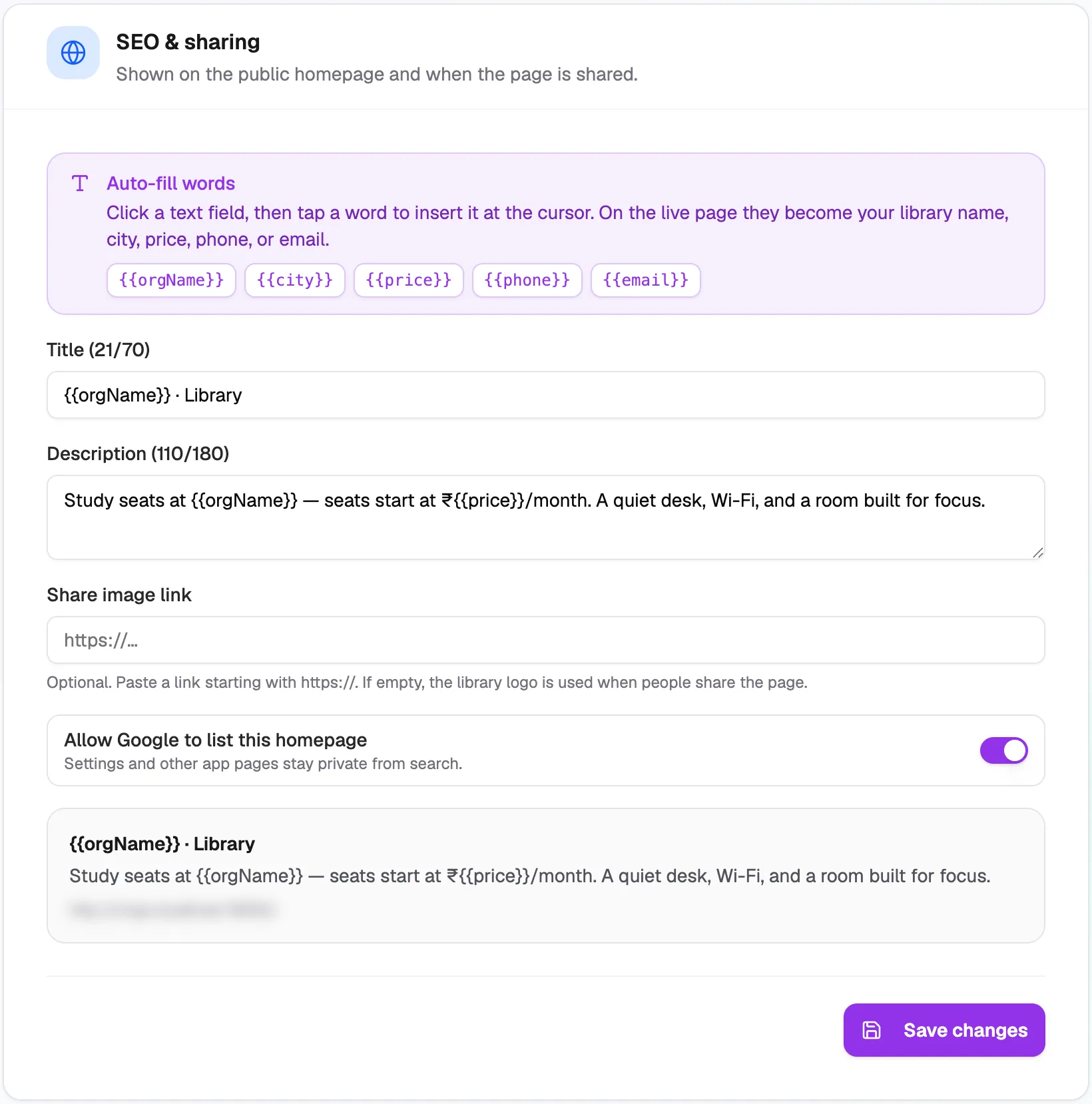
- TitleShown in Google results
- DescriptionThe line under the title
- Share image linkBlank uses your logo
- Allow Google to listKeep on to be found