Appearance
How to assign a seat slot to a member
Book a member into a seat for one or more time slots (shifts), from a start date to an end date.
Who can do thisOwner, Org admin, Moderator by default, or any staff role given Assignments → Assign / renew / edit in Settings → Staff role permissions.
Before you start
- The member must already be added to your library. You'll need their email address. See How to add members.
- The seat and your slots must exist. See How to create seats.
Steps
- Open Seats in the left menu.
- Find the seat. Each card shows its slots with an icon and the hours, such as 18-22. Lighter icons are Available, filled icons are Booked.
- Click a free slot.
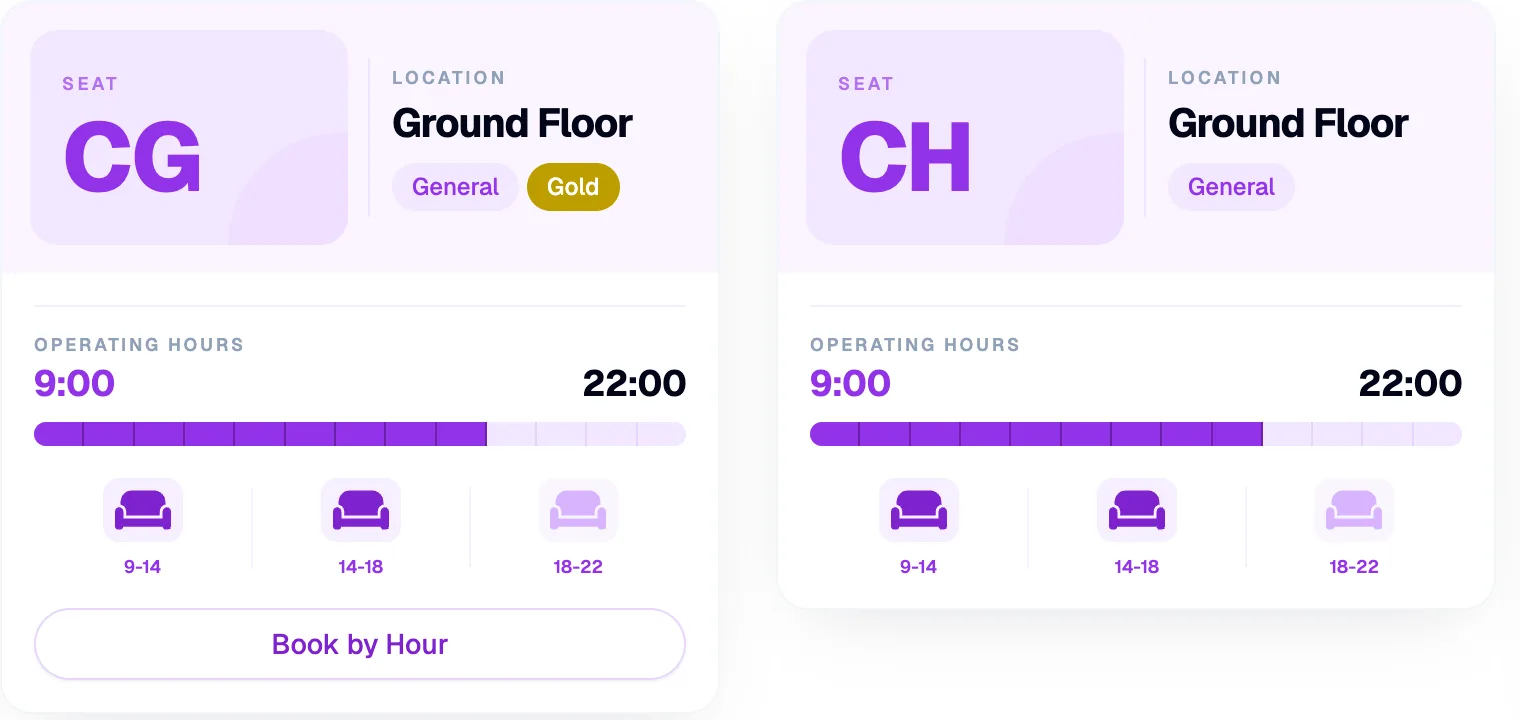
Click a free slot A lighter seat icon means the slot is available.
- In Book Seat, check the selected slot. Click more slots to book several at once. Slots that overlap can't be selected together.
- Enter the member's Email.
- Set the Start Date and End Date. Librarify shows the Number of Days.
- Check Price Paid (₹). Leave it empty to use the seat's normal price. Whole rupees only.
- Keep Generate Receipt ticked to create a receipt now.
- Click Book Seat.
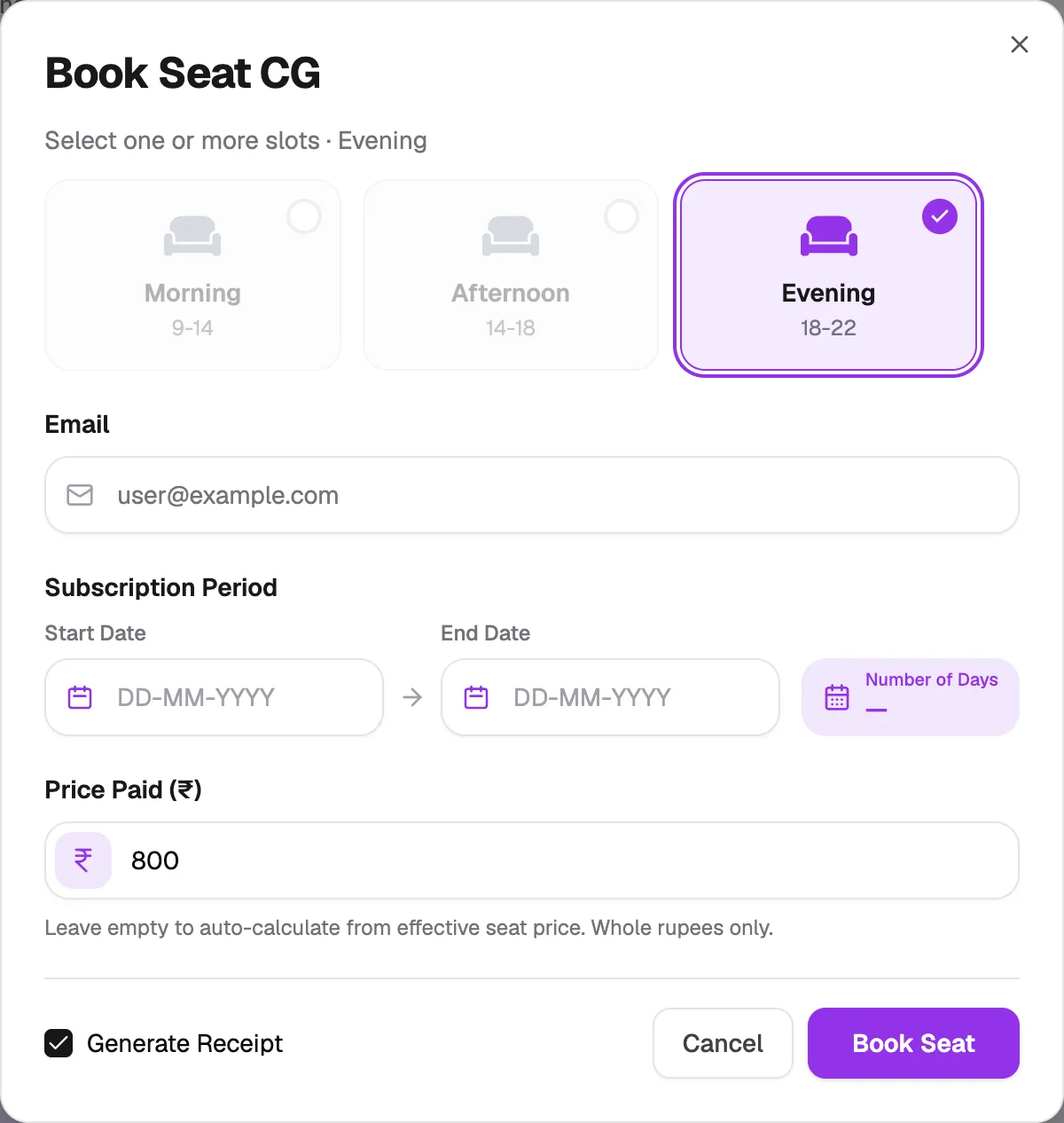
- SlotsPick one or more that don't overlap
- EmailThe member's email in your library
- Subscription PeriodStart and end dates
- Price Paid (₹)Leave empty for the normal price
- Generate ReceiptCreates a receipt straight away
What happens next
- You see "Seat assigned successfully!" and the slot shows as booked on the seat card.
- If Generate Receipt was ticked, the receipt is created and opens for you. You'll find it later on Receipts.
- To give a discount with a coupon, untick Generate Receipt and create the receipt afterwards, where you can apply the code.
- The member is notified by email or WhatsApp, depending on your library's notification settings.
- As the end date gets close, the card marks the booking Expiring soon (orange), then Expired (red).
If something goes wrong
| Message | What to do |
|---|---|
| User with email … not found in this organization | Add the member to your library first, then try again. |
| This seat is already booked for the selected time range (or another "already booked" / "overlap" message) | Pick another slot or seat, or change the dates. |
| Please select both start and end dates | Fill in Start Date and End Date. |