Appearance
How to renew a member's seat booking
When a member pays for another month, renew their booking to move its end date forward and record the payment.
Who can do thisOwner, Org admin, Moderator by default, or any staff role given Assignments → Assign / renew / edit in Settings → Staff role permissions.
When you can renew
Renew shows for bookings that are Expiring soon or Expired. On seat cards these show in orange and red.
Steps
- In the left menu, click Assignments.
- Search for the member by name or email.
- Click the ⋮ menu in the booking's row, then Renew Assignment.
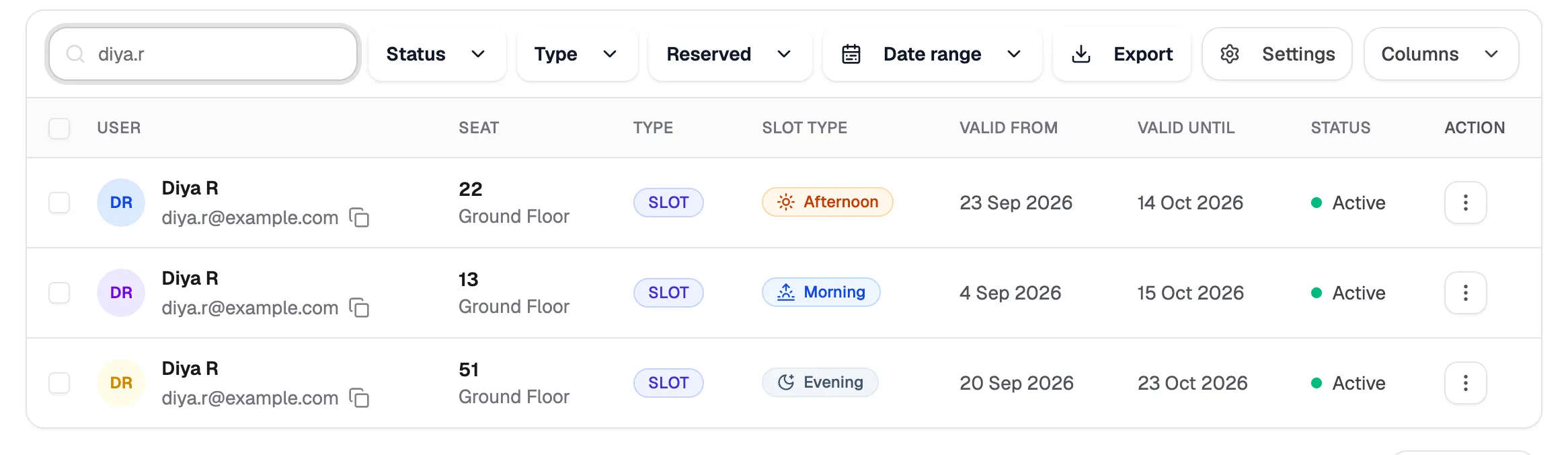
- SearchFind the member
- Valid UntilWhen each booking ends
- ⋮ menuRenew, edit or remove
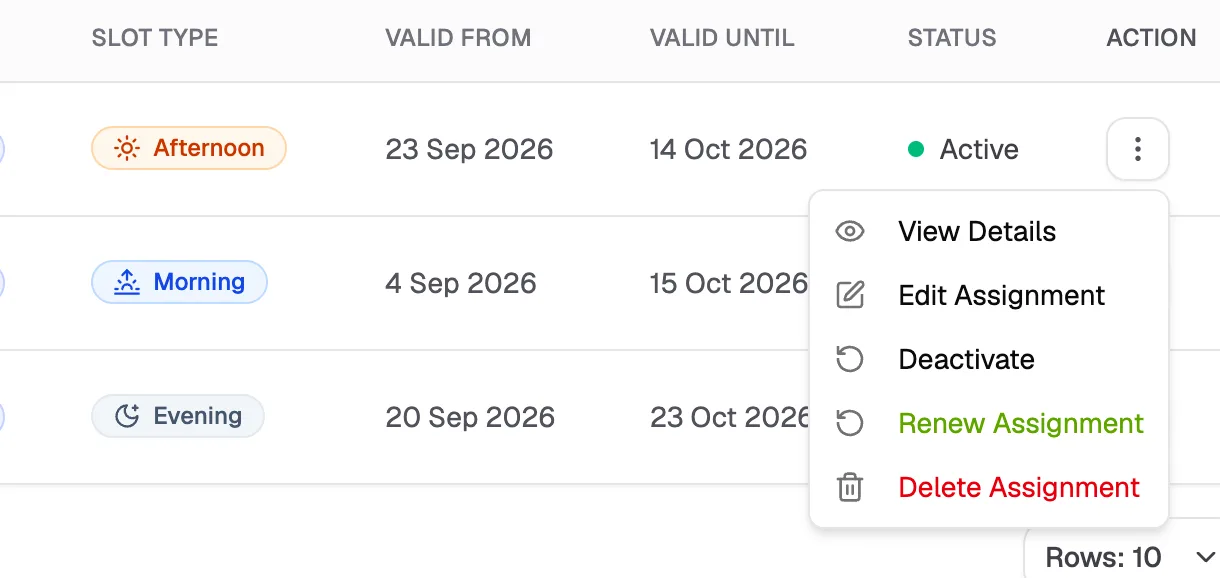
- Renew AssignmentShown when a booking is expiring or expired
- Edit AssignmentChange dates or price instead
- In Renew Assignment, check the member, seat and slot at the top, and how many days are left.
- Set the New Expiry Date. It starts at one month after the current end date.
- Check the Payment Amount (₹). Librarify suggests the usual price.
- Choose the Payment Method: Cash, UPI, Bank Transfer, Offline, Stripe or Razorpay.
- Optional: add Notes.
- Keep Generate Receipt ticked to create a receipt now, then click Renew Assignment.
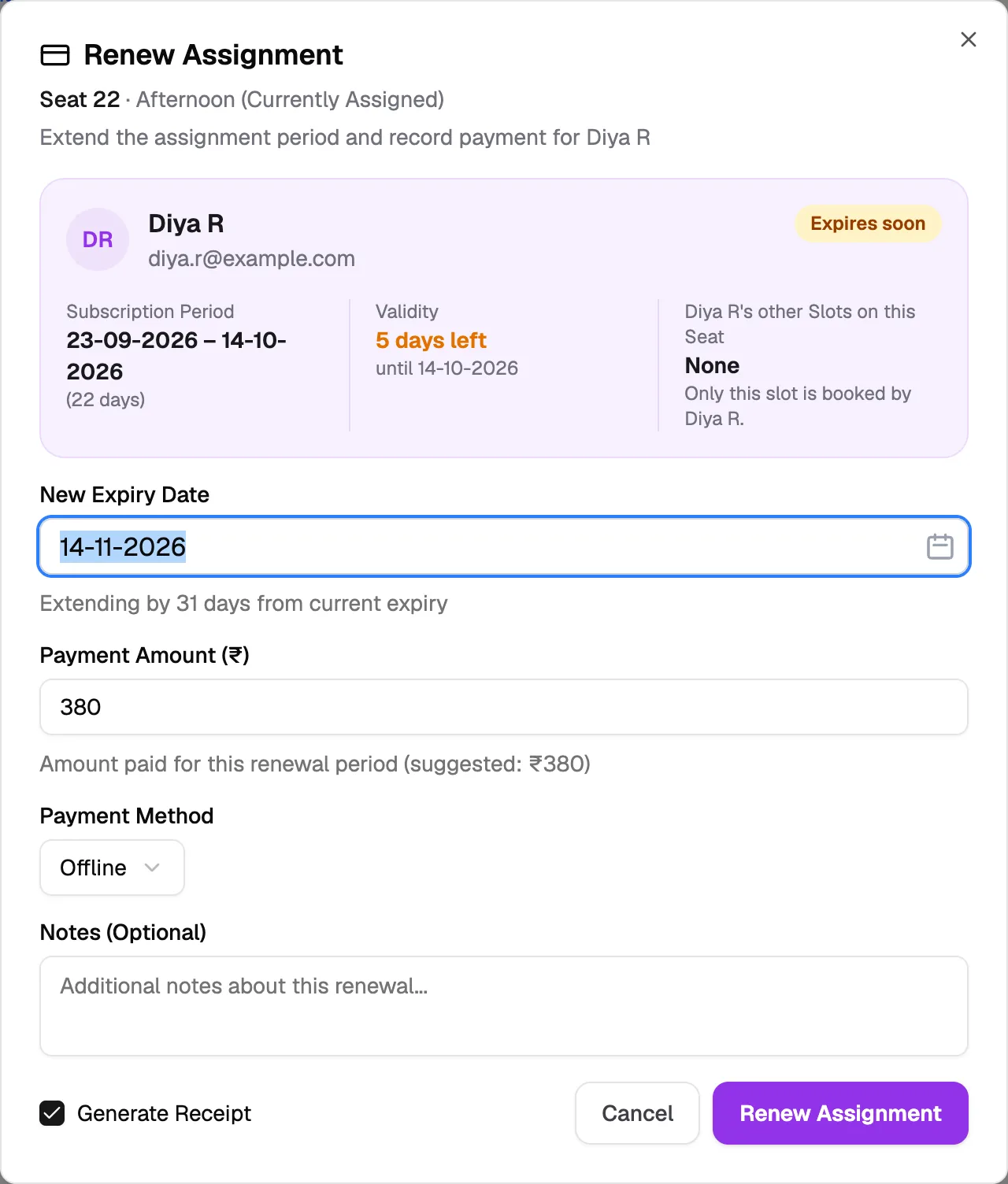
- ValidityDays left on the current booking
- New Expiry DateOne month later by default
- Payment Amount (₹)Suggested from the price
- Payment MethodHow they paid
- Generate ReceiptCreates the receipt now
Renew from a seat card
On Seats, click the member's booked slot on the seat card. In the booking that opens, click Renew. See How to change a booking.
What happens next
- The booking's end date moves to the new expiry date and its status goes back to Active.
- If Generate Receipt was ticked, a receipt for the payment is created. Find it on Receipts.