Appearance
How to add another library
You can run several libraries from one Librarify login. Each library has its own plan, seats, members and website.
Who can do this
The library owner.
Before you start
Each library needs its own plan. If you don't have an unused plan, Librarify shows the plans first. See How to buy a plan.
Steps
- Click your initials or photo at the top right, then Create Organization.
- If you have no unused plan, choose and pay for one.
- Enter the Organization Name, your library's name.
- Enter the Subdomain, the first part of your library's address, such as
mylibraryformylibrary.librarify.in. Librarify checks it and shows Available if it's free. - Click Create Organization.
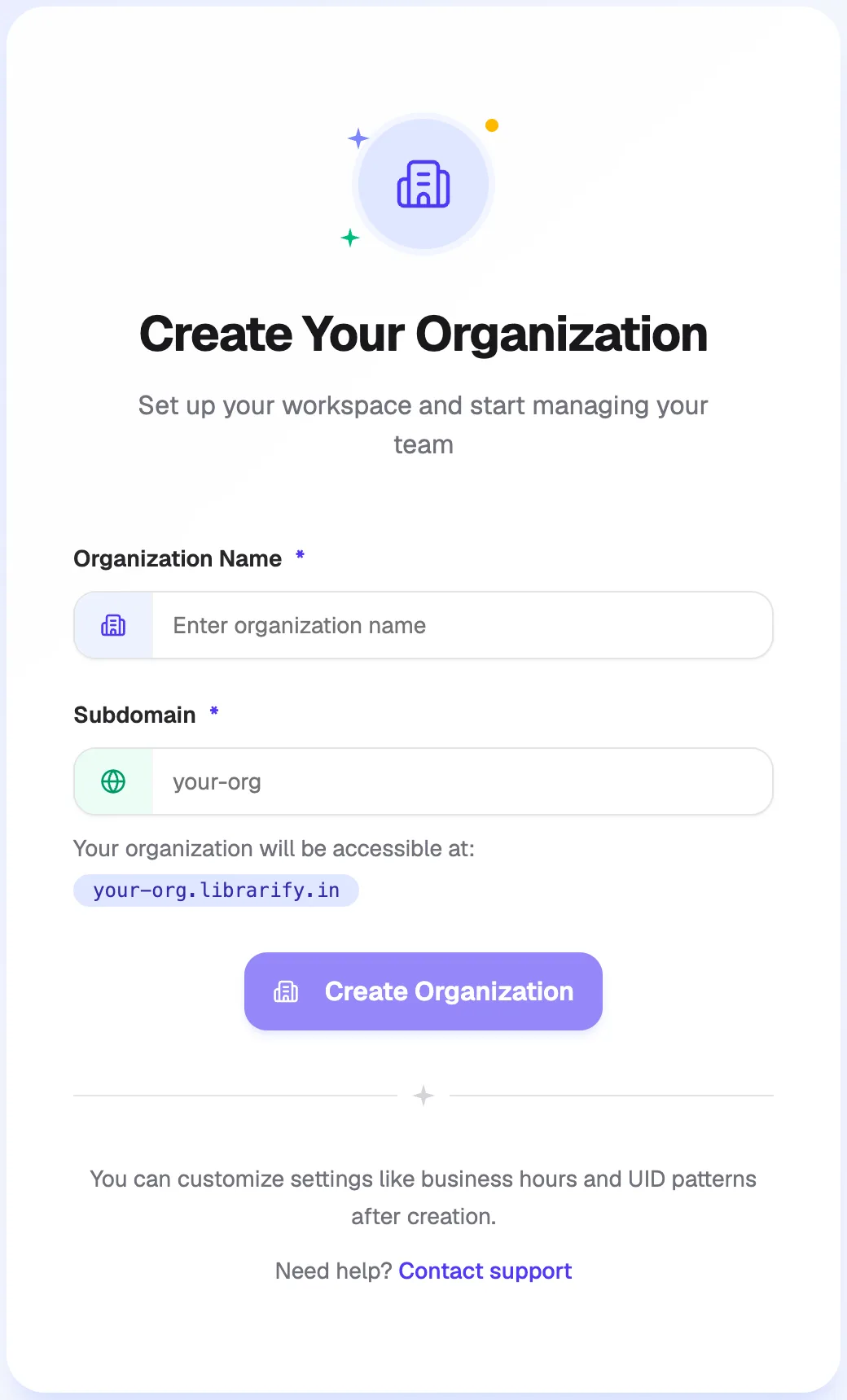
- Organization NameYour library's name
- SubdomainIts web address
- Create OrganizationCreates the library
What happens next
You see "Organization created successfully!" and the setup wizard opens for the new library. Opening hours, ID patterns and other settings can be changed later.