Appearance
How to change a member's UID
Each member has a UID, a student or member ID such as STU2610PI176, which shows on their profile. You can give a member a new one at any time.
Who can do thisOwner, Org admin by default, or any staff role given Users → Create / edit / roles in Settings → Staff role permissions.
It changes straight away
Regenerate UID doesn't ask for confirmation. The member's old UID is replaced as soon as you click it.
From the members list
- In the left menu, click Users.
- Click the ⋮ menu in the member's row.
- Click Regenerate UID. Members without a UID see Generate UID instead.
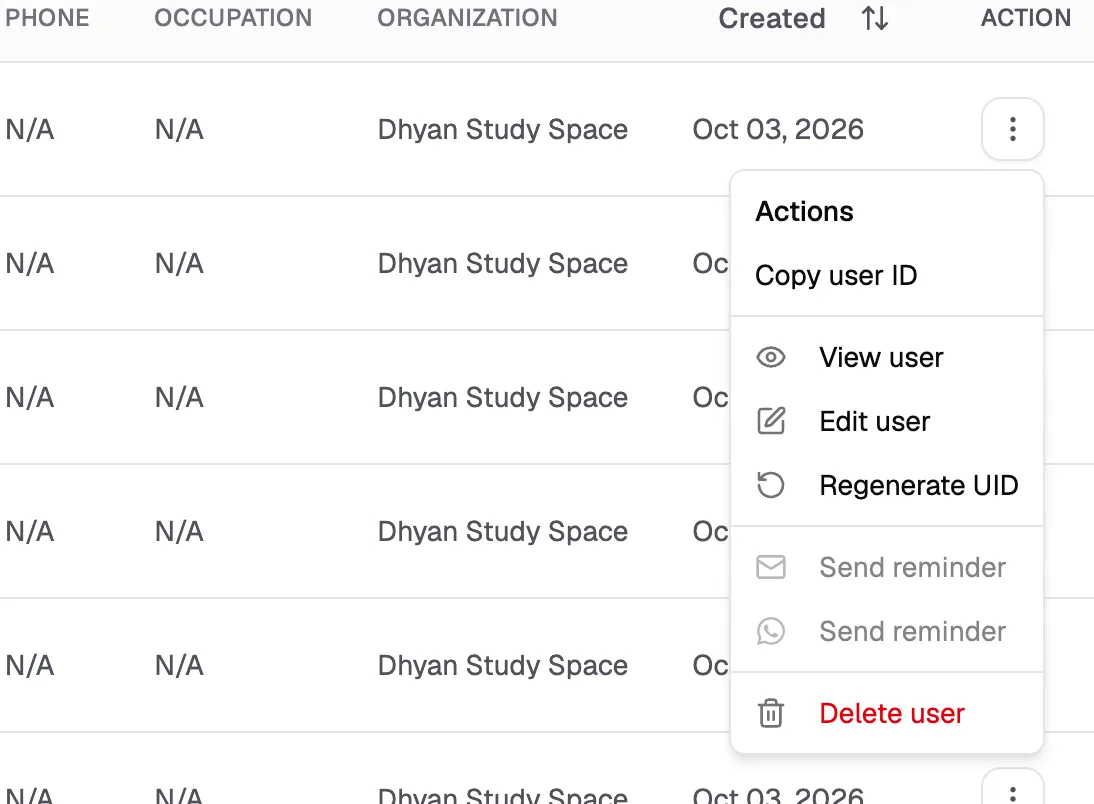
Regenerate UID Creates a new UID from your UID pattern.
From the member's edit page
- Open the member's ⋮ menu and click Edit user.
- Under Student / Employee ID, click Regenerate.

- Student / Employee IDThe member's current UID
- RegenerateCreates a new one
You see "UID regenerated successfully!". The new UID follows your library's UID pattern.
You can't type a UID on the edit page. To give a member an ID of your own choice, type it in Student/Employee ID when you add them.