Appearance
Librarify settings, tab by tab
Click Settings in the left menu. Settings are split into tabs along the top. Most tabs have sections on the left. Pick a section, make changes and click its Save changes.
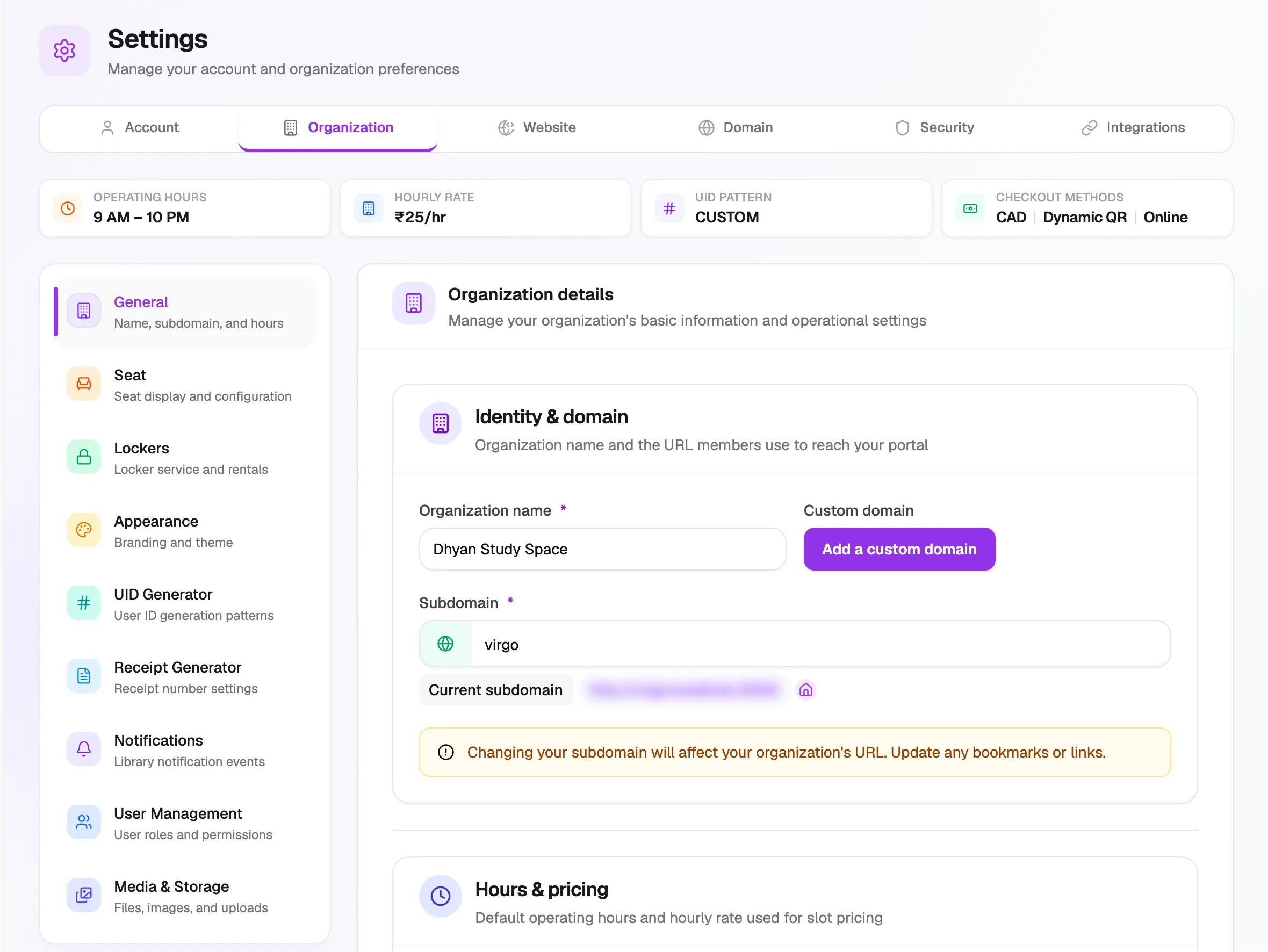
- TabsAccount, Organization, Website…
- GeneralName, subdomain and hours
- Receipt GeneratorReceipt numbers and template
- NotificationsMessages your library sends
Staff see only the tabs their role allows. Organization, Website and Domain need Org Settings → Manage. Integrations needs Integrations → Manage. See Roles and permissions.
Account
| Section | What it's for | Guide |
|---|---|---|
| Profile | Your own name, photo and contact details | Your profile |
| Preferences | Dark mode, compact mode, auto save | Your profile |
Organization
| Section | What it's for | Guide |
|---|---|---|
| General | Library name, subdomain, opening hours and hourly rate | Opening hours, Hourly pricing |
| Seat | What seat cards show and how seats can be booked | Seat settings |
| Lockers | Locker rentals, default rent and security deposit | Locker settings |
| Appearance | Logo, brand colour and seat card colour | Logo and brand colour |
| UID Generator | How member IDs look | Member ID pattern |
| Receipt Generator | Receipt numbers, receipt template and terms | Receipt numbers, Receipt template |
| Notifications | Which messages go out, and by which channel | Notifications |
| User Management | Links to your users and to role permissions | Roles and permissions |
| Media & Storage | Link to your media library | Files and storage |
Website
Your library's public website, section by section. See Set up your website and Website sections.
Domain
Connect your own domain, such as yourlibrary.com. See Custom domain.
Security
Sign-in and session settings. There's no guide for this tab yet.
Integrations
| Section | What it's for | Guide |
|---|---|---|
| Payment Gateways | Checkout methods, UPI QR, Razorpay and Cashfree | How online payments work |
| API Keys, Webhooks | Connections for developers | Not covered yet |