Appearance
How to use analytics
Analytics shows how much you billed and collected over the dates you choose. It's built from your receipts.
Who can do thisOwner, Org admin by default, or any staff role given Analytics → View in Settings → Staff role permissions.
Steps
- In the left menu, click Analytics. It opens on this month.
- Under Filter Analytics, set From and To dates.
- Optional: narrow it with Payment Status, Booking Mode or Payment Method.
- Click Apply Filters. The line next to Reset shows the dates in use. Reset goes back to this month.
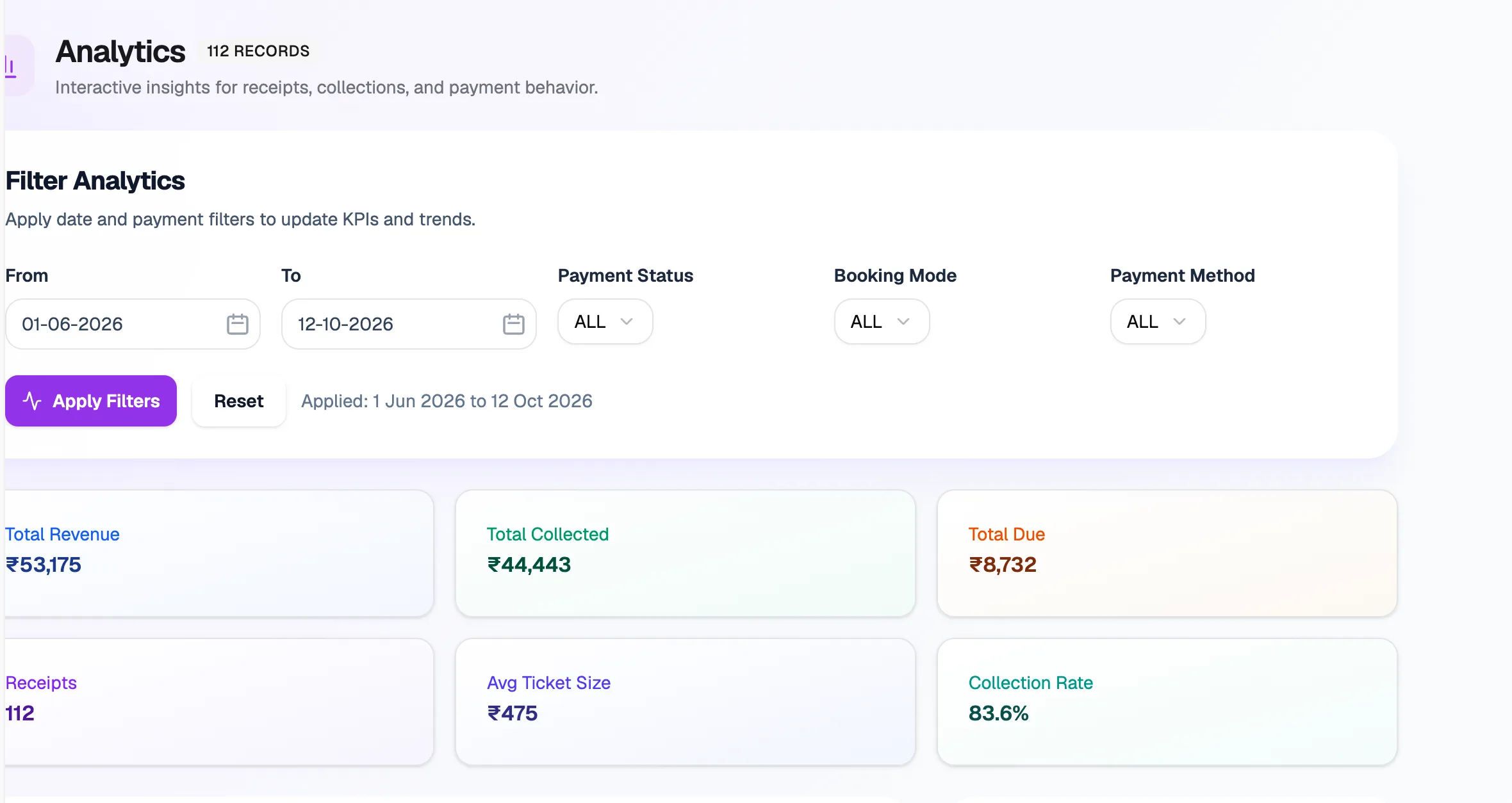
- Applied datesDates the numbers cover
- Payment StatusPaid, pending and more
- Apply FiltersUpdates the numbers
- Total RevenueAll billed in these dates
- Collection RateCollected out of billed
What the numbers mean
| Card | Meaning |
|---|---|
| Total Revenue | Everything billed on receipts in these dates. |
| Total Collected | The part that's been paid. |
| Total Due | What members still owe. |
| Receipts | How many receipts. |
| Avg Ticket Size | Average amount per receipt. |
| Collection Rate | Collected as a share of revenue. |
Below the cards, Revenue Trend shows each day's receipts and amount, Payment Status Mix splits the amount by status (such as paid and pending), and Payment Methods splits it by cash, UPI, card and others.
To follow up on dues member by member, use the Payments Due report in Reports.