Appearance
How to change a member's seat booking
You can fix a booking's dates, hours or price at any time. To extend a booking because the member paid again, renew it instead.
Who can do thisOwner, Org admin, Moderator by default, or any staff role given Assignments → Assign / renew / edit in Settings → Staff role permissions.
Edit from the Assignments page
- In the left menu, click Assignments and search for the member.
- Click the ⋮ menu in the booking's row, then Edit Assignment.
- Change what you need:
- Subscription Period: the Start Date and End Date. The duration updates as you type.
- Schedule: switch Full Day on or off, or change the Time Segments (hours the member can use the seat). Use Add Segment or Remove.
- Price Paid: whole rupees, or empty if free.
- Click Update Assignment.
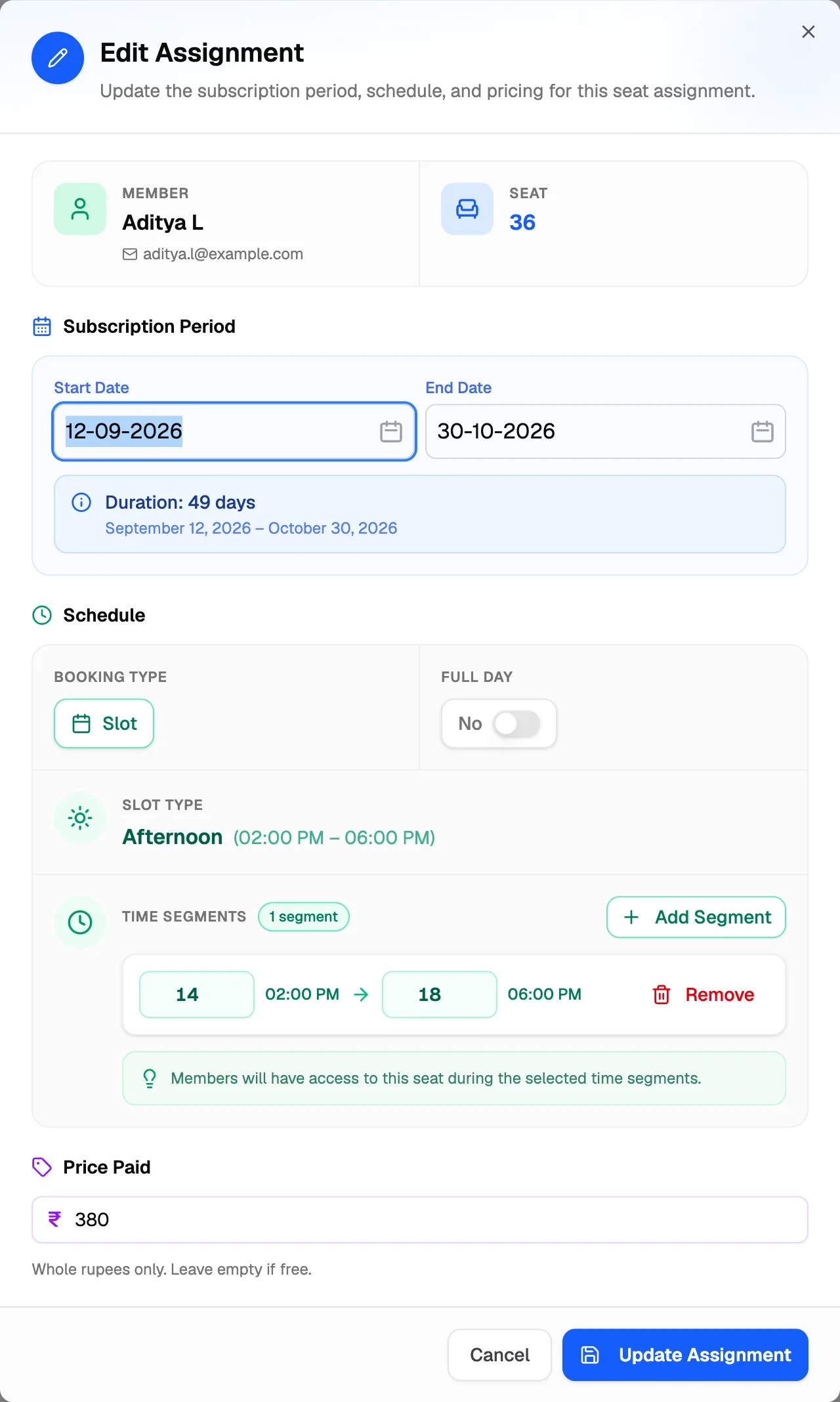
- Subscription PeriodStart and end dates
- Full DayWhole day instead of a slot
- Time SegmentsHours the member can sit
- Price PaidWhole rupees
- Update AssignmentSaves the changes
The member and seat are shown for reference and can't be changed here.
Correct dates from a seat card
- Open Seats and click the member's booked slot on the seat card.
- Change the Start Date or End Date.
- Write a Note explaining why. A note is needed every time you click Update here.
- Click Update.
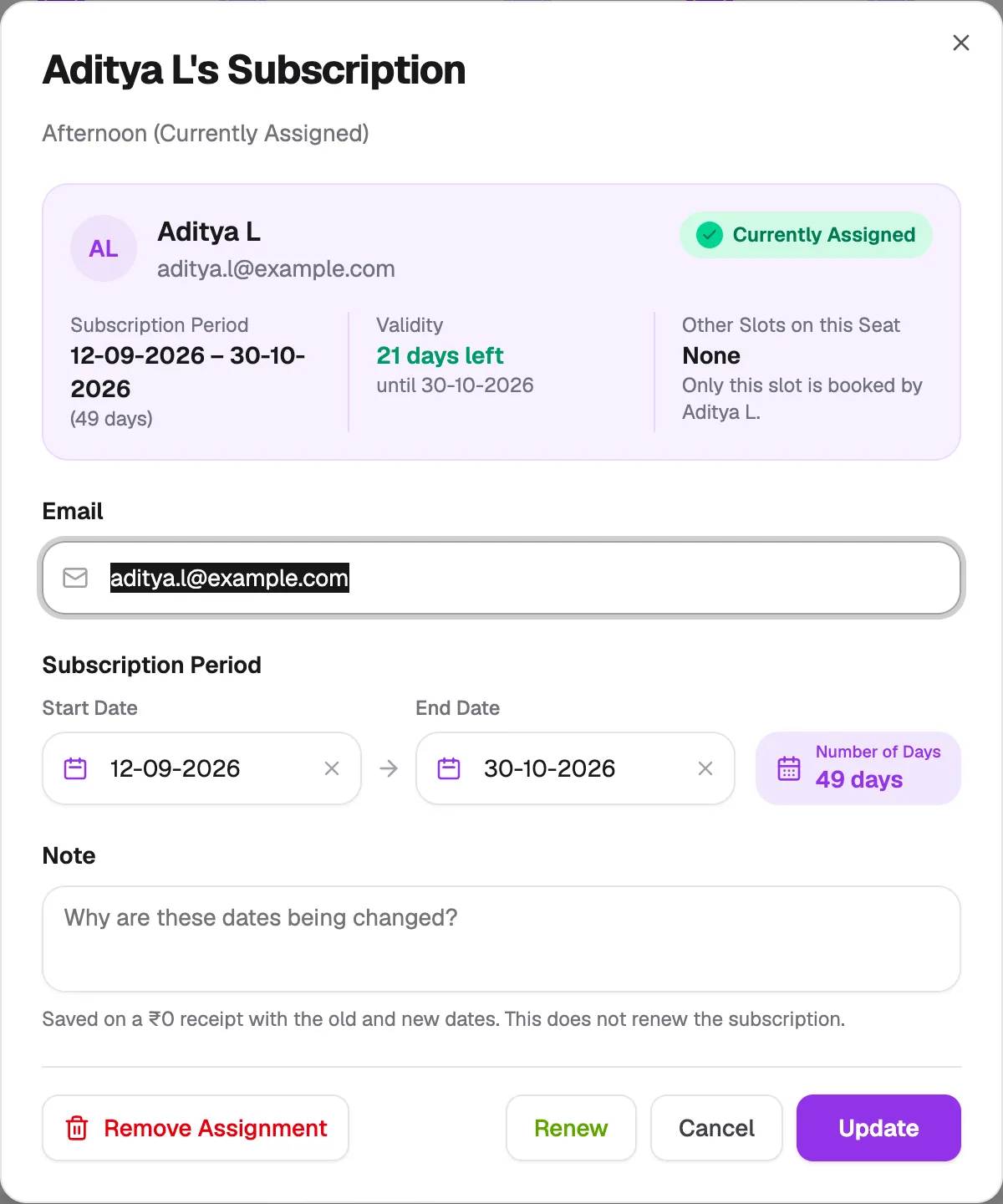
- Subscription PeriodCorrect the dates
- NoteWhy the dates changed
- Remove AssignmentFree the seat
- UpdateSave the change
The change is saved on a ₹0 receipt showing the old and new dates. It doesn't count as a renewal or a payment. In the same dialog, Renew extends the booking after a payment (see How to renew), and Remove Assignment frees the seat.