Appearance
How to create and edit slots
Slots are the fixed time blocks members book, such as Morning 9 AM – 2 PM. Some libraries call them shifts or batches.
Who can do thisOwner, Org admin, Moderator by default, or any staff role given Slots → Add / edit / delete in Settings → Staff role permissions.
Before you start
Set your opening hours. Presets split these hours for you, and slots you add yourself should fall within them.
See your slots
In the left menu, click Slots. Manage slot types shows your opening hours and a card for each slot, with its time, price and length.
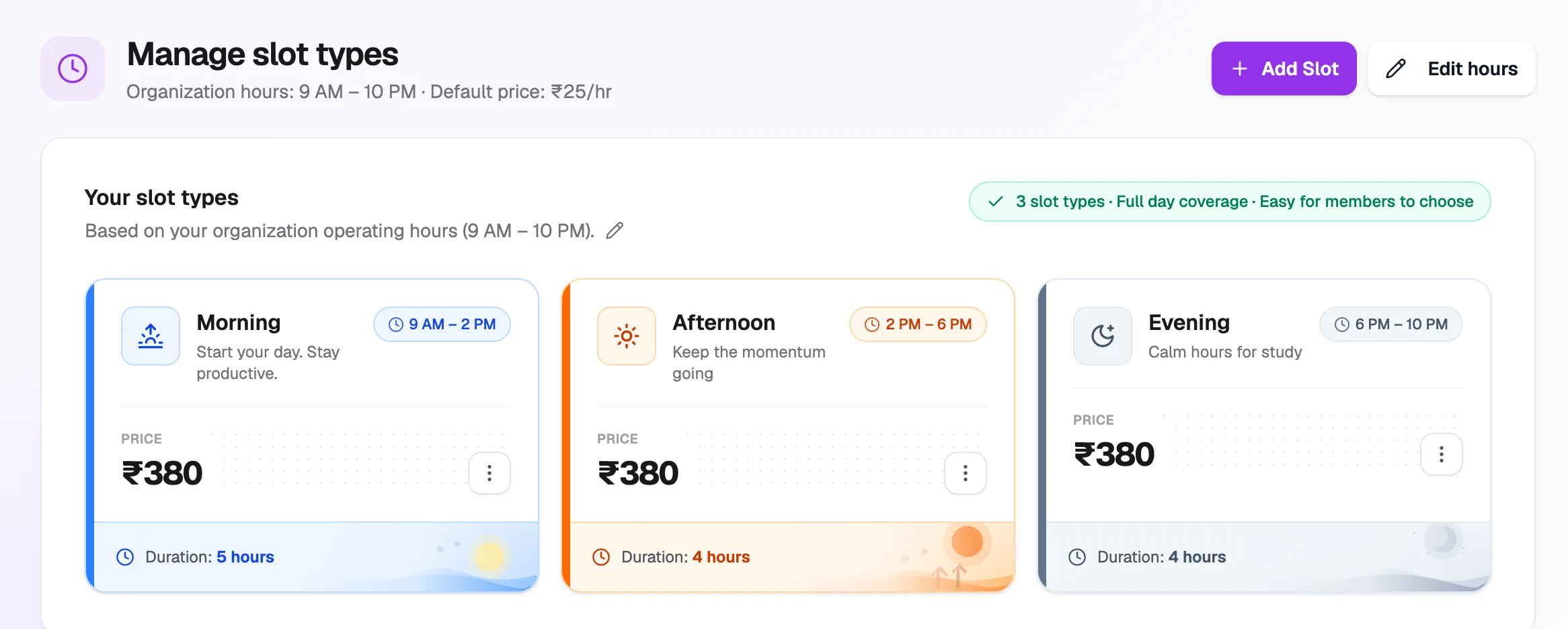
- Add SlotCreate one slot
- Edit hoursOwners and org admins: change opening hours
- Slot cardTime, price and duration
- ⋮ menuEdit or delete a slot
Add slots with a preset
The quickest way to start is a preset that splits your opening hours for you.
- On the Slots page, scroll to Slot pricing. Optional: enter a default price in ₹. Every new slot starts at this price.
- Under Quick presets, click a preset: 4 Shifts, 3 Shifts, 2 Shifts or Full Day. Librarify lists the slots it will create, split across your opening hours. Nothing is saved yet.
- Untick any slot you don't want, and change a Slot price if one slot should cost more or less.
- Click Create 3 slot types (the number matches the ticked slots).
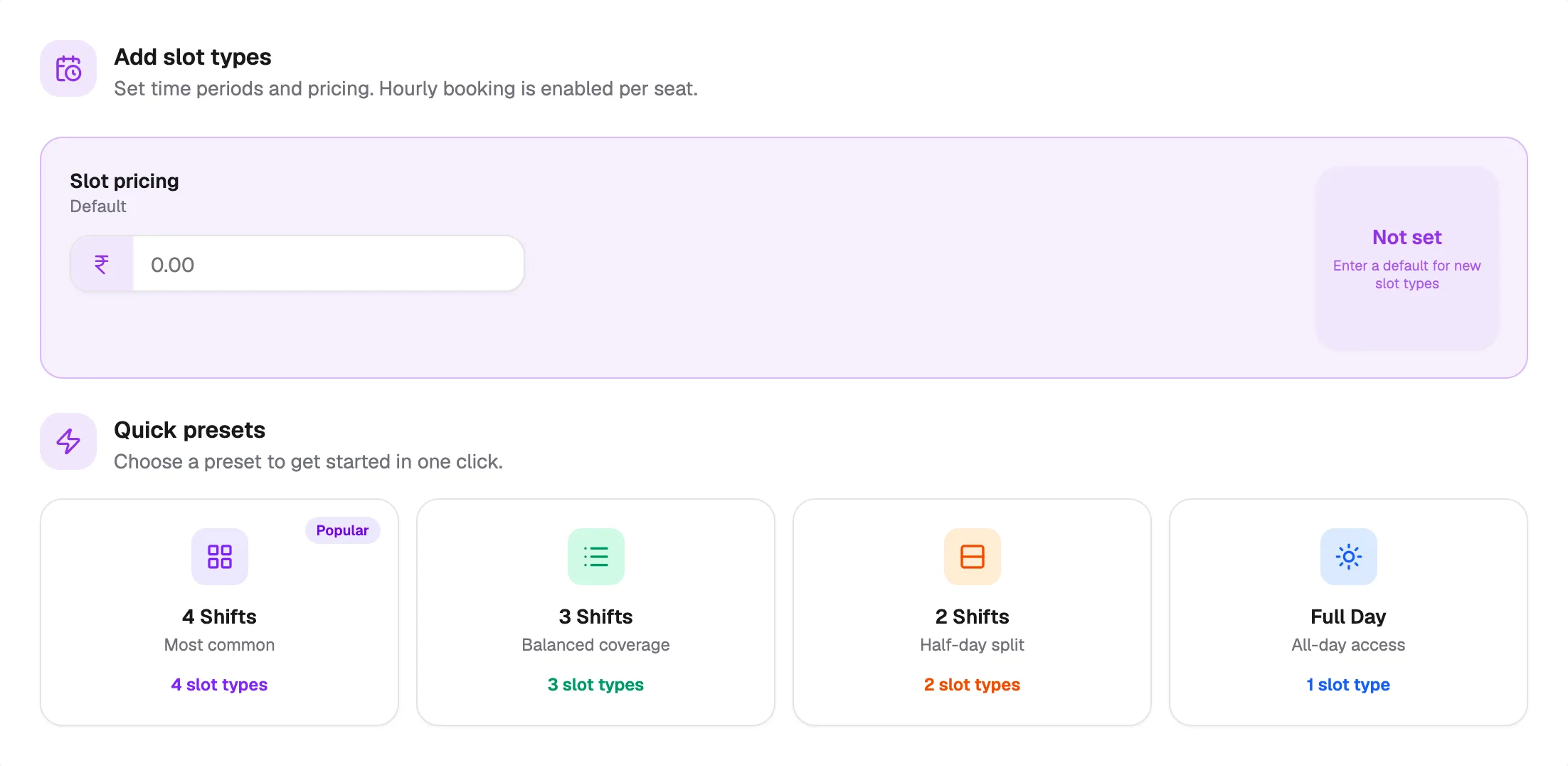
- Slot pricingDefault price for new slots
- 4 ShiftsThe most common setup
- Full DayOne slot for the whole day
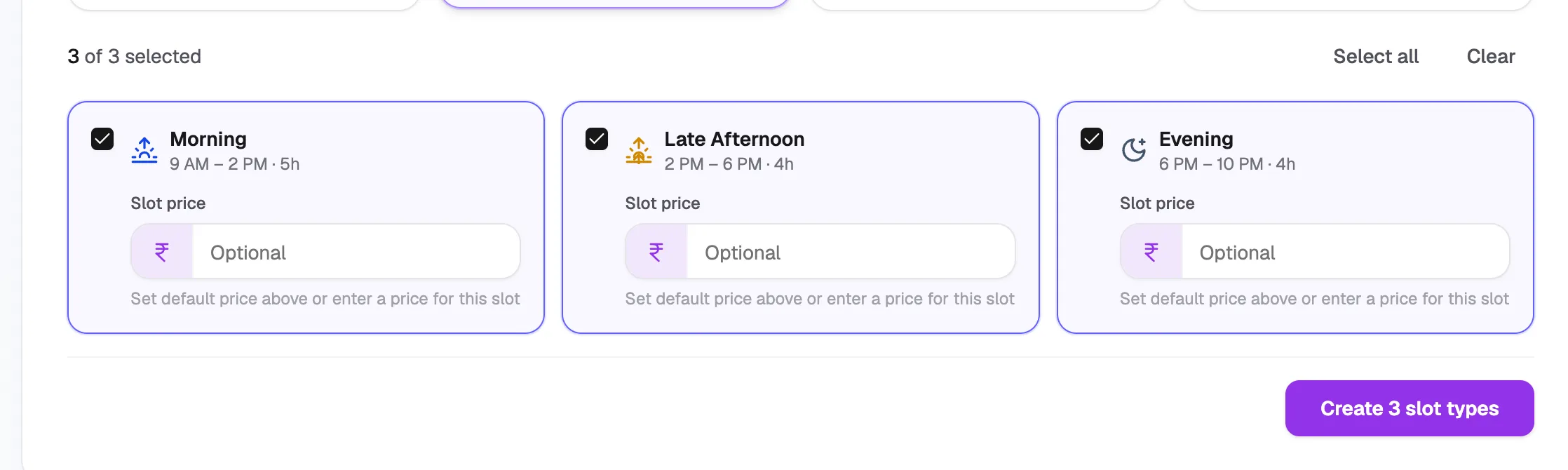
- Tick boxUntick slots you don't want
- Slot pricePrice for this slot
- Create 3 slot typesSaves the ticked slots
Add one slot
- Click Add Slot.
- Enter a Label, such as
Morning. - Set the Start hour and End hour in 24-hour time (for example 9 and 14 for 9 AM – 2 PM).
- Optional: enter a Price in ₹.
- Click Add slot.
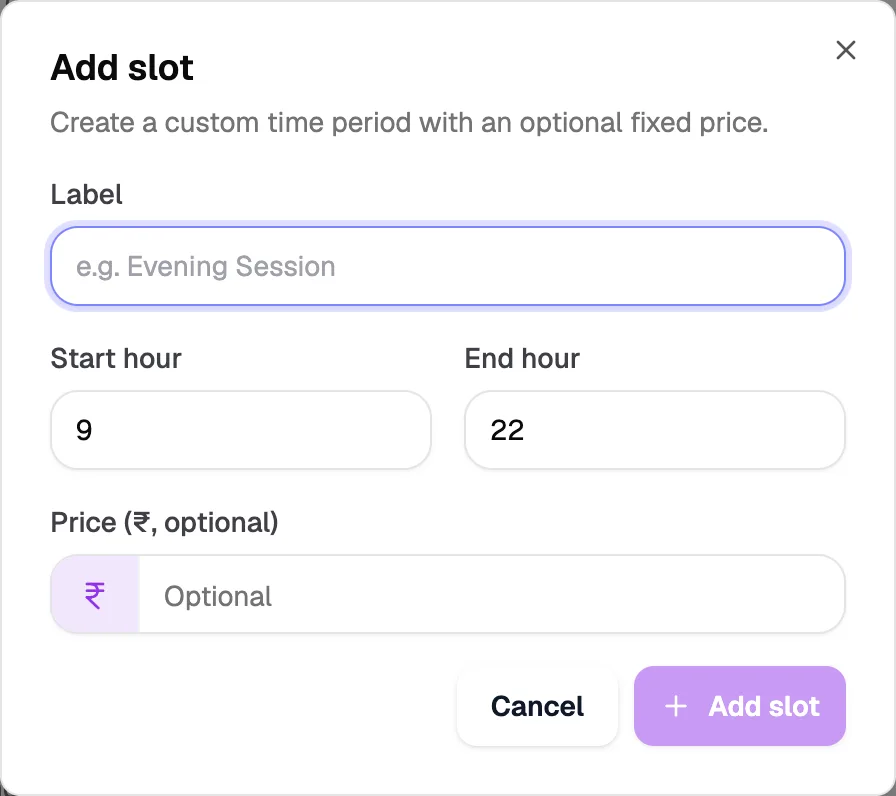
- LabelFor example Morning
- Start hour24-hour time, such as 9
- End hour24-hour time, such as 14
- Price (₹)Optional fixed price
Edit or delete a slot
- On the slot's card, click the ⋮ menu.
- Click Edit to change its label, hours or price, or Delete to remove it.