Appearance
How to manage files and storage
The media library lists every file stored for your library: your logo, members' profile photos, documents and photo IDs. Use it to check your storage, download a file or free space.
Who can do thisOwner, Org admin by default, or any staff role given Media → Manage in Settings → Staff role permissions.
Open the media library
In the left menu, open Settings and click Media & storage. You can also open it from Settings → Organization → Media & Storage → Open media library.
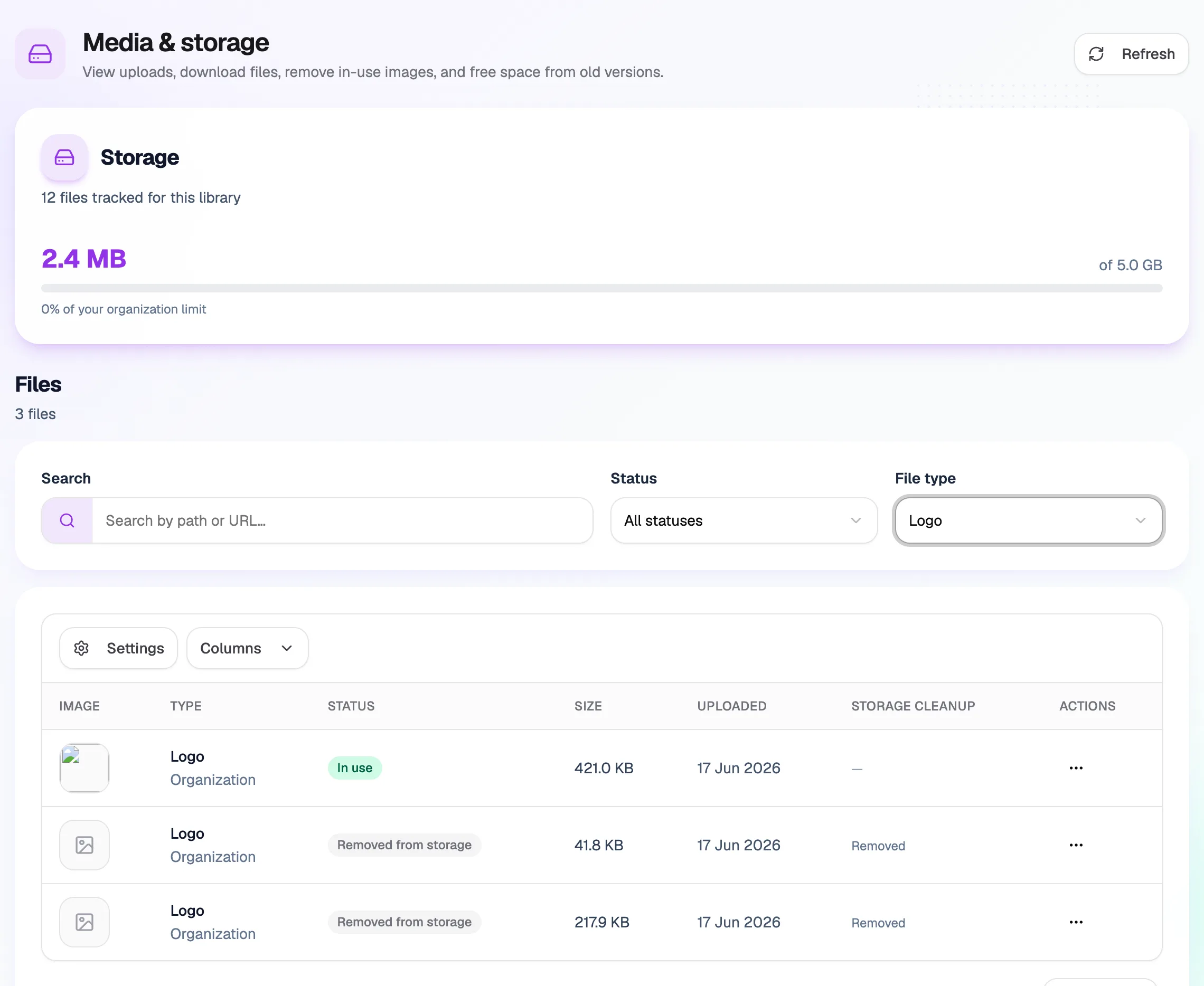
- StorageSpace used of your limit
- SearchBy path or URL
- File typeLogo, Profile, Document, Photo ID
- ⋯ ActionsDownload or free space
Find a file
- Storage shows how many files are tracked and how much space they use out of your limit.
- Filter by Status (for example In use, Replaced or Removed from storage) or by File type.
Download, remove or free space
Open a file's ⋯ menu:
- Download / open opens the file in a new tab.
- Remove from profile removes the file and clears the profile photo or logo that uses it.
- Free space now deletes an old or unused file from storage. This can't be undone.
Librarify asks you to confirm before removing anything.
Files are added elsewhere
The media library doesn't have its own upload button. Files arrive when you upload a logo or when a member's photo or document is added to their profile.