Appearance
How to book a member into several slots at once
A member who studies in two shifts, such as Morning and Evening, can be booked into both on the same seat in one go.
Who can do thisOwner, Org admin, Moderator by default, or any staff role given Assignments → Assign / renew / edit in Settings → Staff role permissions.
Steps
- Open Seats and find a seat with the free slots you need.
- Click one of the free slots. Book Seat opens with that slot selected.
- Click the other slots you want. Each one gets a tick, and the line under the title lists them, such as Morning, Evening. Slots that overlap can't be selected together.
- Enter the member's Email and the Start Date and End Date.
- Check Price Paid (₹). It's the total for all selected slots. Leave it empty and Librarify adds up each slot's price.
- Keep Generate Receipt ticked if you want a receipt now.
- Click Book 2 Slots (the number matches the slots you picked).
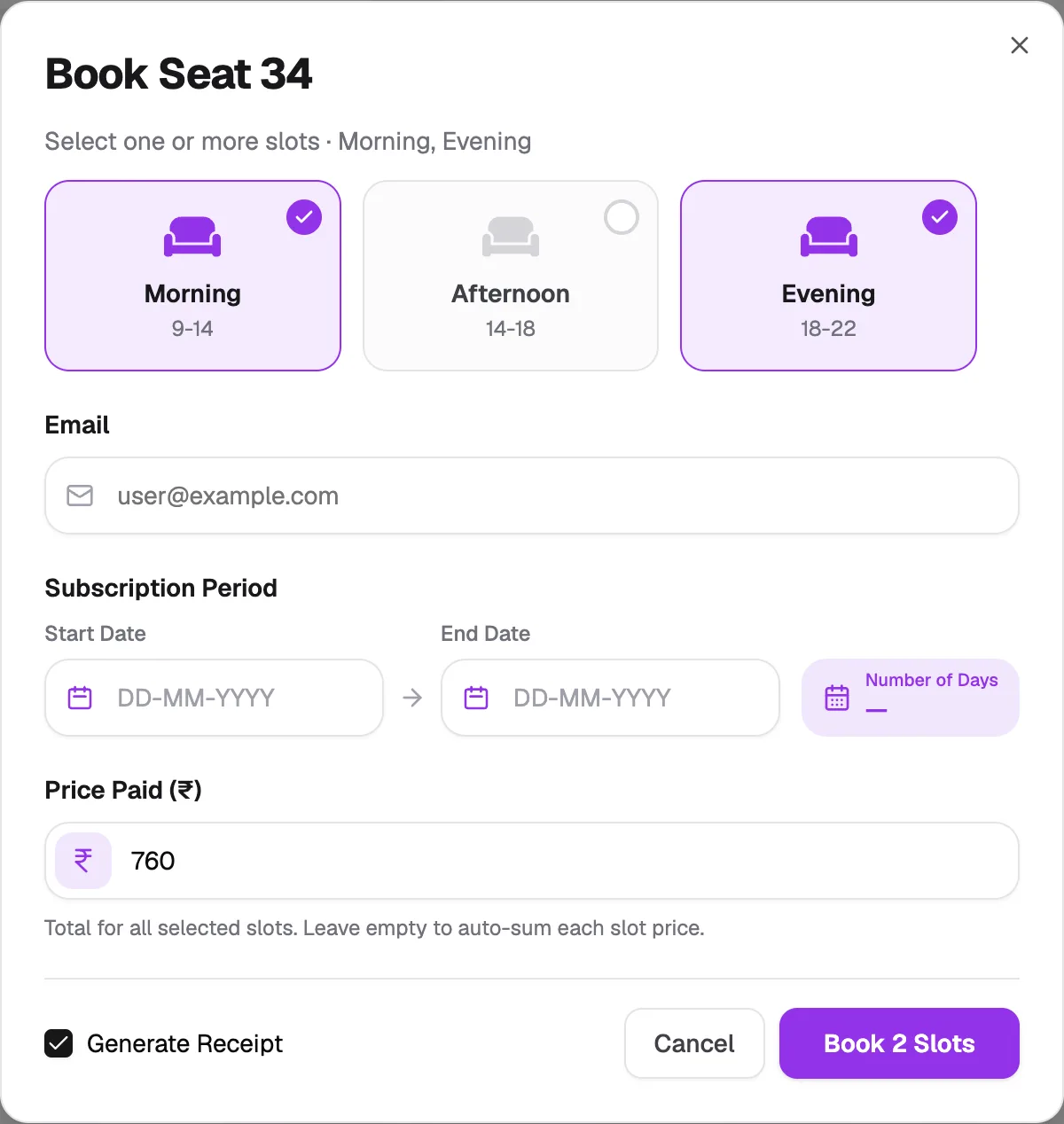
- First slotThe slot you clicked on the card
- More slotsClick to add them
- Price Paid (₹)Total for all the slots
- Book 2 SlotsBooks every selected slot
What happens next
- You see "2 slots assigned successfully!" (or the number you booked).
- Each slot shows as booked on the seat card and appears as its own row on the Assignments page, so you can renew or change each slot separately later.