Appearance
How to view, download and manage receipts
Every booking or payment has a receipt. The Receipts page lists them all, with what was charged, paid and still due.
Who can do thisOwner, Org admin, Moderator by default, or any staff role given Receipts / bookings → Create / record payment in Settings → Staff role permissions.
Find a receipt
In the left menu, click Receipts → All Receipts. The cards at the top show totals: receipts, revenue, amount paid and amount due. Search by receipt number or member, or filter by Status (Paid, Partially paid, Pending, Due, Failed) and Method.
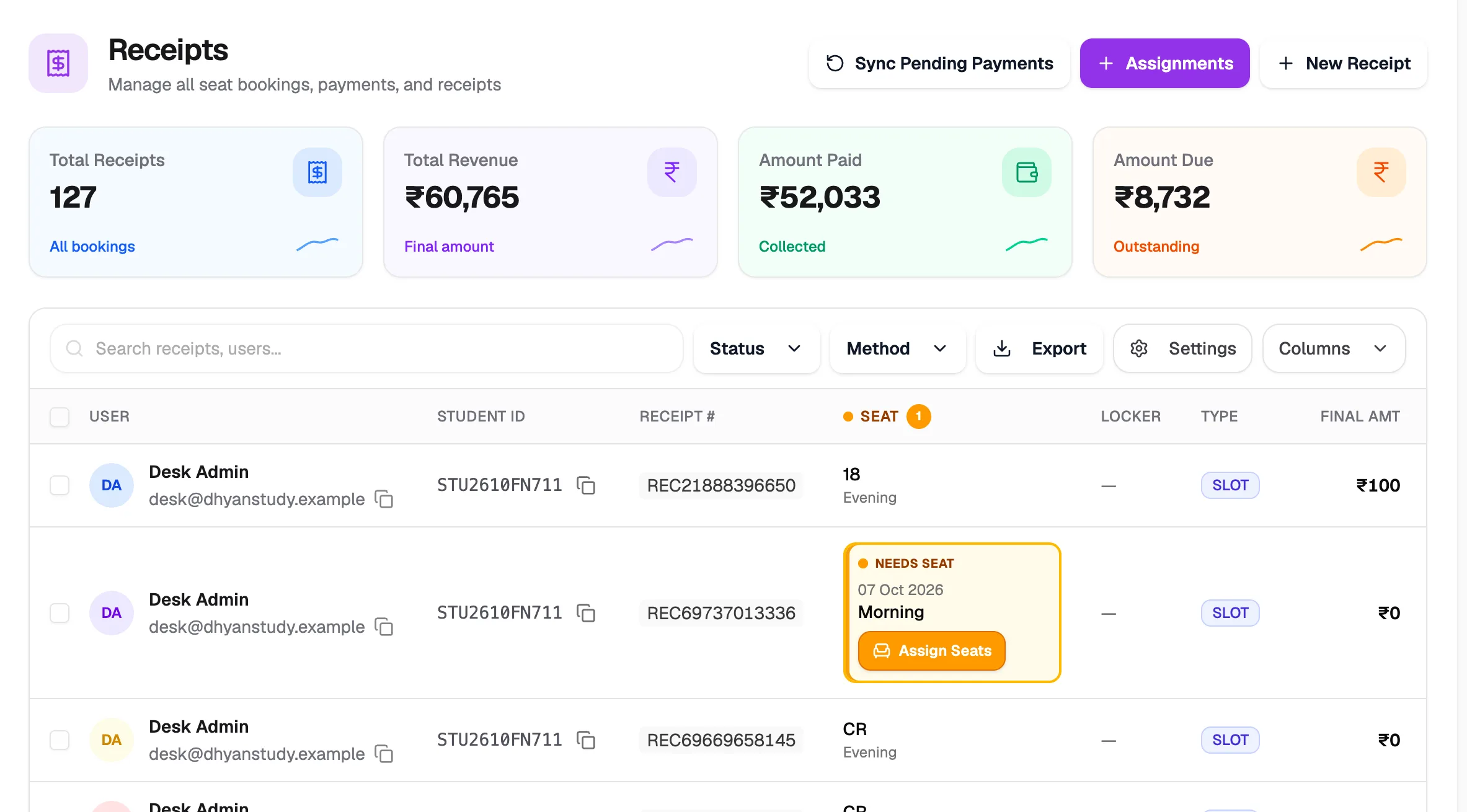
- New ReceiptBill a member
- AssignmentsBill an existing booking
- StatusPaid, partly paid, due…
- Receipt #Each receipt's number
Receipts created when a booking is made online without a seat show Needs seat with an Assign Seats button, so you can place the member.
View or download a receipt
- Click the ⋮ menu at the end of the receipt's row.
- Click View receipt. The receipt opens.
- Click Download PDF to save or share it.
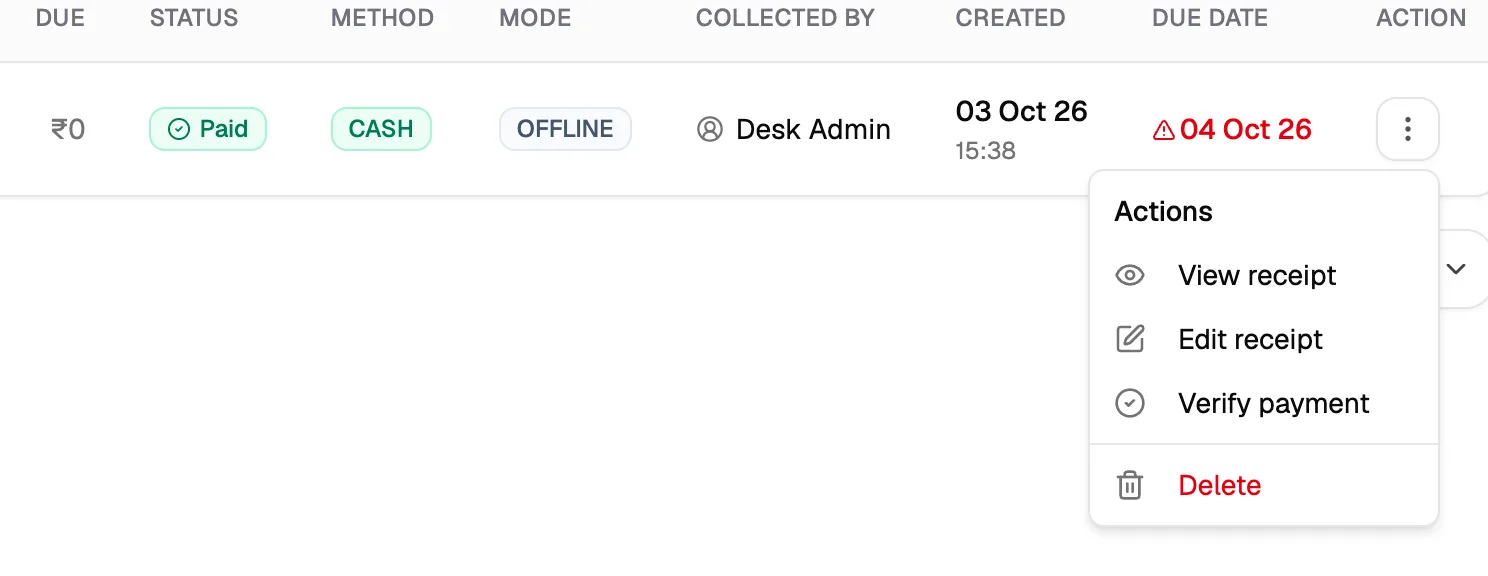
- View receiptSee and download it
- Verify paymentRecord money received
- DeleteHide a receipt made by mistake
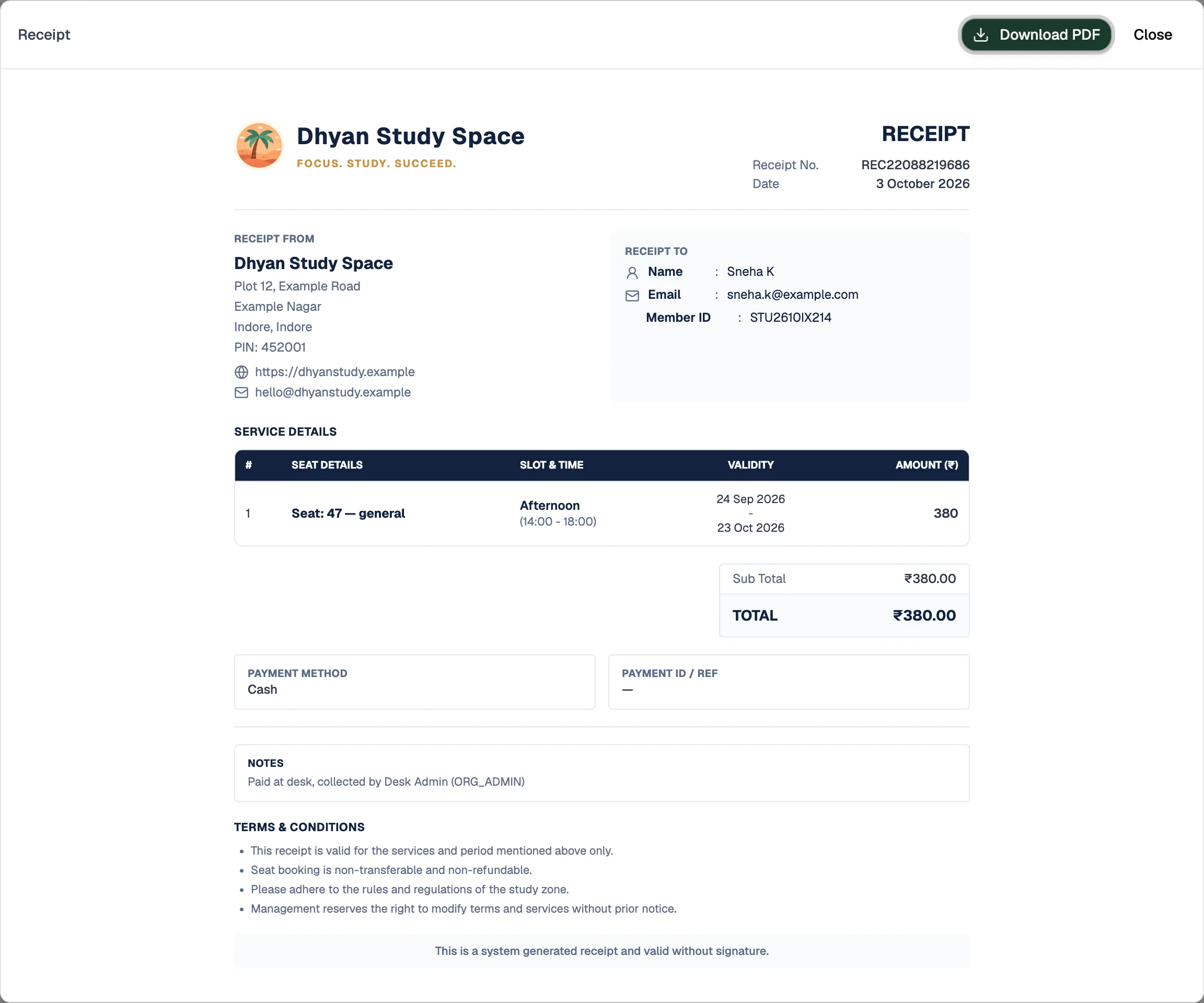
- Download PDFSave or share the receipt
- Receipt FromYour library's details
- Receipt ToThe member and their ID
- Service DetailsSeat, slot, dates and amount
The look of the receipt, its contact details and its terms are set in receipt template settings.
Record a payment against an amount due
When a member pays the rest of what they owe:
- Open the receipt's ⋮ menu and click Verify payment.
- Enter the Amount Paid Now. It can't be more than the amount due; the Remaining Balance updates as you type.
- Choose the Payment Method: Cash or UPI. Enter the Payment Reference Number. It's required for UPI (the transaction ID) and optional for cash.
- Set when the money was collected, then click Approve Payment.
The receipt's amount due goes down, and the member is notified that payment was received (if those notifications are on). Payments made with a dynamic UPI QR code have their own verify step, described in Dynamic UPI QR.
Delete a receipt
Open the ⋮ menu and click Delete, then Delete booking to confirm. The receipt is hidden from your lists. This can't be undone from the app, so use it only for receipts made by mistake.
Edit receipt
The Edit receipt menu item isn't available yet. Clicking it shows a "coming soon" message.