Appearance
How to read your library dashboard
The dashboard is the first page you see after logging in. It shows how your library is doing this month.
Who can do thisOwner, Org admin, Moderator by default, or any staff role given Dashboard → View in Settings → Staff role permissions.
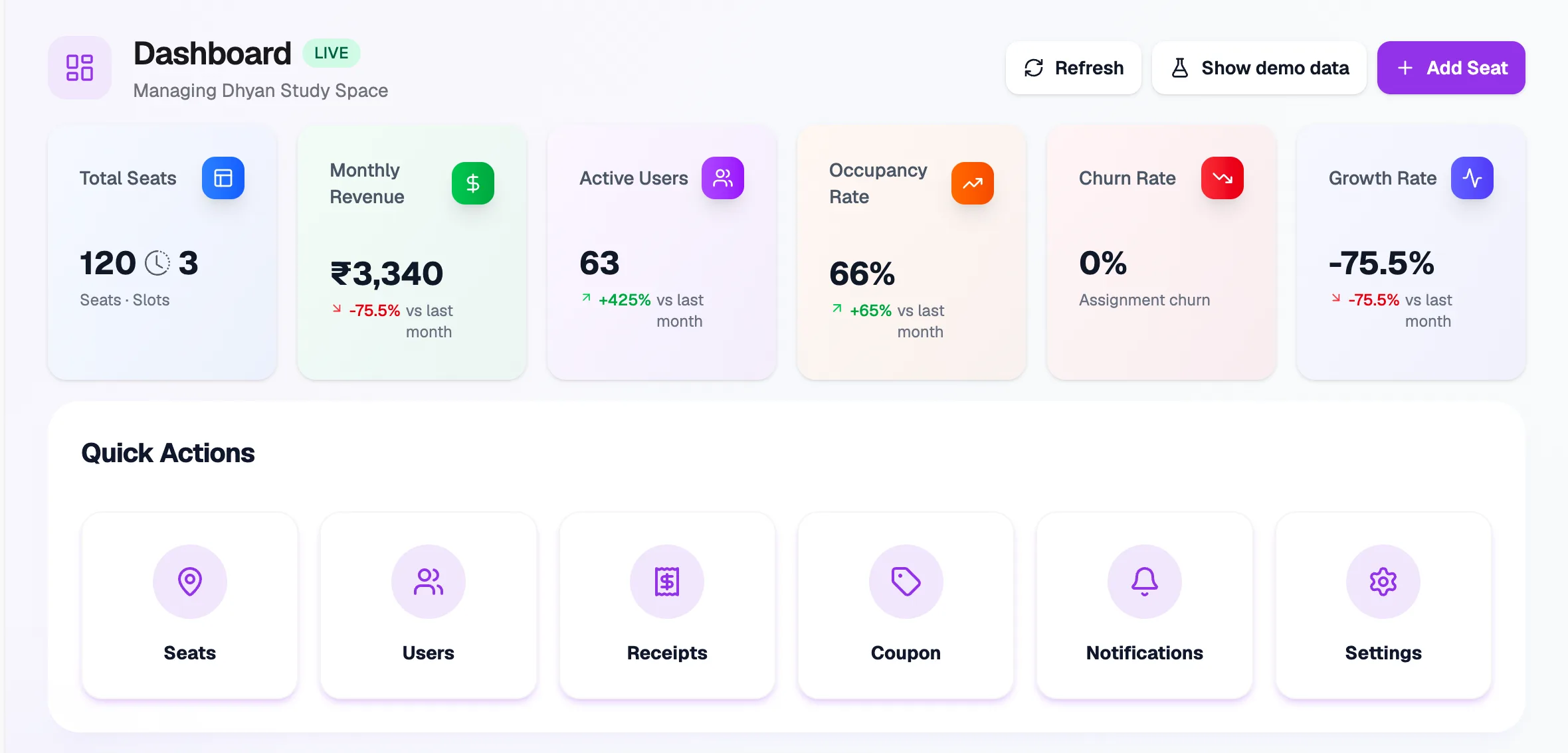
- Monthly RevenueCollected this month
- Occupancy RateBooked seats out of all seats
- Show demo dataSample numbers to explore
- Quick ActionsJump to daily tasks
The cards at the top
| Card | What it shows |
|---|---|
| Total Seats | Your seats and slots. |
| Monthly Revenue | Money collected this month, and the change from last month. |
| Active Users | Everyone in your library (members and staff), and the change from last month. |
| Occupancy Rate | Active seats out of all your seats. |
| Churn Rate | Members whose bookings ended in the last 30 days without a new one, as a share of your active members. |
| Growth Rate | How this month's collected revenue compares with last month's. |
Below the cards, Quick Actions take you to Seats, Users, Receipts, Coupon, Notifications and Settings. Further down you'll find Top Performing Seats and Recent Activity, such as new bookings.
Try it with sample numbers
Click Show demo data to fill the dashboard with sample numbers, for example to see what it looks like for a busy library. Click Show live data to go back to your own numbers. Demo data doesn't change anything in your library.
Click Refresh to load the latest numbers.