Appearance
How to create a receipt for a member
Most receipts are created when you book a member with Generate Receipt ticked. Use this guide to bill a member later, to combine several bookings on one receipt, or to bill something other than a seat.
Who can do thisOwner, Org admin, Moderator by default, or any staff role given Receipts / bookings → Create / record payment in Settings → Staff role permissions.
Start a new receipt
- Go to Receipts and click New Receipt.
- Start typing the member's name or email, then click them in the list.
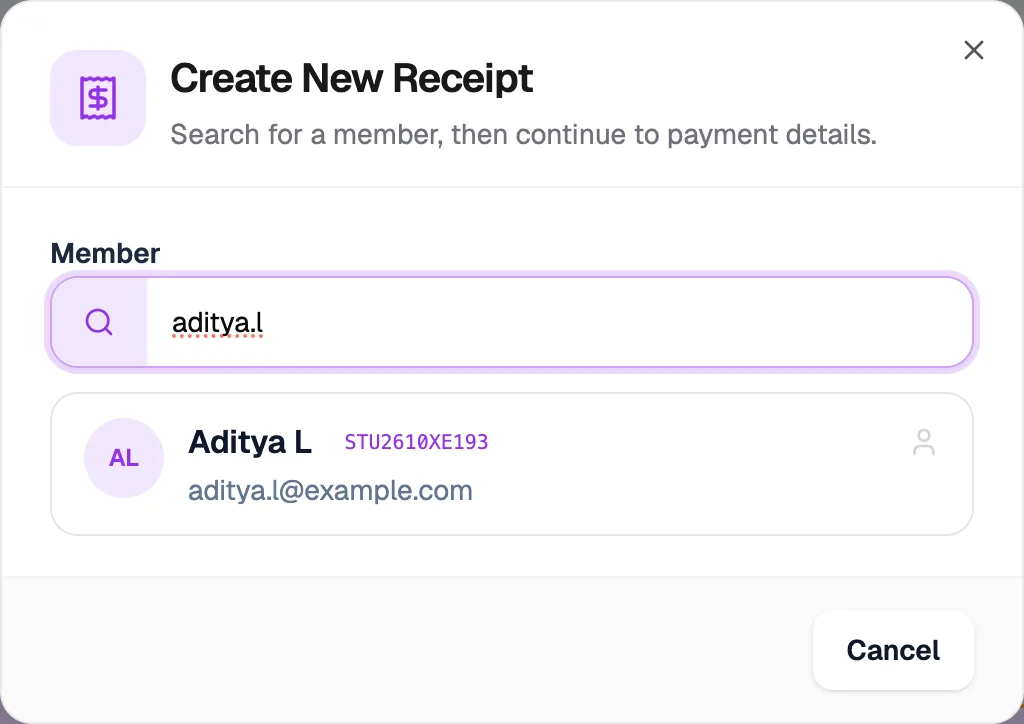
- MemberType a name or email
- Matching memberClick to continue
Fill in the receipt
On Complete Manual Receipt:
- Tick the member's seat assignments to bill. Their prices fill in the Base Amount. To bill something else, click Add service(s), or type an amount yourself.
- Optional: enter a Coupon Code and click Apply.
- Choose the Payment Method, such as Cash or UPI.
- If the member is paying only part now, tick Collect less than final amount. Enter the Amount Paid and a Due Date for the rest.
- Optional: add a Description and Collection Notes.
- Click Create Receipt.
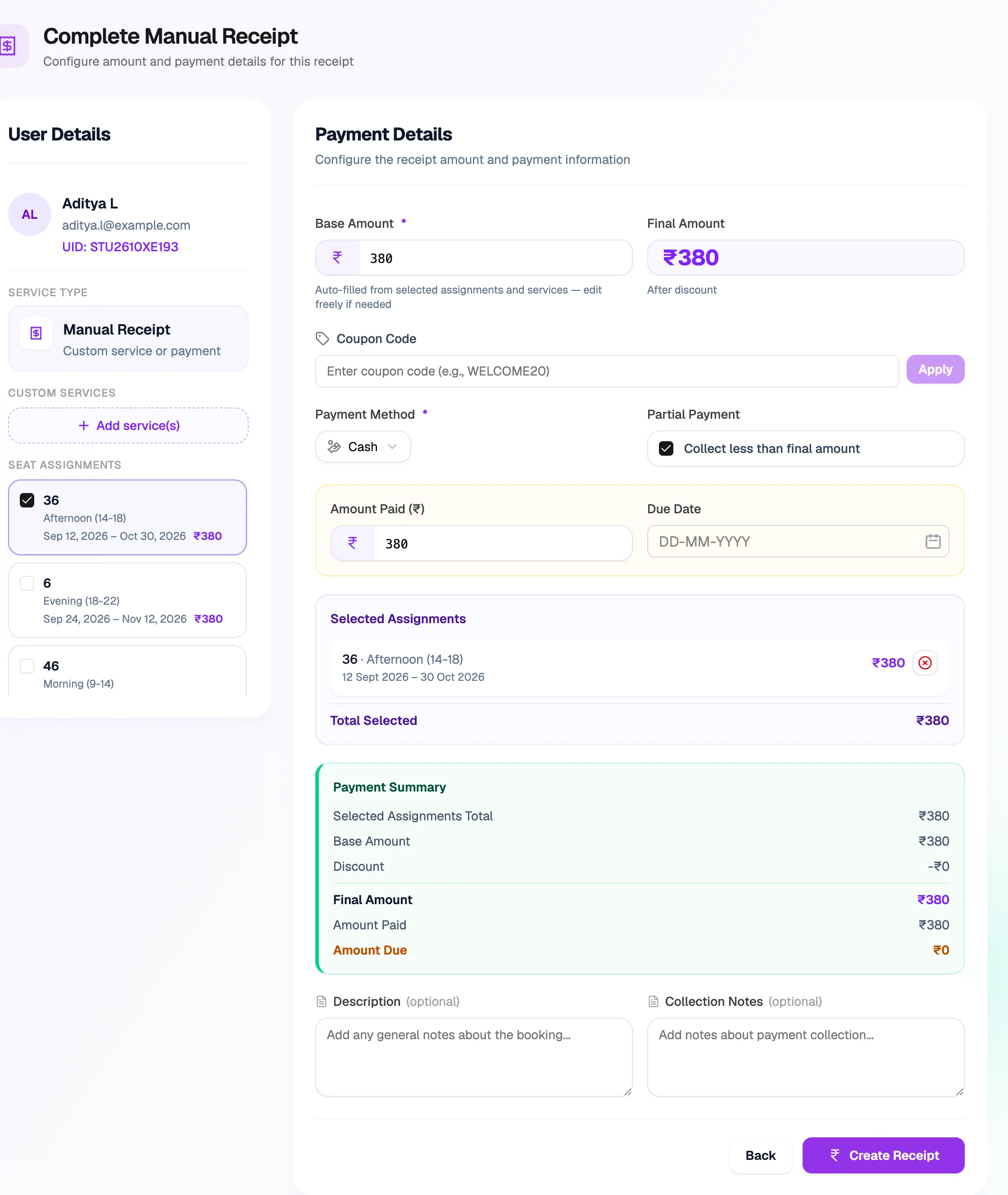
- Seat assignmentsTick bookings to bill
- Add service(s)Bill something else
- Coupon CodeApply a discount
- Collect lessPart payment with a due date
- Create ReceiptSaves the receipt
You see "Booking created successfully! Receipt: …" with the new receipt number. The member is notified, if those notifications are on.
Bill an existing booking
To create a receipt for a seat or locker booking that doesn't have one yet:
- Go to Receipts and click Assignments. (Staff roles also need Assignments → Assign / renew / edit to see this button.) Create Receipt for Assignment lists bookings Ready to bill and Already billed.
- Find the booking. Search by member, seat or slot.
- Open its ⋮ menu and click Create receipt, or Add to existing receipt to add it to one the member already has.
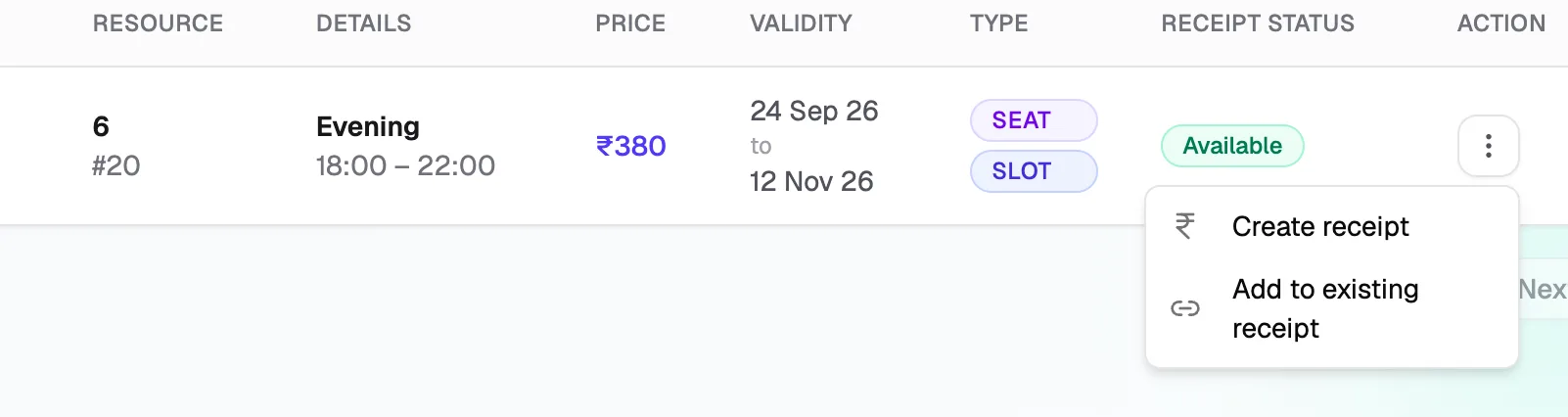
- Create receiptA new receipt for this booking
- Add to existing receiptAdd it to another receipt