Appearance
How to choose which notifications your library sends
Librarify sends messages when things happen in your library, such as a new booking, a payment or a seat that's about to expire. You choose which ones go out, and by which channel.
Who can do thisOwner, Org admin by default, or any staff role given Org Settings → Manage in Settings → Staff role permissions.
Open the notification settings
- In the left menu, click Settings.
- On the Organization tab, click Notifications.
Turn messages on or off
Under Organization notification controls, events are grouped into Bookings & Assignments and Organization. Click an event, such as Booking created, to see its channels:
- In-app: a notification in Librarify.
- Email.
- WhatsApp: a WhatsApp message.
- SMS is marked "Soon". For some events, WhatsApp is marked "Soon" too.
Turn each channel on or off, then click Save changes.
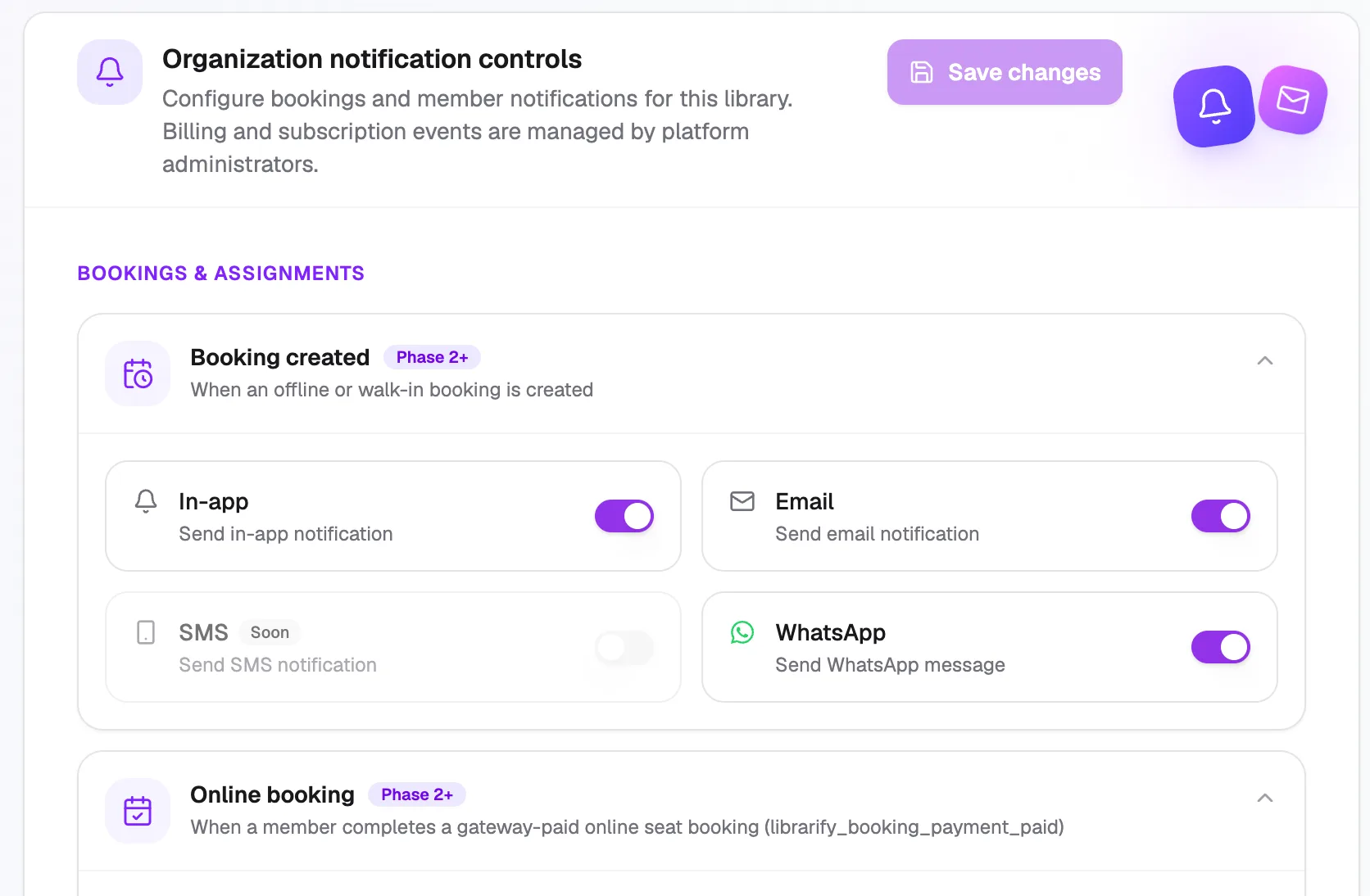
- EventClick to see its channels
- In-appInside Librarify
- EmailEmail message
- WhatsAppWhatsApp message
- Save changesApplies your choices
Some of the events you'll find:
| Group | Events |
|---|---|
| Bookings & Assignments | Booking created, Online booking, Booking payment pending, Booking payment received, Booking payment failed, Booking payment due, Seat assigned, Locker assigned, Assignment expiring, Assignment expired, Assignment renewed, Assignment deactivated |
| Organization | Member added, Member welcome, Manual renewal reminder, Member role changed, Announcement published |
Billing and subscription messages about your Librarify plan are managed by Librarify, not here.
Announcement published controls whether your announcements reach members' inboxes. Keep In-app on for it.
Staff alerts
As the owner, you always get staff copies of alerts such as new members and billing. To send these copies to one more person, choose an org admin or moderator in Also send staff alerts to under Staff alert recipient, and click Save recipient. Members still get their own messages.