Appearance
How to connect Razorpay
Connect your own Razorpay account to let members pay online. Money goes to your Razorpay account, and Librarify marks the receipt as paid when the payment succeeds.
Who can do thisOwner, Org admin by default, or any staff role given Integrations → Manage and Org Settings → Manage in Settings → Staff role permissions.
Before you start
- You need a Razorpay account. To take real payments, it must be activated by Razorpay.
- In the Razorpay Dashboard, go to Settings → API Keys and generate a key. Copy the Key ID (it starts with
rzp_test_in test mode orrzp_live_in live mode) and the Key Secret.
Steps
- In Librarify, open Settings → Integrations → Payment Gateways.
- Under Checkout methods, make sure Payment gateway is on.
- Under Available Payment Gateways, click the Razorpay tab, then Configure (it says Manage once connected).
- Paste your Key ID and Key Secret.
- Choose the Environment: Production for real payments, or a test option with test keys while you try it out.
- Click Save configuration. The gateway is turned on straight away and its badge changes to Active. Members now see Razorpay at checkout.
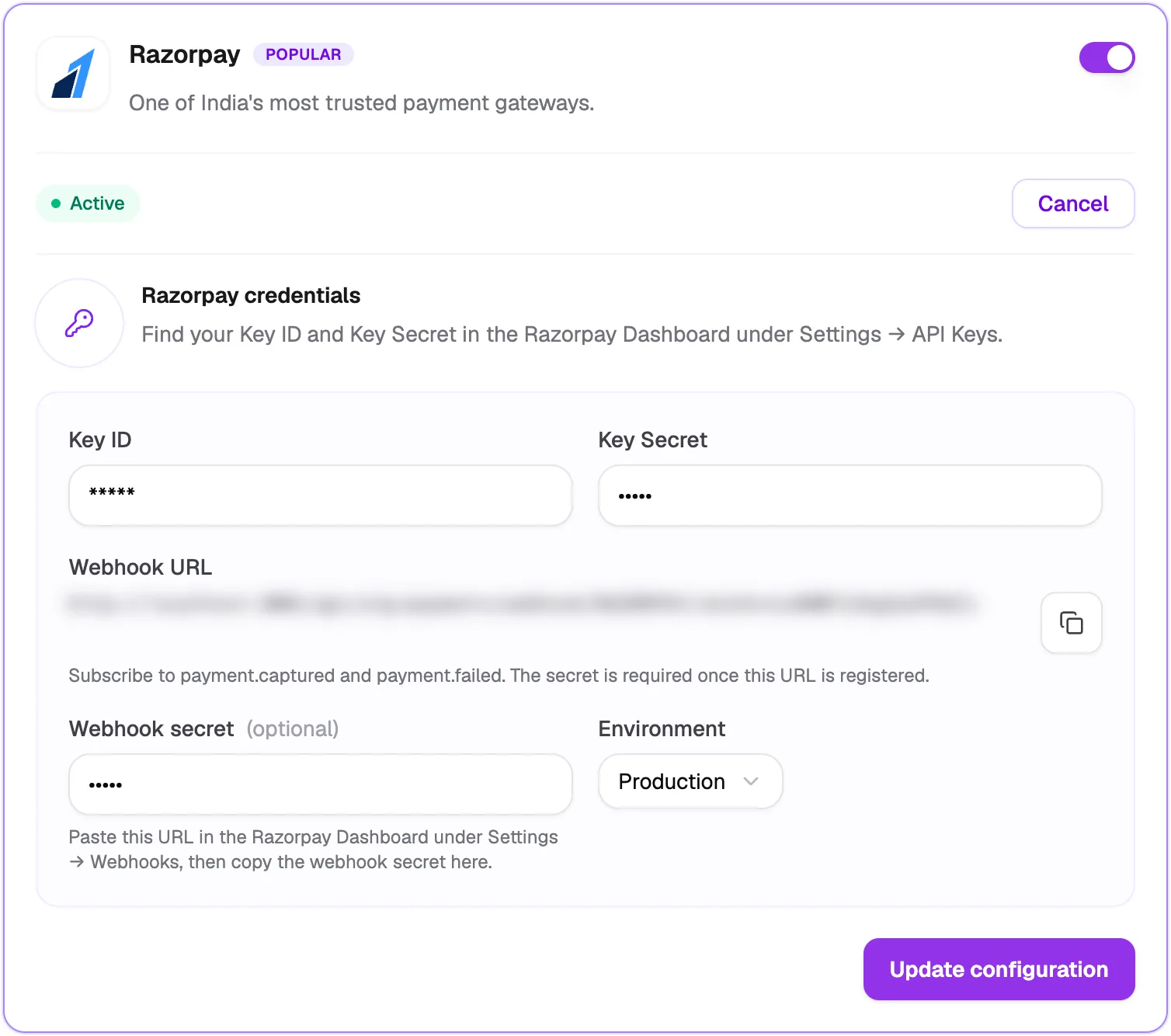
- Key IDFrom your Razorpay dashboard
- Key SecretStored encrypted, shown as *****
- Webhook URLYour library's own address; copy it
- On/off switchPause or resume the gateway
- Save configurationReads "Update configuration" once connected
Get payment updates by webhook (recommended)
Payments are confirmed when the member returns to your site after paying. A webhook also tells Librarify about payments where the member closed the page too early.
- On the Razorpay card, click Manage and click the copy button next to Webhook URL.
- In the Razorpay Dashboard under Settings → Webhooks, add a webhook with that URL and subscribe to
payment.capturedandpayment.failed. - Razorpay shows a webhook secret when you add the URL. Copy it into Webhook secret; it is required once the URL is registered.
- Click Update configuration.
Change keys or pause the gateway
- Saved keys show as *****. Leave them as they are to keep them. To replace them, type both the new Key ID and Key Secret. To change the Environment, enter both keys again too.
- To stop taking payments through Razorpay for a while, turn off the switch on its card. It saves on its own, so you don't need to click anything else. The badge shows Configured, off, and members won't see Razorpay until you turn it back on.
What members see
At checkout, members choose Razorpay under Payment Method and pay by UPI, card, netbanking or wallet. When the payment succeeds, the receipt is marked paid, and the seat or locker is assigned if auto-assign is on.