Appearance
How to create and manage coupons
Coupons are discount codes, such as WELCOME10 for 10% off. Members enter them when they pay online, and you can apply them when you create a receipt.
Who can do thisOwner, Org admin by default, or any staff role given Coupons → Manage in Settings → Staff role permissions.
See your coupons
In the left menu, click Coupons. The list shows each code with its discount, how often it's been used, its status and its expiry date. Search by code or name, or filter by Status and Type.
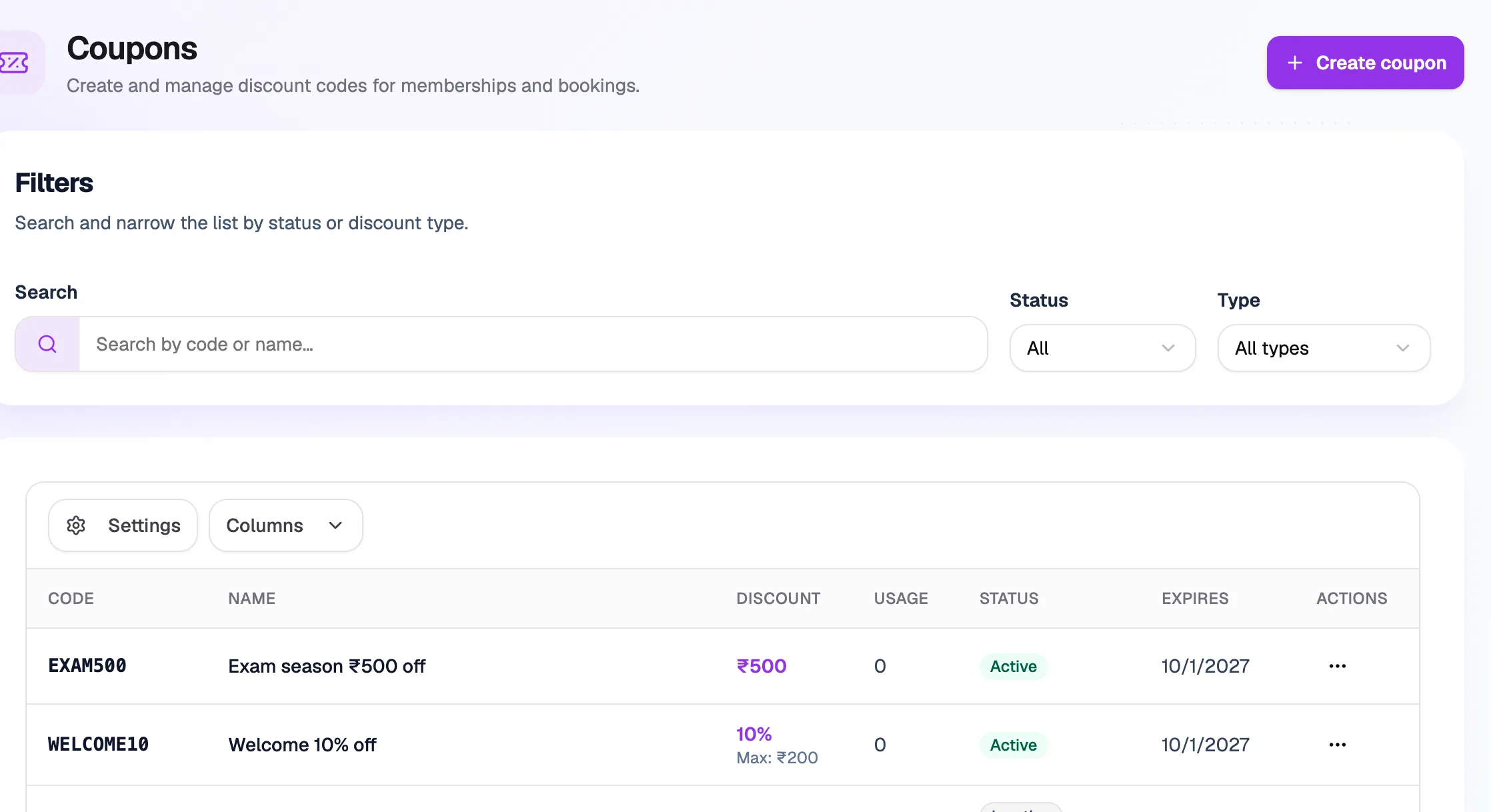
- Create couponAdd a new code
- SearchFind by code or name
- Discount10% off, capped at ₹200
- ⋮ menuEdit, pause or delete
Create a coupon
- Click Create coupon.
- Under Basic information, enter the Coupon code (uppercase letters and numbers only, such as
WELCOME10) and a Coupon name. Add a Description if you like. - Under Discount, choose the Type: Percentage (%) or a fixed amount in ₹. Enter the Value. For a percentage, you can set a Max discount (₹) as a cap.
- Under Usage limits, all optional:
- Usage limit: how many times the code can be used in total. Leave it empty for unlimited.
- Expiration date: the last day it works. Leave it empty for no expiry.
- Minimum slots / Maximum slots: only allow the code for bookings with at least or at most this many slots.
- Under Audience, turn on Restrict to specific users to let only chosen members use it.
- Click Create coupon.
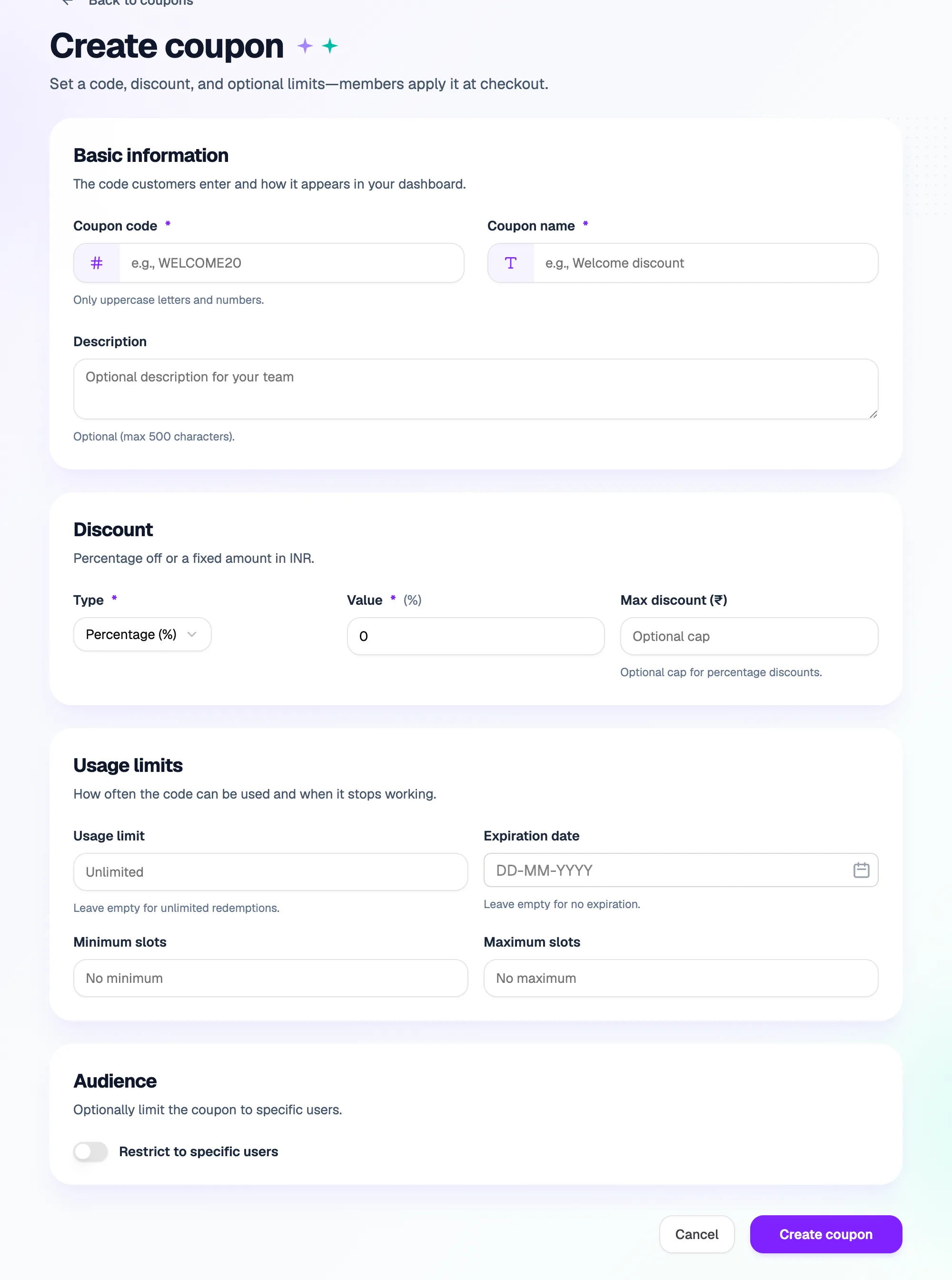
- Coupon codeUppercase letters and numbers
- TypePercentage or fixed ₹
- Max discount (₹)Cap for percentage coupons
- Usage limitEmpty = unlimited
- Restrict to specific usersOnly chosen members
Example: WELCOME10, Percentage, 10, Max discount ₹200 gives 10% off, but never more than ₹200.
Edit, pause or delete a coupon
Open the coupon's ⋮ menu:
- View details shows the coupon and how it's been used.
- Edit changes its settings.
- Deactivate stops the code working straight away. Click Activate to turn it back on.
- Delete removes it after you confirm. This can't be undone. It only works for coupons nobody has used yet; for a used coupon you'll see "Cannot delete coupon that has been used", so deactivate it instead.
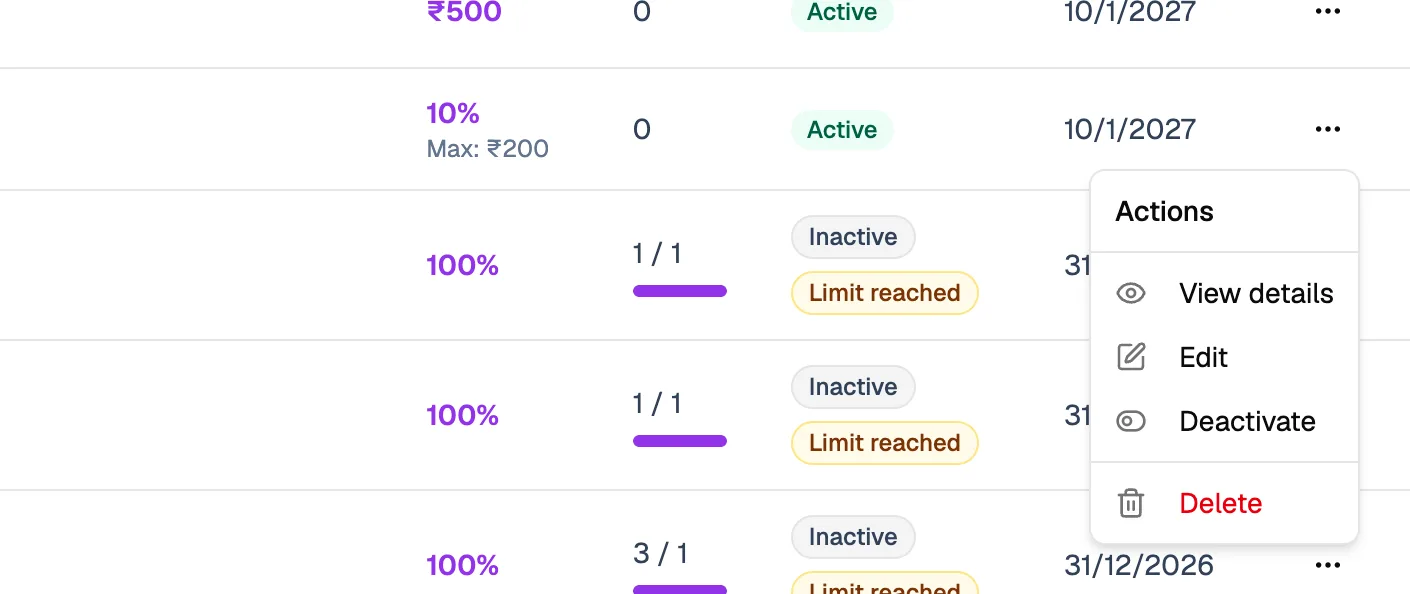
- EditChange the coupon
- DeactivatePause it; Activate to resume
- DeleteRemove for good
A coupon also stops working by itself when it reaches its Usage limit. The list shows Limit reached.
Use a coupon
- Members enter it in Have a coupon code? when they pay online.
- You can type it in Coupon Code and click Apply when you create a receipt.