Appearance
How to download reports
Reports turn your receipts into a table you can open in Excel or Google Sheets, for your accountant or for following up on dues.
Who can do thisOwner, Org admin by default, or any staff role given Reports → View in Settings → Staff role permissions.
Steps
- In the left menu, click Reports.
- Set the From and To dates.
- Choose a report:
- Revenue Summary: revenue, collected amount, due amount and booking count for each day.
- Bookings Register: one row per booking, for accounting and audits.
- Payments Due: outstanding dues with member and receipt details, for follow-up.
- Click Generate Report. Totals and a preview appear below.
- Click Download CSV to save the full report.
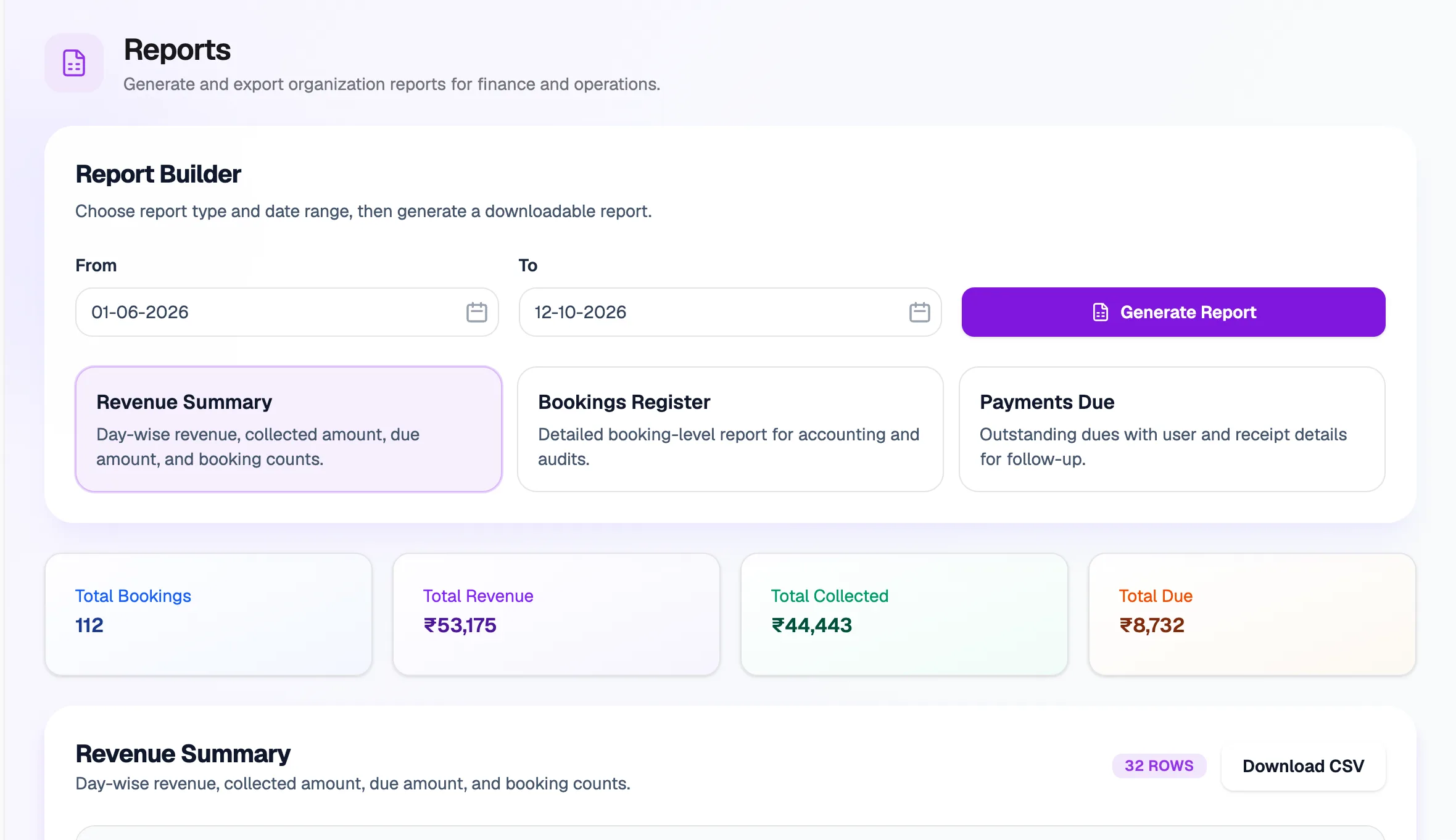
- Revenue SummaryDay by day
- Bookings RegisterOne row per booking
- Payments DueWho still owes
- Generate ReportShows totals and a preview
- Download CSVOpens in Excel or Sheets
The preview shows the first 200 rows. The CSV always has every row.