Appearance
How to reserve a seat
Pick a date and a time slot, then pay. Your library places you on a seat.
Steps
- Open My Seats and tap Reserve Seat.
- Keep Time slots selected, or tap Hourly to book by the hour (if your library offers it).
- Choose the Start date.
- Choose the Seat type, for example General or Gold. Prices can differ by type.
- Tap one or more Time slots, such as Morning or Evening. The Total price updates as you choose.
- Optional: tick Add locker rental to rent a locker for the same dates. The rent and any security deposit are shown under it.
- Tap Reserve now. You go to checkout to pay. Nothing is booked until you do.
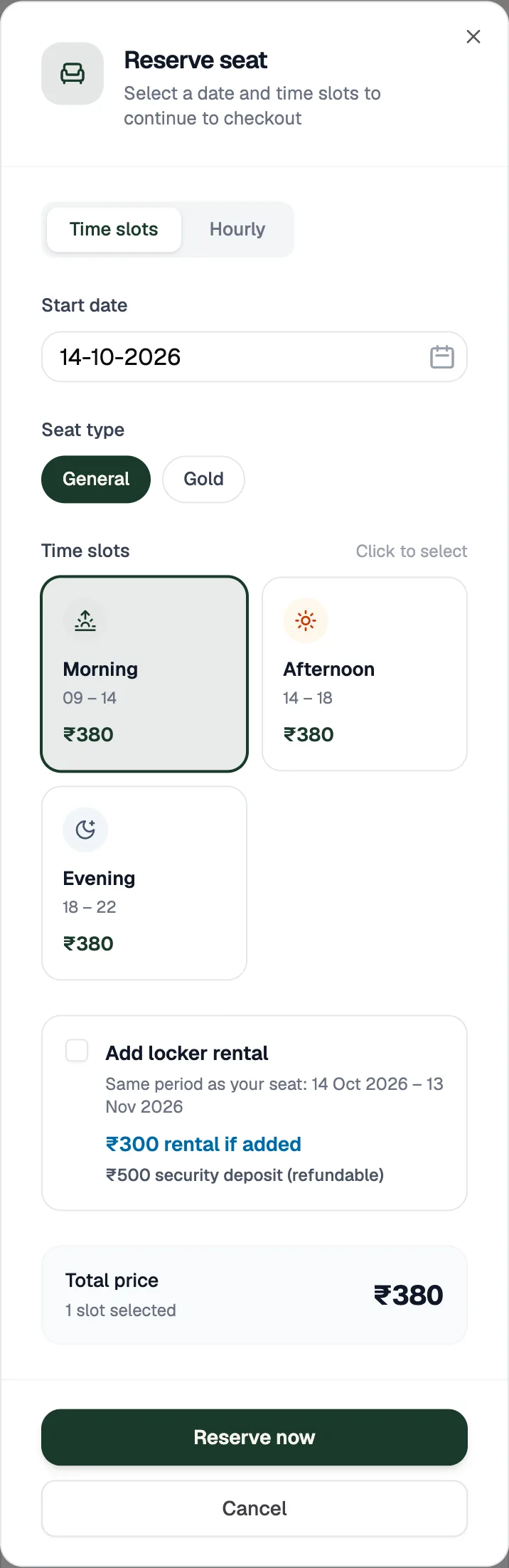
- Seat typePrices can differ by type
- Time slotsTap one or more
- Reserve nowGoes to checkout
What happens next
Pay at checkout: see How to pay. After you pay, your seat shows on My Seats. If you chose to pay at the desk or by UPI QR, it shows once your library confirms the payment.