Appearance
How to update your profile
Your profile holds your details for your library, including your student ID.
See your profile
Open Profile, or tap your name at the top right and then Profile. You see your name, email, when you joined, and under Profile Information your Student UID and other details.
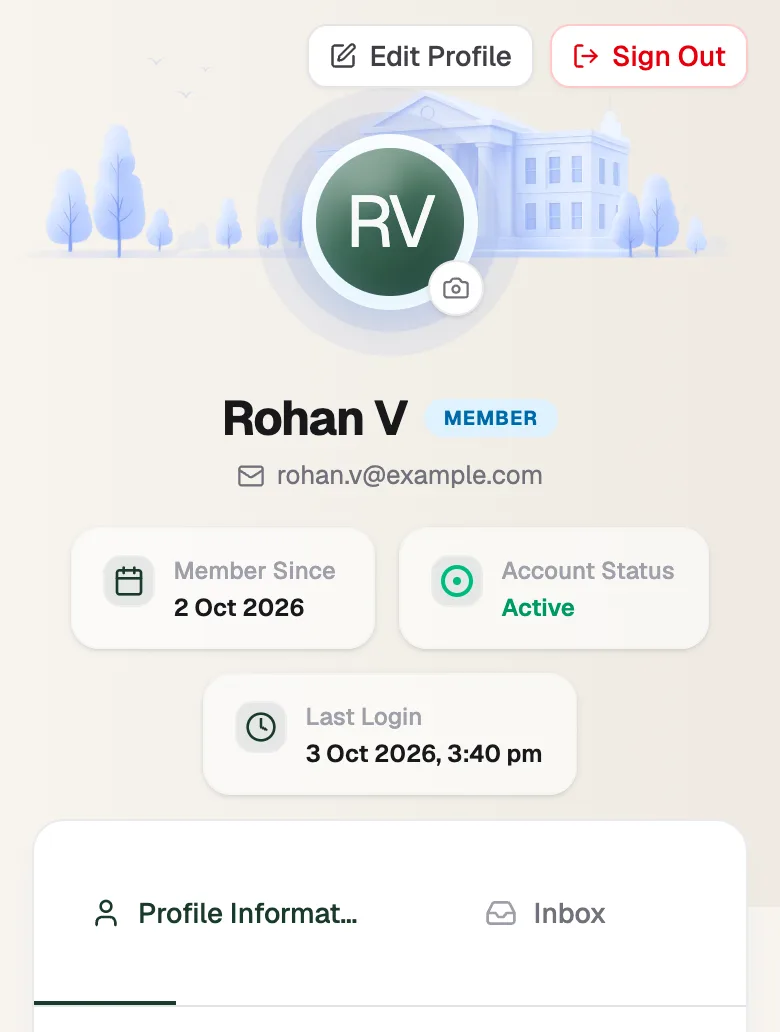
- Edit ProfileChange your details
- Profile InformationYour details and student ID
- InboxMessages from your library
Edit your details
- Tap Edit Profile, or open Edit Profile.
- Update your Full Name, Phone Number (Alt), Occupation, Date of Birth, Gender or Address.
- Under Profile Photo, tap Choose photo to add a JPG or PNG. You can crop it before it uploads.
- Tap Save changes.
Your email address can't be changed here. Ask your library if it needs to change.
Add your ID documents
If your library asks for ID, add it under Documents:
- Document (PDF or image): any supporting document.
- Photo ID: a clear photo or PDF of your ID.
Tap Choose file for each one, then Save changes.
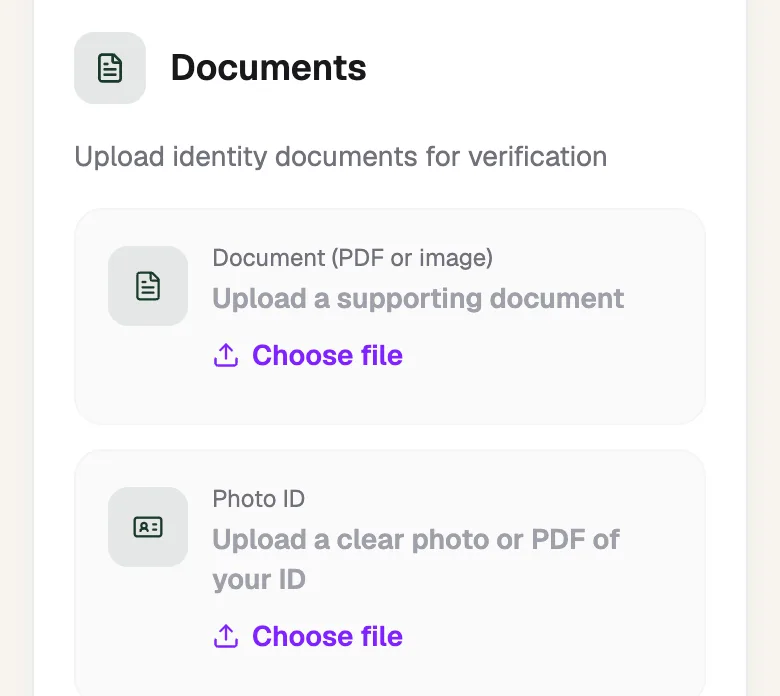
- DocumentAny supporting file
- Photo IDA clear photo or PDF