Appearance
How to pay
After you tap Reserve now, Continue to Checkout or Proceed to payment, you land on Payment Checkout. Nothing is charged until you confirm.
Steps
- Check the Order Summary: what you're paying for and the Total Payable.
- Have a coupon? Enter it under Have a coupon code? and tap Apply. The discount comes off the total.
- Under Payment Method, choose one of the ways your library accepts:
- Razorpay or Cashfree Payments: pay now by UPI, card, netbanking or wallet.
- Dynamic QR: pay by scanning a UPI QR. See Pay by UPI QR.
- Cash at Desk: pay when you arrive at the library.
- Tap the button at the bottom. Its label follows your choice: Pay ₹380, Continue to UPI QR (₹380) or Reserve Now (Pay ₹380 at Desk).
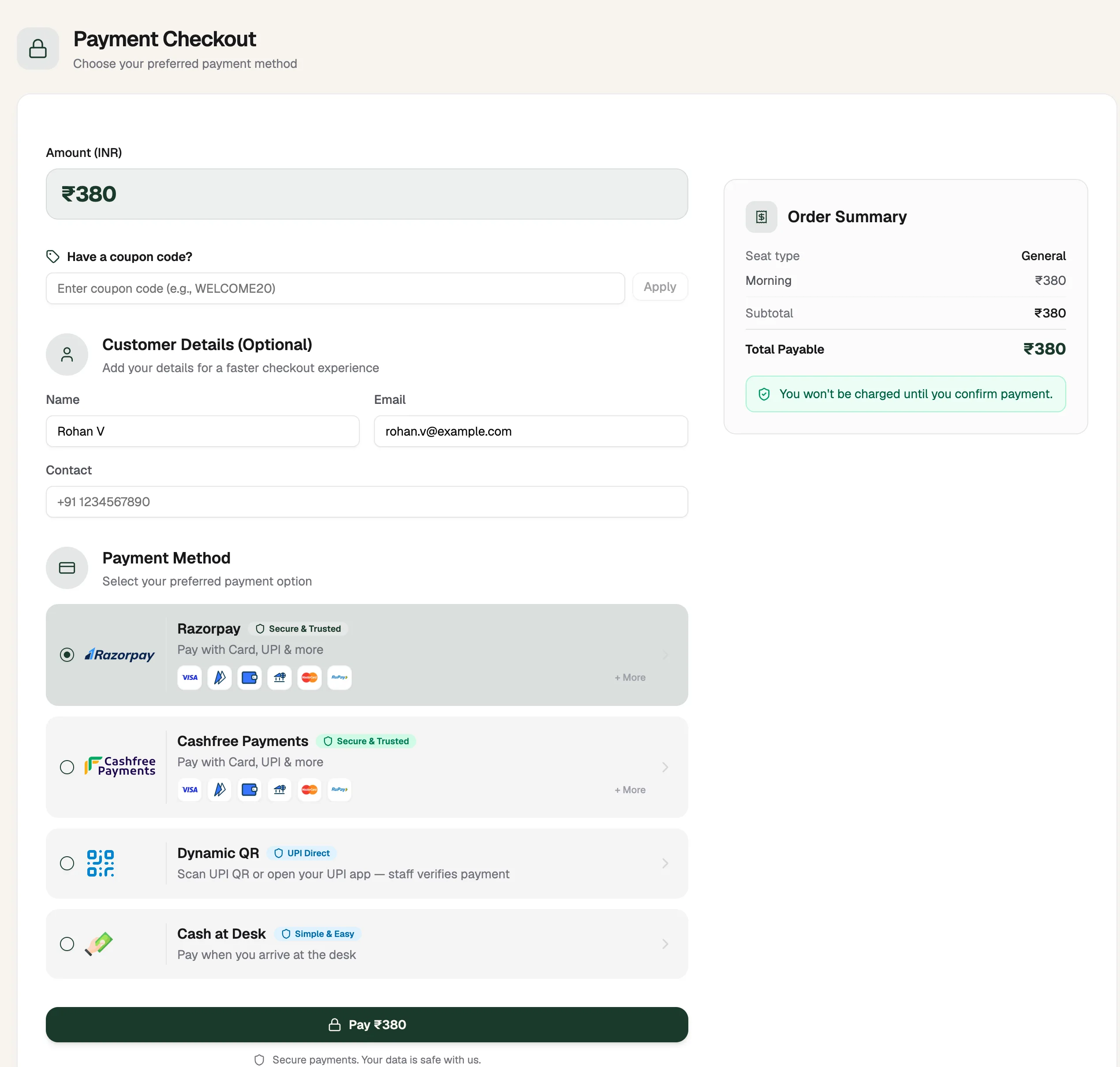
- Have a coupon code?Discount before you pay
- Dynamic QRPay with any UPI app
- PayLabel follows your choice
What happens next
- Paid online: your booking is confirmed and a receipt is created. You see it in Payments and receipts.
- Dynamic QR: you see a QR to pay. Your booking is confirmed once your library checks the payment.
- Cash at Desk: your booking is created with payment pending. Pay at the front desk on your next visit, and your library confirms it.
- A coupon covers the whole amount: nothing to pay. Tap Reserve now and your booking is confirmed straight away.