
Appearance
How to add, edit and remove members
Members are the students and readers who book seats in your library. Staff (moderators and admins) are added the same way, with a different role.
Who can do thisOwner, Org admin by default, or any staff role given Users → Create / edit / roles in Settings → Staff role permissions.
Find your members
In the left menu, click Users. Library Users shows totals at the top and every member in a list. Search by name, email or phone, or filter by Role, Status or Assignment.
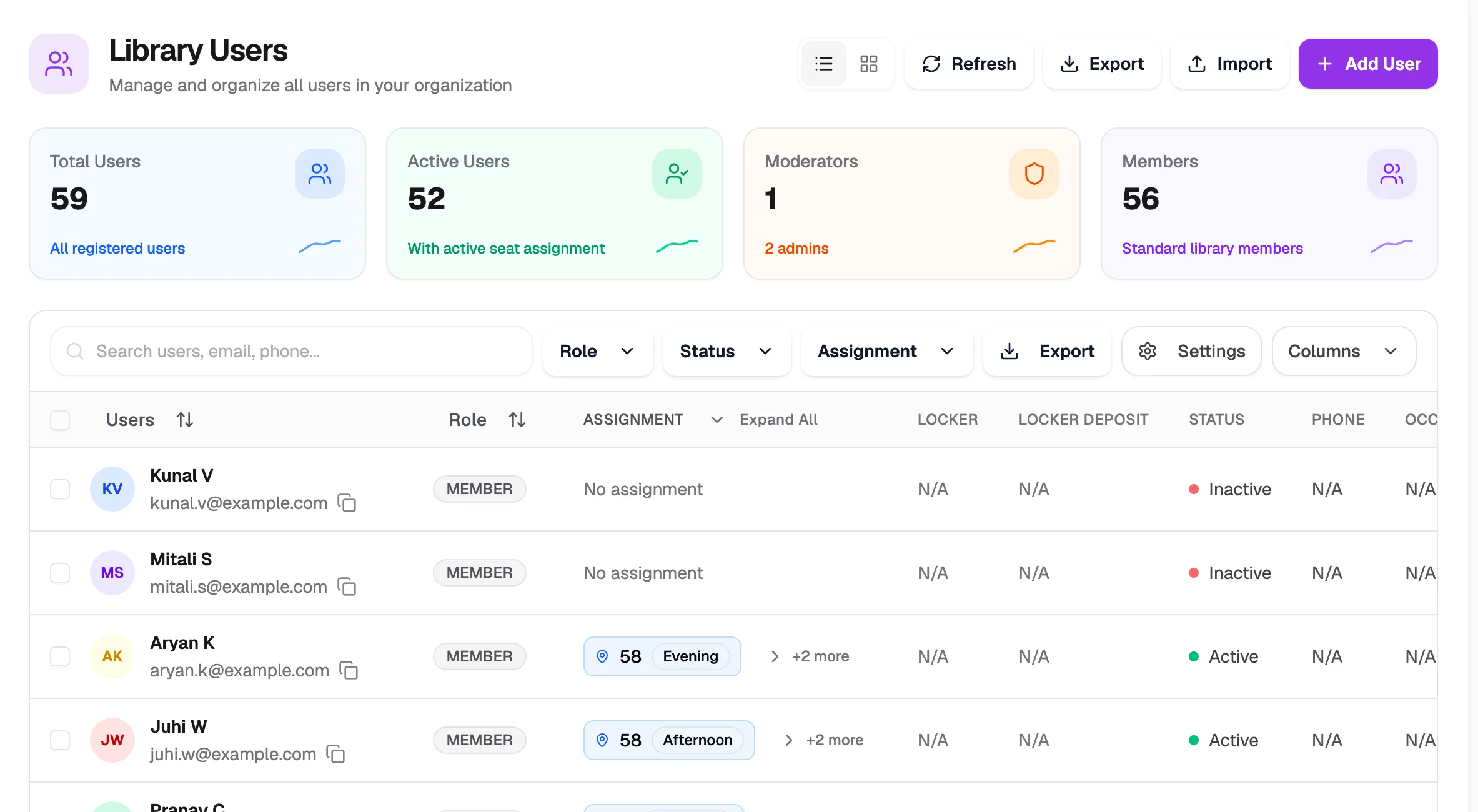
- Add UserAdd one member
- ImportAdd many members from a file
- SearchFind by name, email or phone
Add a member
- On Library Users, click Add User.
- Under Basic Information, enter the Email Address and Full Name. Phone Number, date of birth and Address are optional.
- Under Professional Details:
- Occupation is optional, for example "UPSC aspirant".
- Student/Employee ID: leave it empty and Librarify creates one from your UID pattern, or type your own.
- Choose a Role: Member (standard access), Moderator (manages content and users) or Admin (full access). To choose what each staff role can do, see Roles and permissions.
- Optional: under Documents & Photos, upload a profile picture, a document and a photo ID.
- Check Review & Confirm, then click Create User.
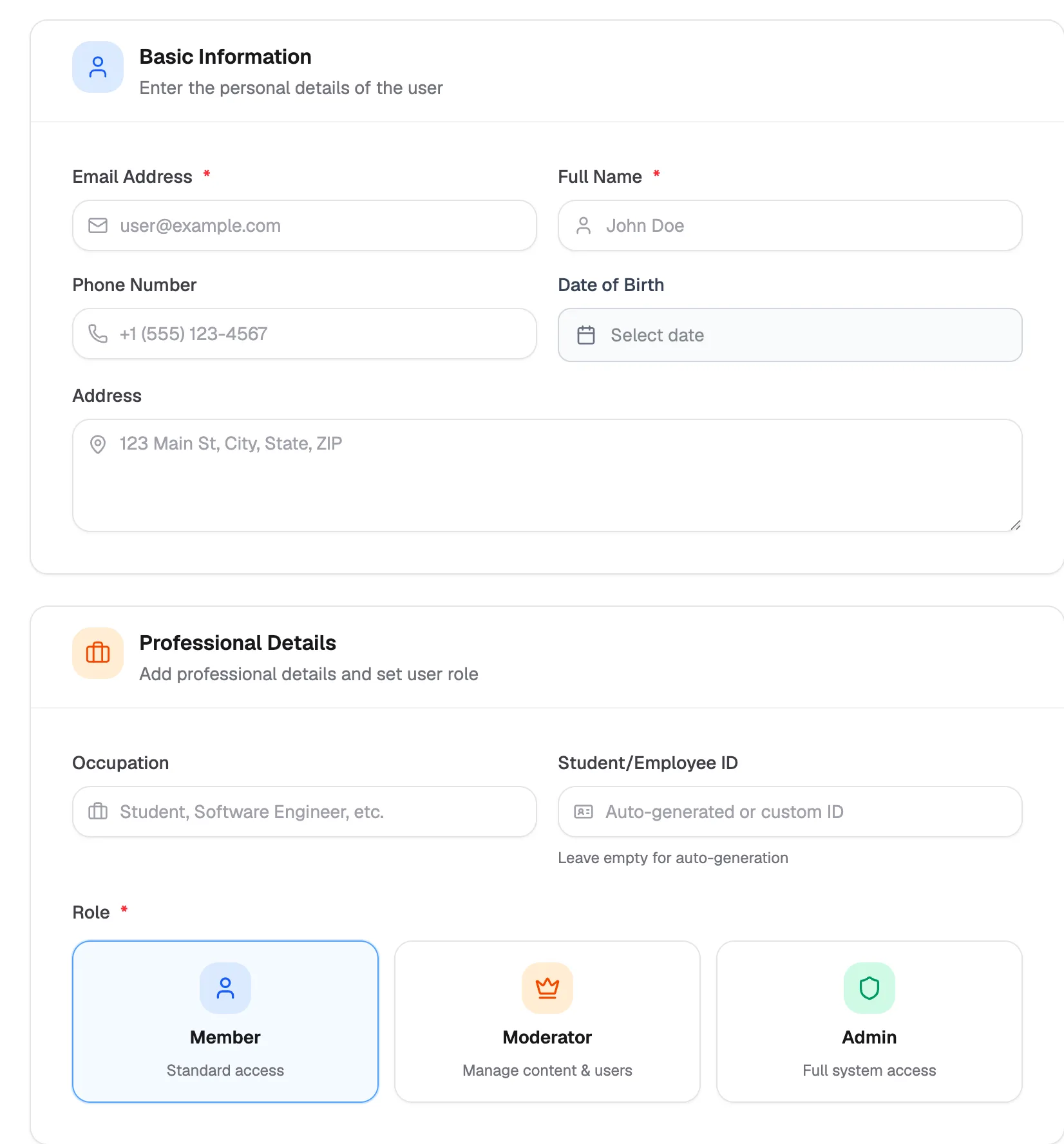
- Email AddressRequired, used to sign in
- Full NameRequired
- Student/Employee IDLeave empty to generate
- RoleMember, Moderator or Admin
You see "User added successfully". Librarify emails the new member a link to set their password. They then sign in on your library's sign-in page (see How to log in).
Move your paper register to Librarify
If your members are in a register or a spreadsheet, you don't need to add them one by one.
- Type or copy your register into Google Sheets or Excel, one member per row.
- On Library Users, click Import and download the template.
- Fill in Email and Full Name for every member. Phone, address, date of birth, gender, occupation and member ID are optional. Common column names such as "Mobile", "DOB" or "Member ID" are recognised.
- Save the sheet as CSV (in Excel: CSV UTF-8) and upload it.
- Check the preview. Each row shows Ready, Exists (already a member), Duplicate or Error, so nothing is added until the file is right. Then import.
Imported members aren't sent an email. To sign in the first time, they open your library's sign-in page, tap Forgot password? and enter the email from your register to set a password.
The rest of the register moves too:
| In your register | In Librarify |
|---|---|
| Seat number and shift | Each seat's slots on Seats, booked to a member (assign a slot) |
| Fees paid, due date | A receipt for every payment, and the seat's end date on Assignments (receipts) |
| Who still owes | The Payments Due report (reports) |
| Photocopies of ID | Photo ID and documents saved on the member, uploaded by you or by the member |
| Monthly income and expenses | Reports: fee income next to the expenses you add, such as rent or electricity (reports) |
View or edit a member
- On Library Users, click the ⋮ menu at the end of the member's row.
- Click View user to see their profile and bookings, or Edit user to change their details.
- On the edit page, make your changes and click Save Changes.
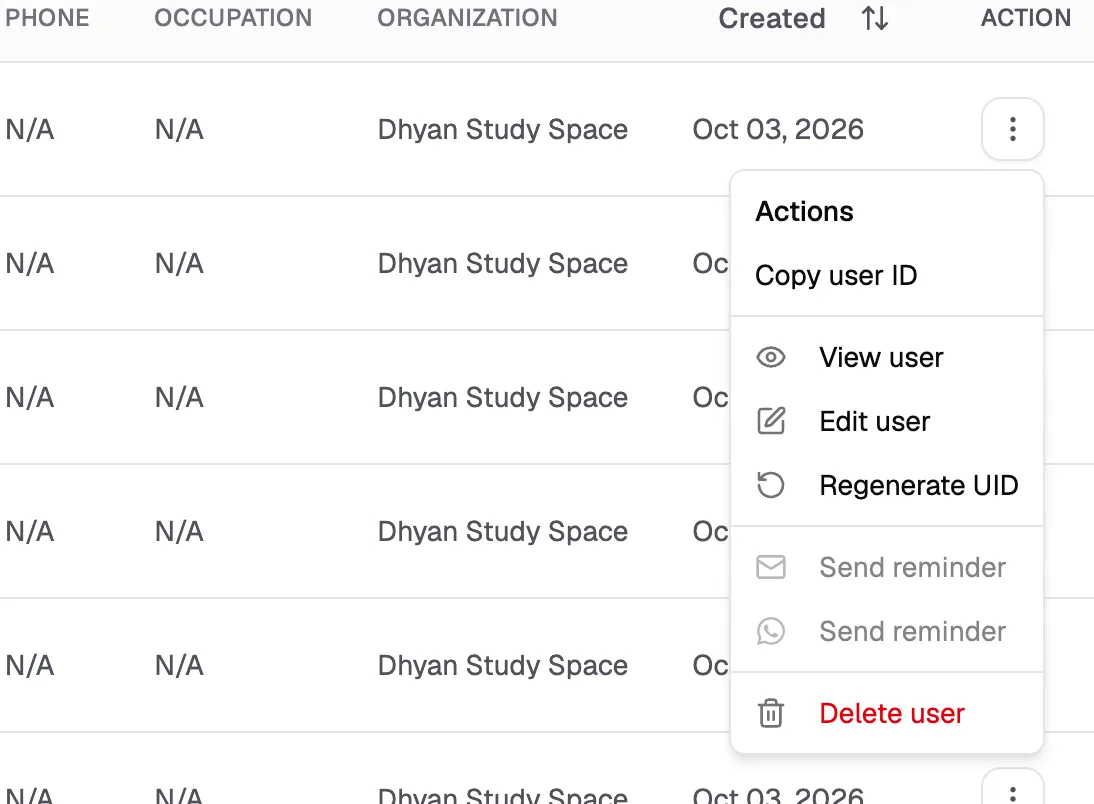
- View userProfile and bookings
- Edit userChange details or role
- Regenerate UIDGive them a new ID
- Delete userRemove from your library
Remove a member
- Open the member's ⋮ menu and click Delete user.
- Read the message, then click Delete, or Cancel to keep them.
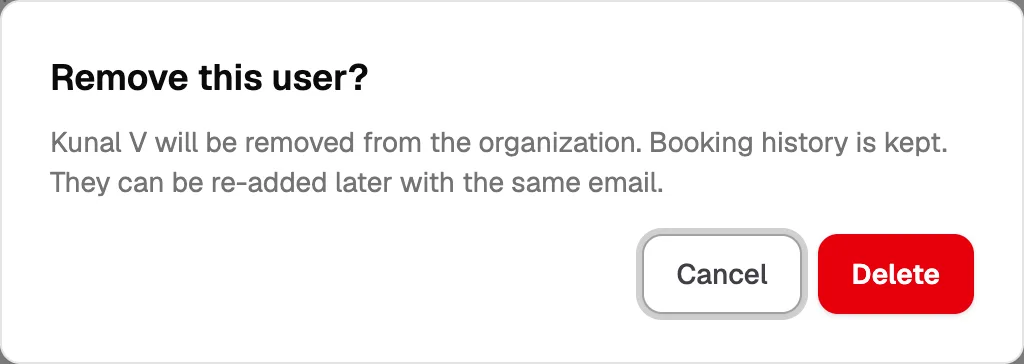
- CancelKeep the member
- DeleteRemove them from your library
What removing does:
- The member is removed from your library, but their booking history is kept.
- Any active seat bookings they have are deactivated.
- You can add them back later with the same email.