
Appearance
How to sign up on your library's site
Create an account once. You then use it to reserve seats, pay and see your receipts.
Before you start
If your library has already added you, you don't need to sign up. Check your email for a link to set your password, then log in.
Steps
- Open your library's site and tap Sign Up. On a phone, tap Reserve a seat and then Sign up at the bottom of the sign-in page. You can also open Sign up directly.
- Enter your Full Name and Email Address.
- Choose a Password and type it again in Confirm Password. It needs at least 8 characters, with an uppercase letter, a lowercase letter, a number and a special character.
- Tap Create Account.
To use your Google account instead, tap Sign up with Google.
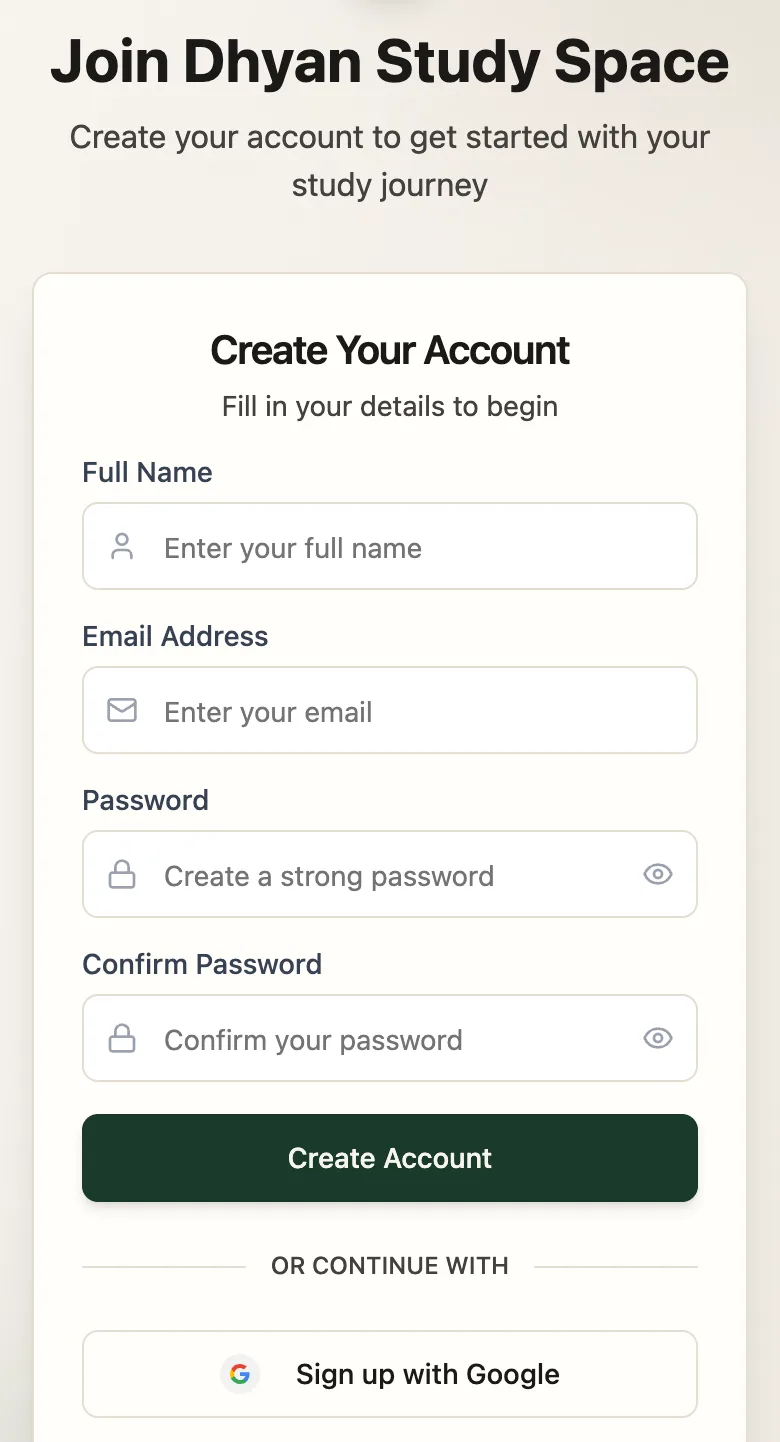
- Full NameAs your library knows you
- Password8+ characters, mixed
- Create AccountSigns you in straight away
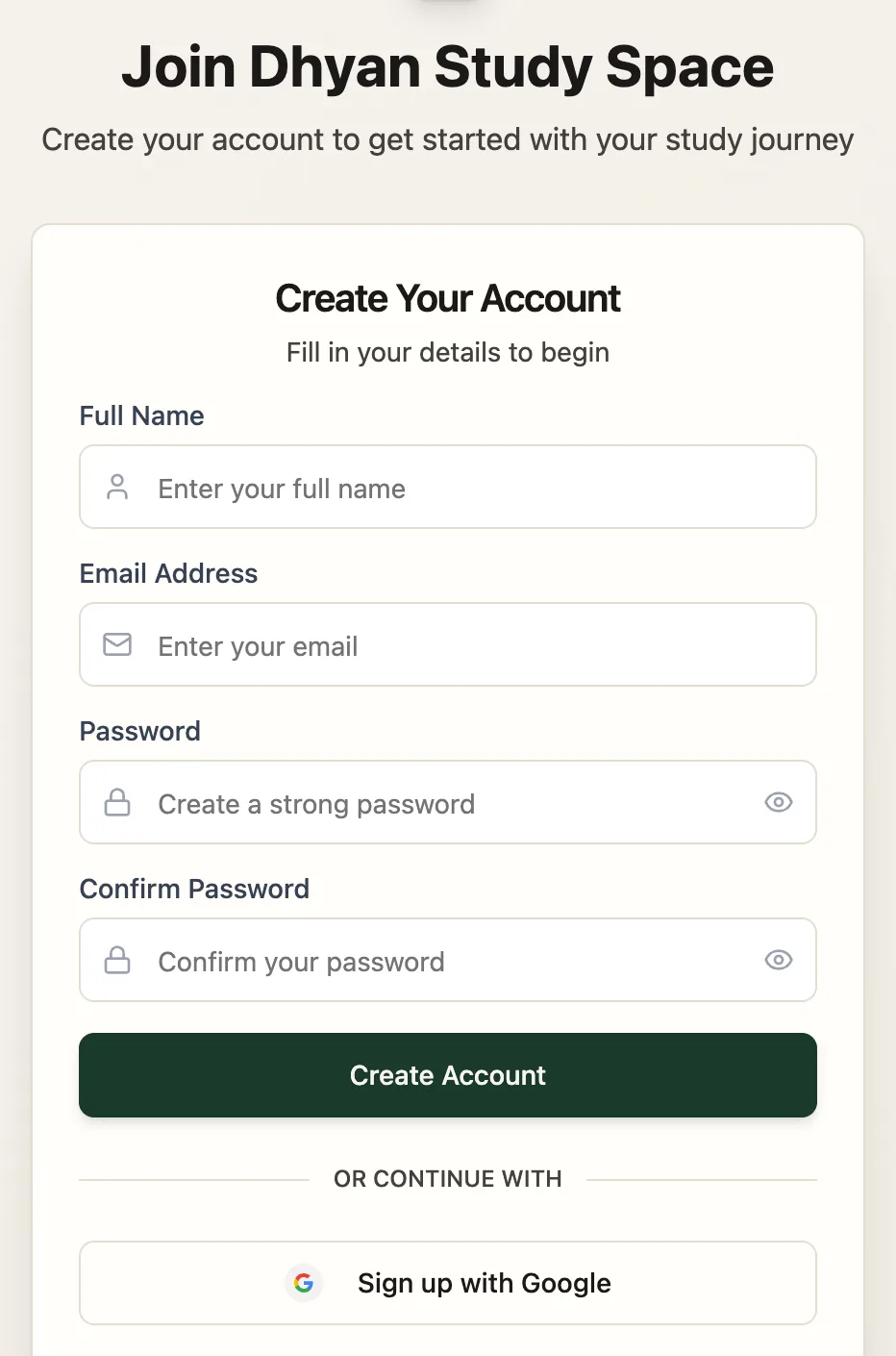
- Full NameAs your library knows you
- Password8+ characters, mixed
- Create AccountSigns you in straight away
Fill in your admission form online
Signing up is your admission. There's no paper form to fill in at the desk and no photocopies to hand over:
- You get your Student UID (your library ID number) as soon as your account is created. It's on your profile.
- Add the details a paper form asks for on Edit Profile: phone number, date of birth, gender, address and occupation (for example "UPSC aspirant"), plus a profile photo.
- If your library asks for ID, upload your Photo ID and any other document under Documents. A clear phone photo or a PDF is fine.
Your library sees these details straight away. You can update them any time, for example when you change your phone number.
What happens next
You're signed in and back on your library's site. Complete your profile, then reserve a seat and pay online.